ZenduTracker TLD2-D
Written By Shubham Mishra
📄 Download PDF Version: Attached Below 🢃
ZenduTracker TLD2-D Installation_.pdf
161.2 KB• Document
Installation Video:
ZenduTracker TLD2-D Installation:
This device is designed for fleet management and vehicle tracking across cars, vans, and trucks. It provides:
Vehicle tracking through GPS.
CAN bus data for detailed vehicle status.
Driving behavior data for driver training.
Compatibility with BLE sensors.
Additional accessories which can be used.
J1939 cable converter (for trucks without OBDII port).
OBDII extension cable.
Y-cable (to hide the tracker behind the OBDII port).
Step 1: Insert SIM & Power the Device
Insert a valid SIM card into the device.
Connect the device to power:
Plug it directly into the OBDII port of your vehicle, or
Use the OBDII power cable if preferred.
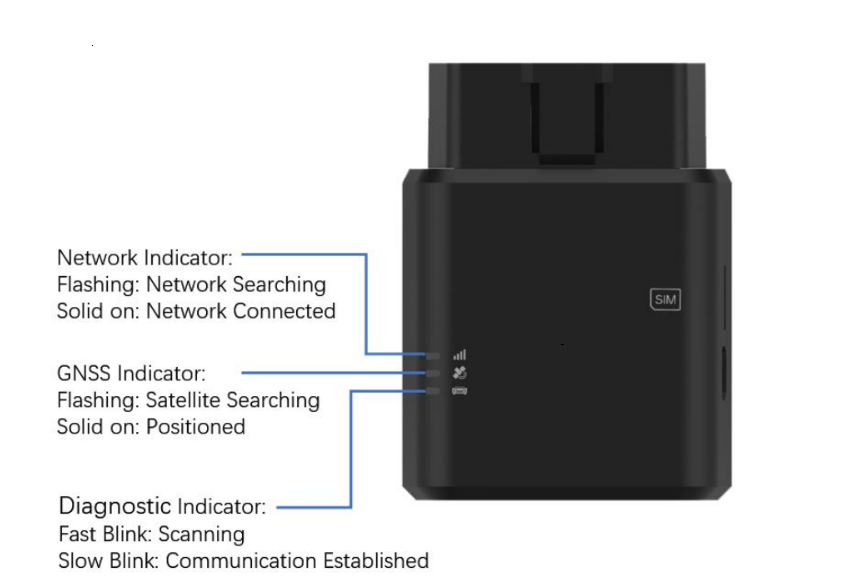
Step 2: Check LED Indicators
Once powered on, you’ll see LED indicators:
Satellite Signal LED
Network Signal LED
CAN Bus Signal LED
Flashing Light = Searching for signal.
Solid Light = Signal acquired.
Step 3: Configure the Device
Connect the device to your computer using a micro USB cable.
Open the configuration program on your computer.
Set the following parameters:
APN (Access Point Name)
IP Address
Port
Save the settings to enable communication with your fleet platform.
Step 4: Install in Vehicle
Once configured, plug the device into the vehicle’s OBDII port (or via extension/Y-cable if preferred).
The device will automatically come online and begin transmitting data to the platform.
Notes & Best Practices
Use the J1939 converter cable if installing on trucks without an OBDII port.
If concealment is required, install with the Y-cable behind the OBDII port.
Ensure all cables are securely connected and not interfering with driver controls.