ZenTRACK Solar
Written By Support Team
📄 Download PDF Version: Attached Below 🢃
TL-P2-SFB-User-Manual.pdf
7.9 MB• Document
Installation Video
The ZenTRACK Solar Asset Tracker is a powerful and versatile solution for tracking valuable assets in real-time. Designed with cutting-edge GPS technology and robust features, this device ensures continuous asset monitoring in various conditions. Whether you're managing a fleet, securing high-value equipment, or tracking mobile resources, the ZenTRACK Solar (TLP2-SFB) offers reliable performance and ease of use.
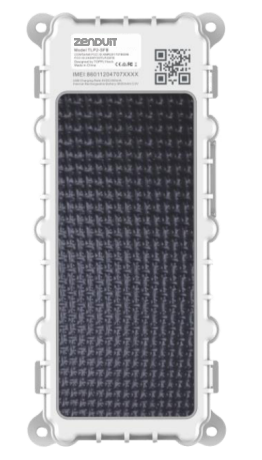
Installation
Contents:
SIM card pre-installation note
SIM card installation and tracker power switch
Fix screws
Installation
1. SIM card installation and tracker power switch
Open the tracker SIM card slot cover with the screwdriver.
Insert SIM card following the correct orientation printed on the device.
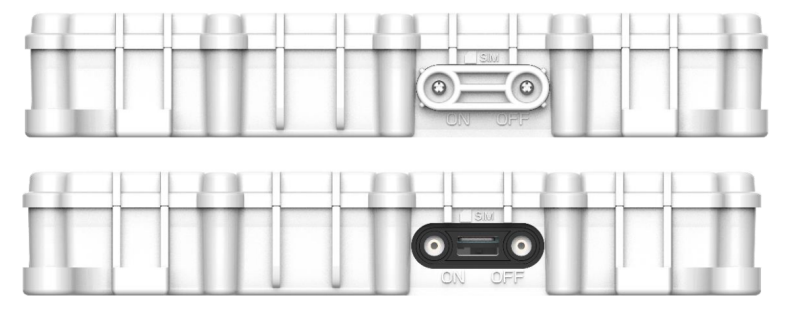
Put the cover back and use a screwdriver to fix the cover: Please note that the structures on the sides of the cover are different. Therefore, refer to the photos below to ensure the area highlighted in red at the bottom of the device is fully covered. Once confirmed, please tighten the screws.
Important
SIM card data service should be enabled.
If SIM card is locked via PIN, please unlock it first.
Ensure there is sufficient data in the SIM card.
2. Fix Screws
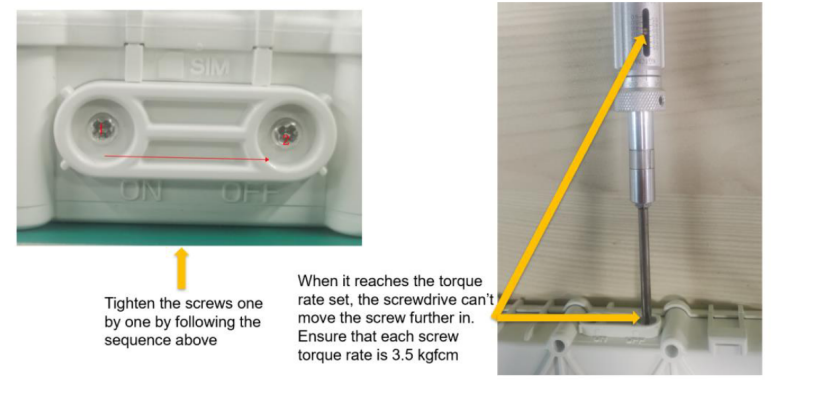
It is VERY IMPORTANT to fix the 2 SIM card cover screws to prevent water from leaking inside and cause damage to device.
3. Screwing
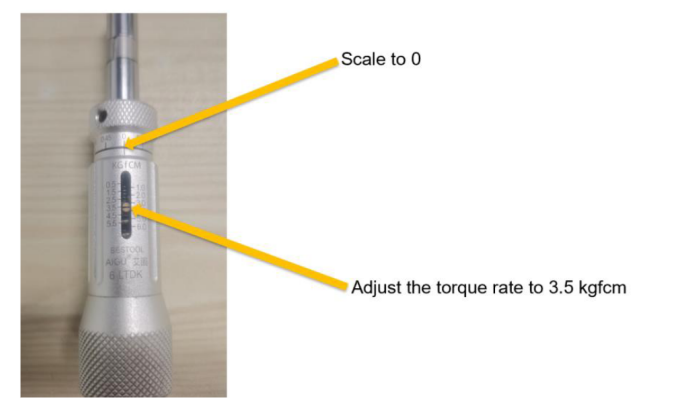
It is recommended to use TA51 screwdriver (as an optional accessory to help customer standardize the screw fixing strength). Screw fixing guide below.
Please fix the 2 screws one by one following the sequence below 1-2, using the recommended screwdriver (TA51).
Final check, please ensure the cover/lid is fully covered and screws tightened.
Powering on (new revision)
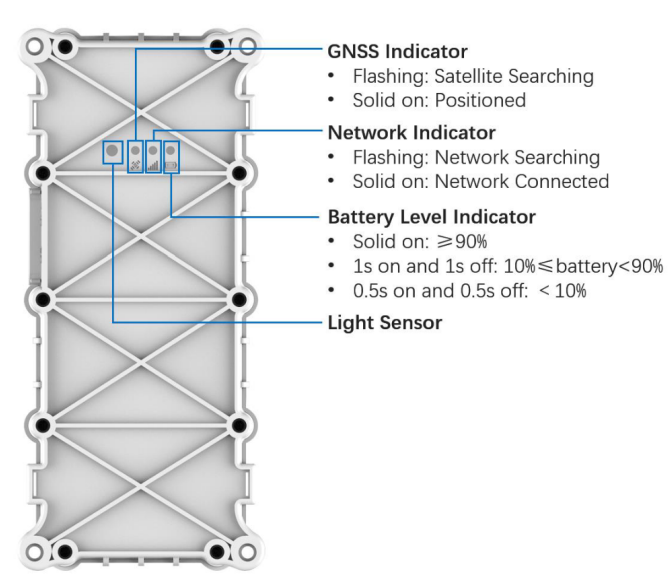
Hold the power button on the back of the device for 5 seconds. The LED lights on the device will sequentially light up from right to left until all three LED lights are lit, indicating that the device has powered on successfully. Refer to the image below for the location of the power button. If there is a laser-engraved circle in the upper right corner of the device, the power button is the laser-engraved circle. Conversely, if there is no laser-engraved circle on the device, the power
Button is the raised button.
Please install away from emission source such as all kinds of sensors, burglar alarm and other communication devices. To avoid any issue.
Still need help? Ask the team