Holidays
Holidays tell ZenduWaste how a holiday changes the week's collection, so routes aren't marked as missed on days with no service.
Written By Vishal Singh
Holidays tell ZenduWaste how a holiday changes the week's collection, so routes aren't marked as missed on days with no service.
What a holiday can do
Each holiday applies to residential routes, commercial routes or both. For example, residential service can slide a day while commercial service skips the day.
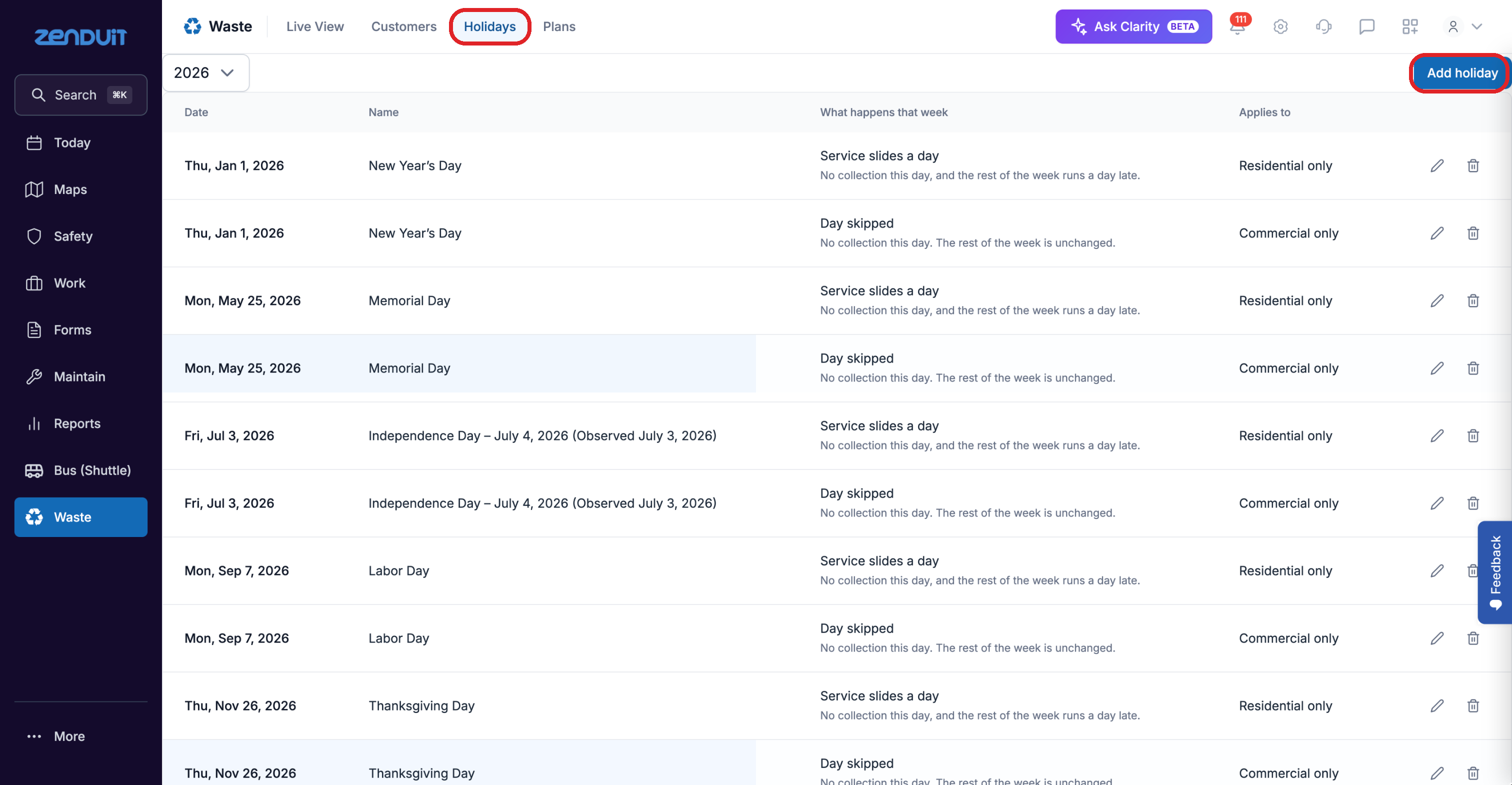
Waste > Holidays.
Add a holiday
Click Waste > Holidays and choose the year.
Click Add holiday.
Enter the date and name, choose what happens that week, and choose which routes it applies to.
Save.
To change or delete a holiday, use the pencil or bin icon on its row.
Was this helpful?
Still need help? Ask the team