ZenduONE - Creating An App for a Single Account
Build your own app with an AI app builder such as Base44, add it to ZenduONE, and choose who can open it.
Written By Zenduit Product Team
You can build your own app with an AI app builder such as Base44 or Replit and add it to your ZenduONE account. The app opens inside ZenduONE and reads your fleet data, limited to what the signed-in user is allowed to see. It cannot change anything in ZenduONE.
Before you start: you need a company admin login. These steps use the ZenduONE screens with the App Center (the grid icon at the top right).
Step 1: Build the app
Open your AI app builder, paste the prompt below, and replace the last paragraph with what your app should do: who uses it, what it shows, filters, and anything it should save.
Build a web app (an "add-in") that runs inside the ZenduONE fleet platform.

Sign-in
- The app is shown in an iframe inside ZenduONE. On load the parent window posts { "type": "TRAX_ADDIN_TOKEN", "tokenId": "<token>" }. Accept it only when event.source is window.parent and the type matches.
- For local testing only, also accept ?token=<token> from the page URL.
- If no token arrives within 10 seconds, show "Open this app from ZenduONE".
- Validate it: POST https://trax-addin-api-dev-service.zenduit.com/Addin/ValidateToken with headers Authorization: Bearer <token> and Content-Type: application/json, body {}. Success returns { "valid": true, "token": { "TokenId", "CompanyId", "Username", "Email", "ViewingGroups", "IsMetric" } }. Otherwise show "Authentication failed".
- Send Authorization: Bearer <token> on every call. Tokens last 15 minutes. On a 401, post { "type": "REQUEST_TOKEN_REFRESH" } to window.parent and wait up to 10 seconds for a new TRAX_ADDIN_TOKEN; if none comes, show "Session expired, reopen the app".
- Never log, store or put the token in links. Use IsMetric to choose km or miles.

Data (read-only GET calls to https://trax-addin-api-dev-service.zenduit.com)
- /v2/Device/GetAll: vehicles and trackers. Filters: type, status, serial, telematicSerial, userId, groupId. Fields include Id, Name, Serial, Type, Status, GroupsIds, VIN, LicensePlate, Model, Odometer, EngineHours, Latitude, Longitude, Speed, Heading, UpdateDate.
- /v2/User/GetAll: users and drivers. Filters: userType (for example Driver), username, email, employeeId, driverIdentification.
- /v2/Group/GetAll: groups with Id, Name, ChildrenIds. Filters: name, childId.
- /v2/Rule/GetAll: alert and safety rules. Filters: name, active, type, ruleType, triggerType, groupId, deviceId, driverId.
- /v2/Device/Get, /v2/User/Get, /v2/Group/Get, /v2/Rule/Get with ?id=<id> return one record.
- Lists return { Items, NextCursor, HasMore }. Use limit (up to 1000) and send cursor=NextCursor with the same filters until HasMore is false.
- Fields with no value are left out; treat everything except Id as optional.
- Errors are plain text: 400 bad input, 401 expired token, 404 not found. Send no query parameters other than those listed.

What to build
<Who uses it, what it shows, filters, and anything it should save>
If your app saves anything, such as notes, checklists or settings, ask the builder to store it under the CompanyId from the sign-in step so each company's data stays separate.
Step 2: Publish it
Use the builder's publish or deploy button and copy the app's public address. It must start with https://. Make sure the app does not ask users for a separate login: the ZenduONE token is the sign-in.
Step 3: Add it to ZenduONE
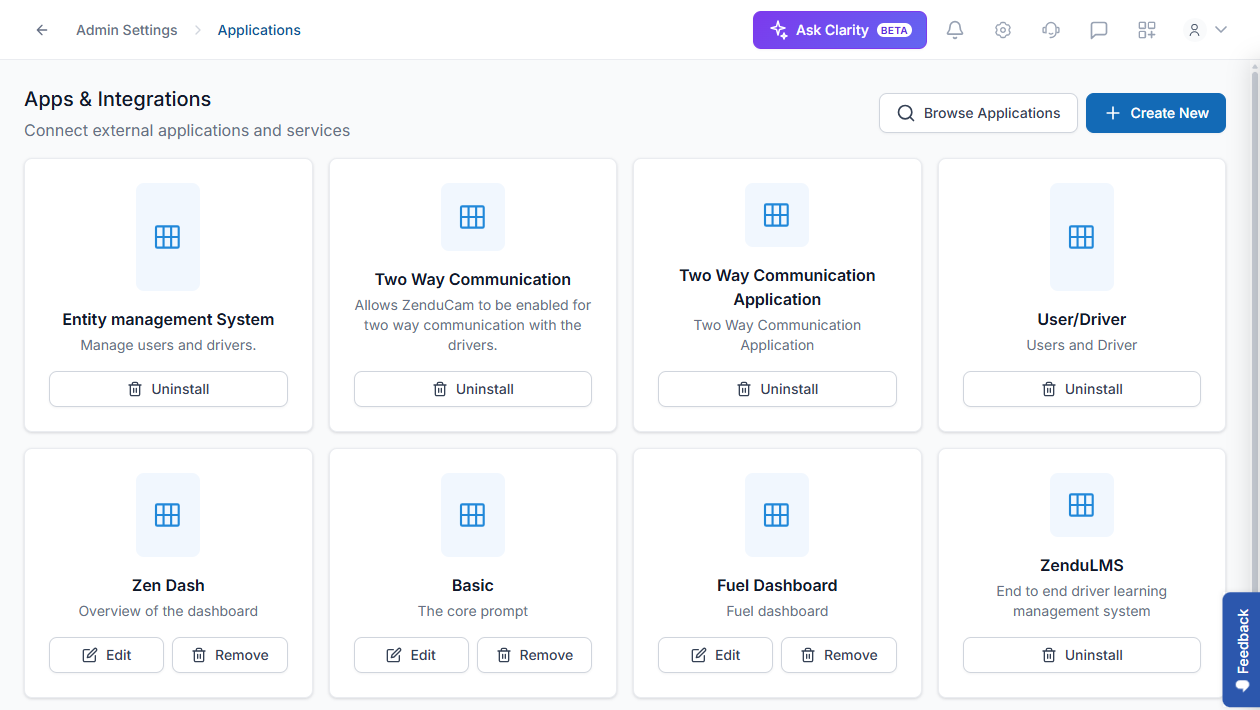
- Click the gear icon at the top right to open Admin Settings, then choose Applications.
- Click Create New.
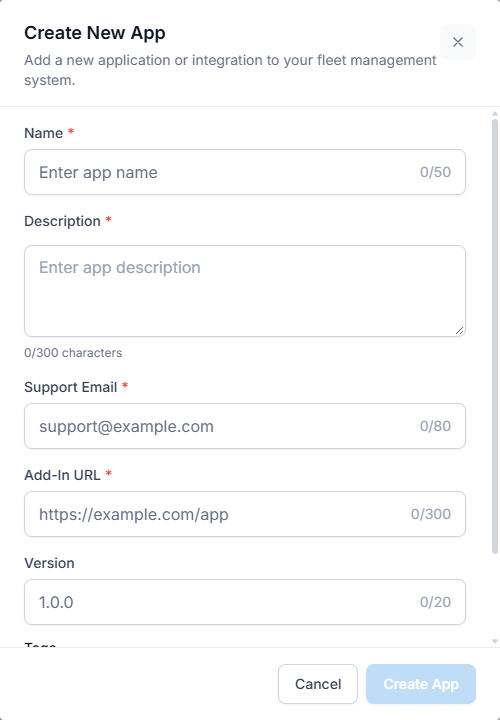
- Enter the Name (up to 50 characters), a Description (up to 300 characters), a Support Email for whoever maintains the app, and the Add-In URL you copied. Version and Tags are optional.
- Click Create App.
Step 4: Choose who can open it
Your new app is installed for your company straight away, but at first only admins can see it.
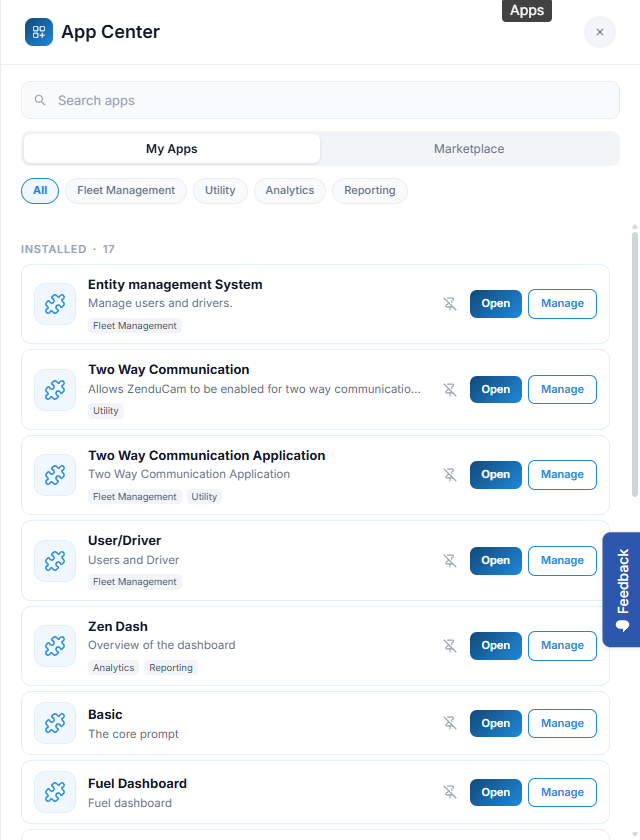
- Open the App Center (grid icon at the top right) and stay on My Apps.
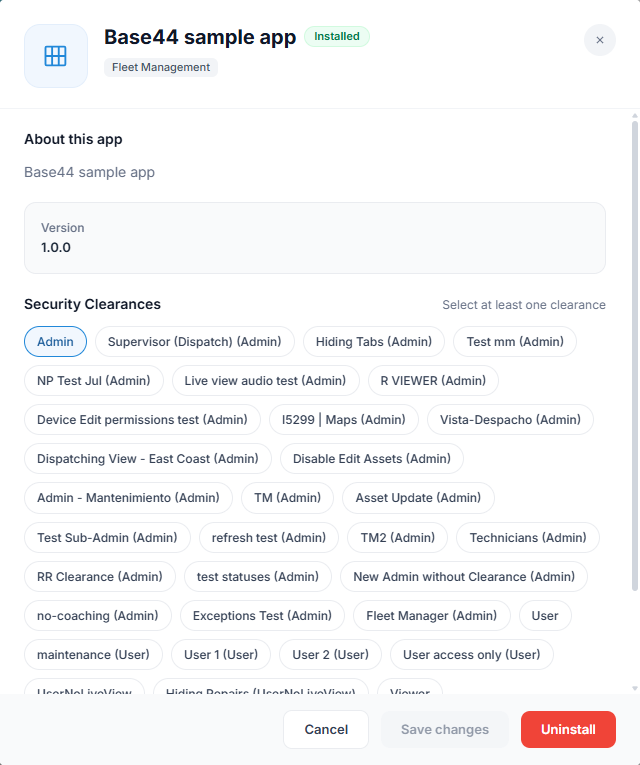
- Click Manage on your app.
- Under Security Clearances, pick the clearances that should have the app, then click Save changes.
Step 5: Open and check it
Open the app from the App Center as an admin. Then sign in as a user with one of the chosen clearances and check that they see the right vehicles and drivers. Click the pin icon to add the app to the side menu.
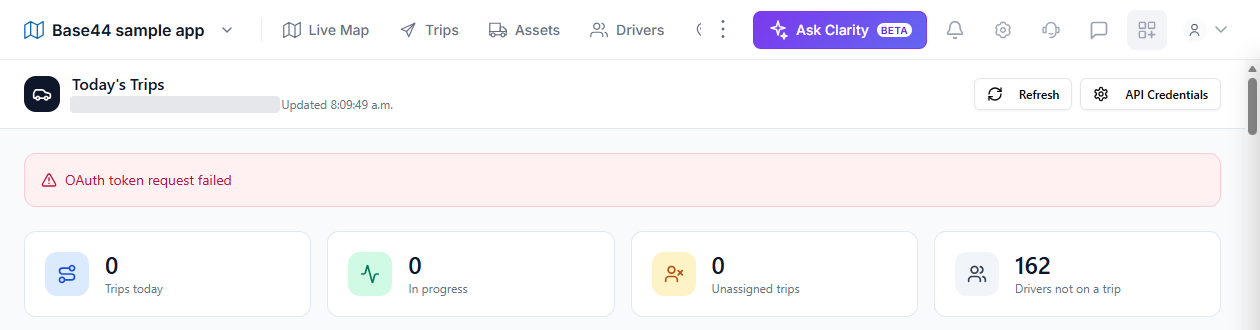
Here is a sample app built with Base44, running inside ZenduONE:
Test while you build
Your builder's preview window is outside ZenduONE, so it receives no token on its own. Borrow one from ZenduONE:
- Add the app in ZenduONE first (Step 3), using the builder's preview address.
- In your browser, press F12 and open the Network tab.
- Open the app from the App Center and find the request named CreateToken. Copy the
tokenIdvalue from its response. - Add
?token=followed by that value to the end of your builder's preview address.
A token lasts 15 minutes and reads your company's data. Never paste it into chats, tickets or shared documents; repeat the steps to get a new one.
Builder tips
- Base44: publish the app and use its public address. A Base44 sample app opens and signs in correctly inside ZenduONE.
- Replit: use the address from the External Window as the Add-In URL.
- Google AI Studio: set General access to Public under Share and use Copy Link. Its preview needs a Google sign-in that cannot happen inside ZenduONE, so you can still copy a token for testing, but host the finished app elsewhere.
Trips, safety events and more
The add-in API in the prompt covers vehicles, users and drivers, groups and rules. The same sign-in token also works with the ZenduONE Public API, which adds trips, safety events, coaching sessions, maintenance and more, still limited to what the signed-in user can see. See the Public API documentation. Hours of service is not available in either.
Where your data goes
Your app's host (Base44, Replit or another service) receives the data your app reads, such as driver names and emails. Check that this fits your company's data and privacy policies before you build.
Troubleshooting
- A blank box or "refused to connect": the app's host blocks being shown inside other sites. Change that setting in your builder, or host the app elsewhere.
- "Open this app from ZenduONE": open it from the App Center, not in its own browser tab.
- "Authentication failed" or "Session expired": the 15-minute session ended. Close the app and open it again.
- No vehicles or drivers: the user may not have access to any groups. Ask an admin to check their group access.
- A colleague cannot see the app: an admin adds their security clearance under App Center > Manage.
- The microphone or camera does not work: apps cannot use them inside ZenduONE.
Was this helpful?
Still need help? Ask the team