ZenScore User Guide
Written By Support Team
In this guide, we’ll walk you through ZenScore — a driver engagement and scoring platform that helps fleets encourage safe, efficient, and productive driving behavior. ZenScore provides visibility into key driving metrics, engagement tools, contests, and KPI tracking to support continuous improvement across your fleet.
This article will outline how to navigate ZenScore, set up dashboards, score drivers, run contests, and access reports.
ZenScore Overview
ZenScore is designed to help fleet managers:
• Track and improve driving behavior
• Score drivers based on safety, productivity, and maintenance
• Run driver contests to motivate improvement
• Monitor KPIs and generate performance reports
Dashboard
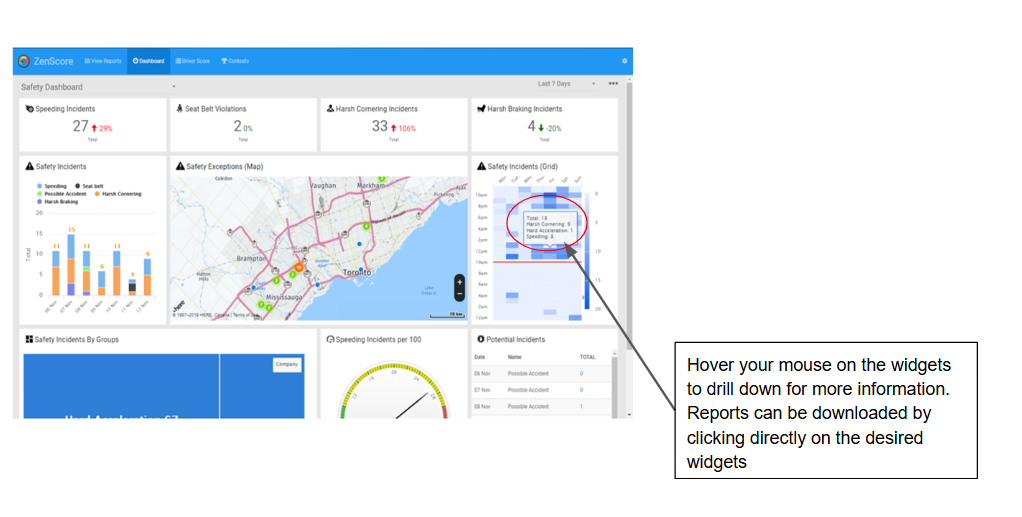
The ZenScore Dashboard displays the most important fleet performance metrics, including productivity, safety, compliance, and risk.
Dashboard Widgets Include:
• Productivity insights
• Heat maps to identify risky zones
• Compliance trends
Adding Widgets
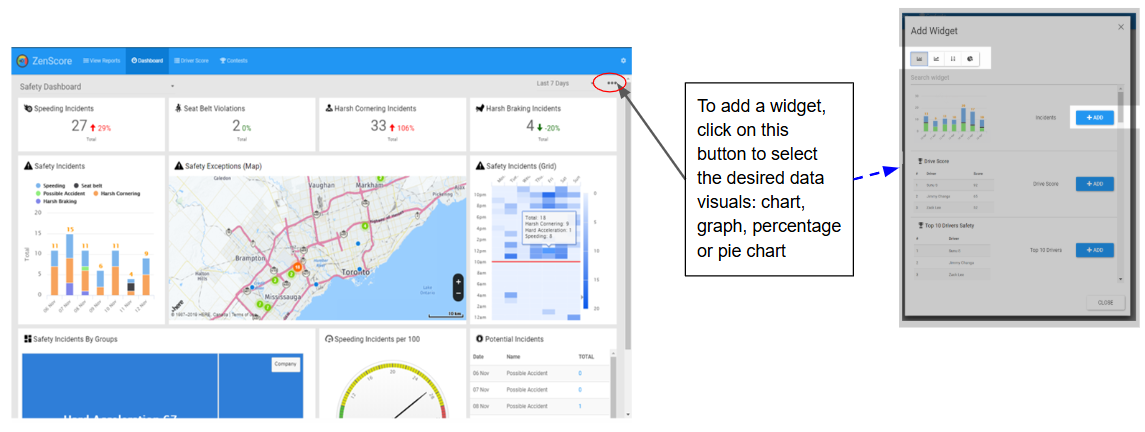
You can customize your dashboard to display the metrics you care about.
How to Add Widgets:
Click the Add Widget button
Select the visualization format (chart, graph, %, or pie chart)
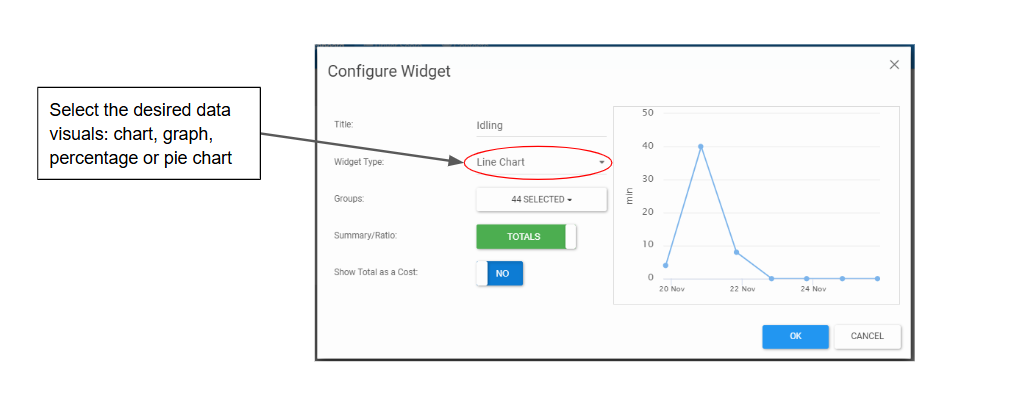
Configure the widget settings
Click OK
Configuring Widgets
You can create custom widgets for key data points such as Idling, Driver Score, Speeding, and more.
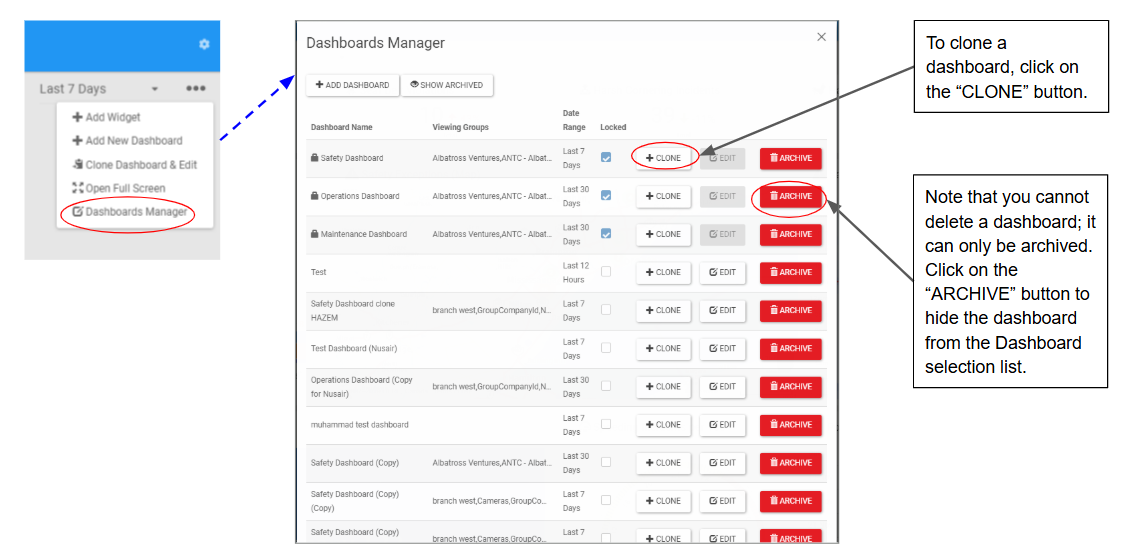
Cloning or Archiving Dashboards
You can clone dashboards to use as a template for different teams or departments.
• Clone: Creates a duplicate
• Archive: Hides a dashboard (can be restored later)
Note: Dashboards cannot be deleted, only archived.
Driver Score
ZenScore ranks drivers based on configurable scoring rules.
Add Drivers Manually
Add driver details (Name, Email, Phone, NFC)
Assign the driver to a group
Select HOS Rules and Metric/Imperial units
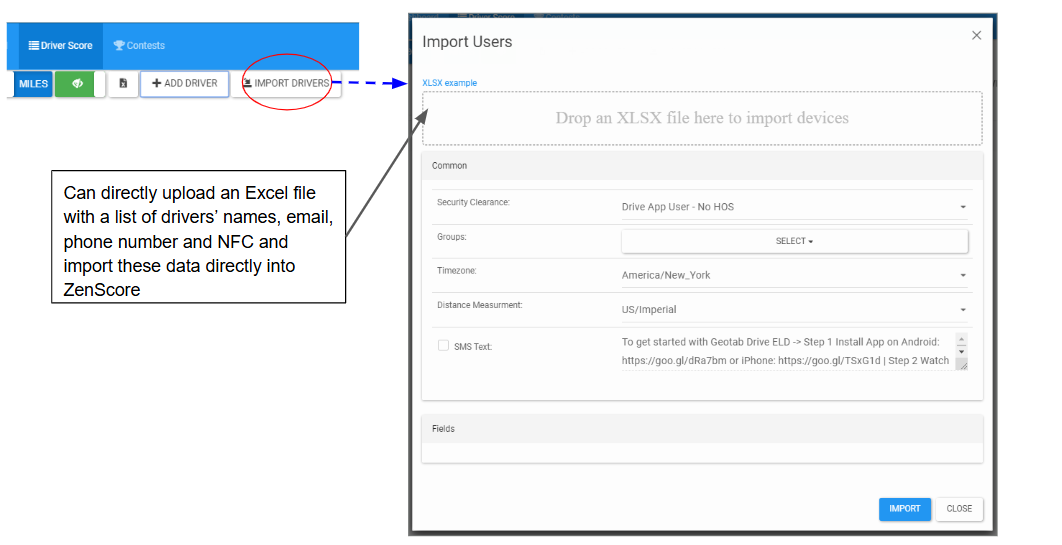
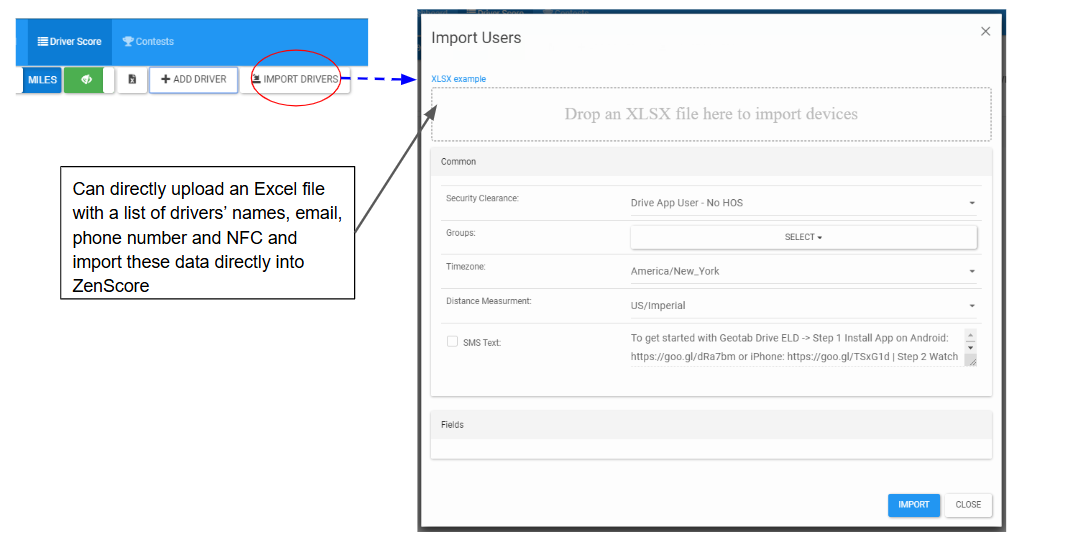
Import Drivers in Bulk
You may upload an Excel file with multiple drivers’ details to import in one step.
Reports & KPIs
The Reports section lets you track performance across your fleet.
Report Categories:
• Safety: Speeding, Harsh Braking, Harsh Cornering, Seatbelt
• Fuel: Fuel Consumption, Idling
• Maintenance: Faults, Job Completion, Inactive Devices
You can view fleet-wide and individual driver results.
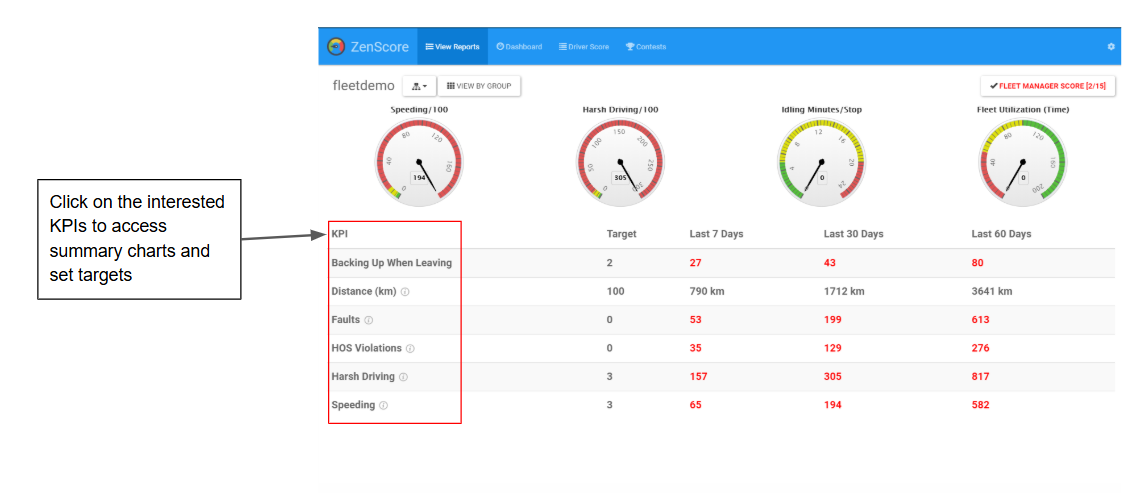
Reviewing KPIs
Click any KPI to access detailed charts and set performance targets.
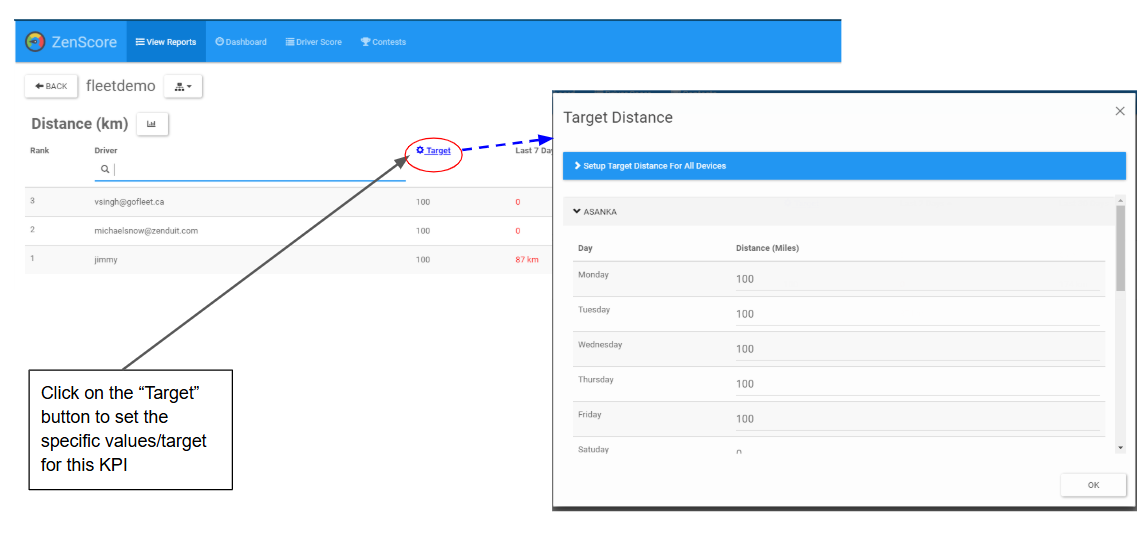
Setting KPI Targets
Click the Target button to assign goals for each KPI.
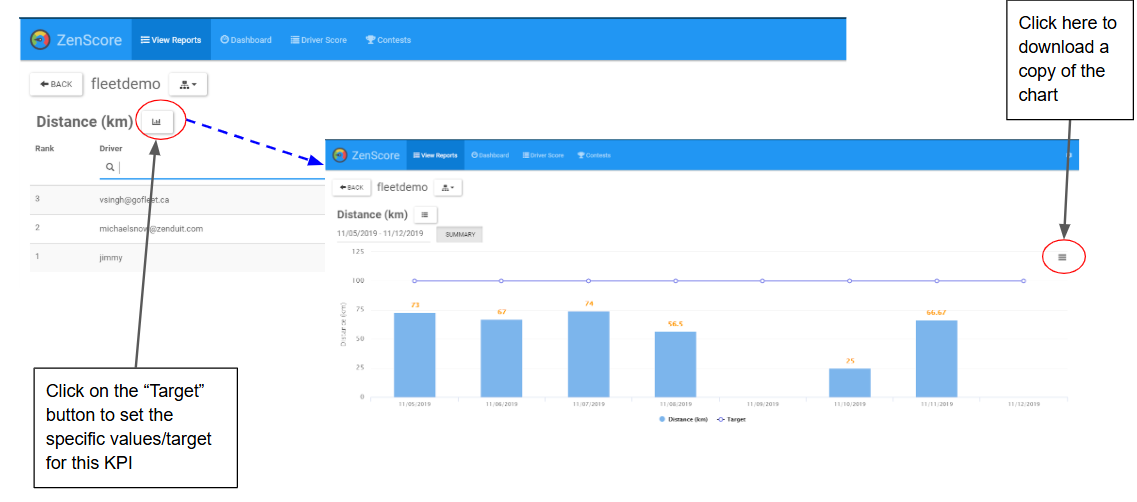
Downloading KPI Charts
Click the download icon to export KPI visuals for reporting.
Contests
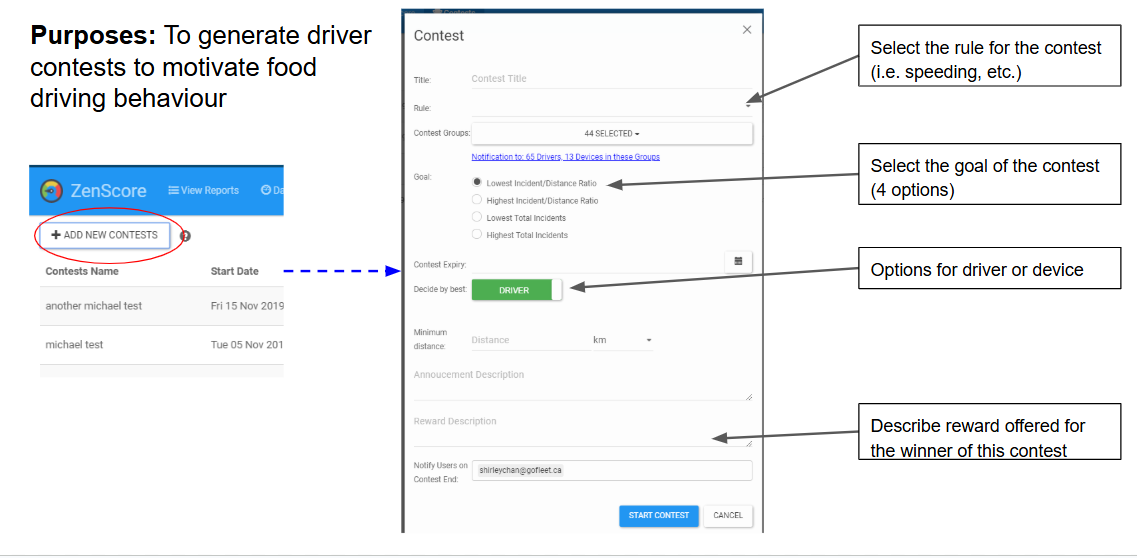
Contests allow you to motivate drivers through friendly competition.
To create a contest:
Choose a rule (e.g., speeding reduction)
Select a contest goal
Choose if it applies to drivers or devices
Add reward details
Settings
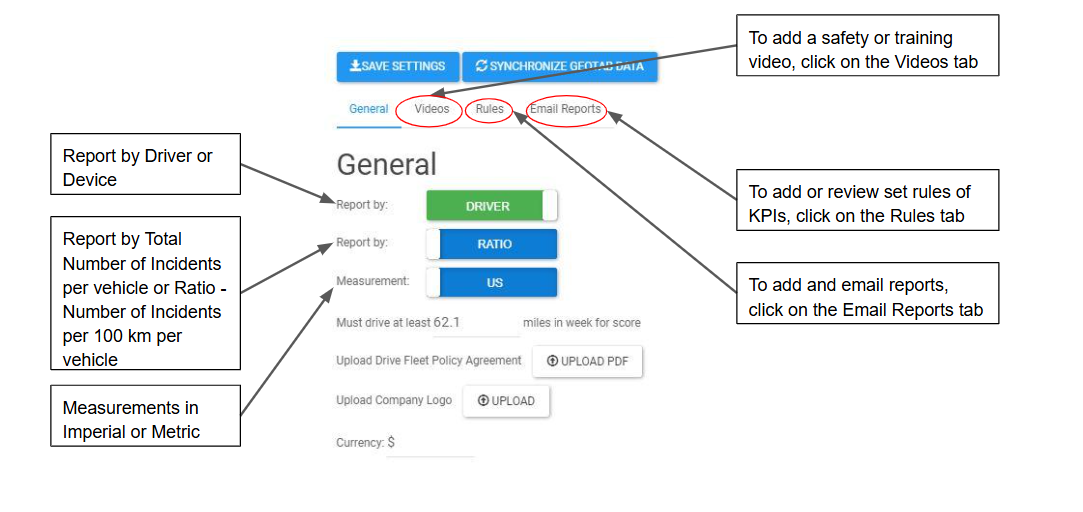
From the Settings page, you can manage:
• Safety & Training Videos
• Rules for KPIs
• Email Reports (Driver or Device-based reports)
Setup Checklist
Before using ZenScore, complete the following:
✅ Log in and explore the Dashboard
✅ Download the Mobile App
✅ Review Driver Ranking video
✅ Configure Rules for your fleet
✅ Access training videos in Fleet Manager
Was this helpful?
Still need help? Ask the team