Create a school bus route
A route is the path a bus follows and the stops it makes.
Written By Vishal Singh
A route is the path a bus follows and the stops it makes. Students are assigned to a route and stop, and the route is what drivers and guardians see.
Steps
Go to Routes, then click Create Route.
Enter a Route Name. It's the only field you fill in by hand.
Optional: click Add a starting point, for example the bus yard.
Click Add Stop, then either click the stop on the map or search for its address. Set the stop's dwell time under Stop Duration: how long the bus waits there.
Repeat for each stop. Drag the handle to reorder stops, or click the red minus to remove one.
To make the bus follow a specific path between stops, click Add Waypoint, then click the map where the route should pass. Waypoints need no address or dwell time.
Check the route on the map. It updates as you add stops and waypoints.
Click Proceed to Schedule Configuration to set the days, times and bus.
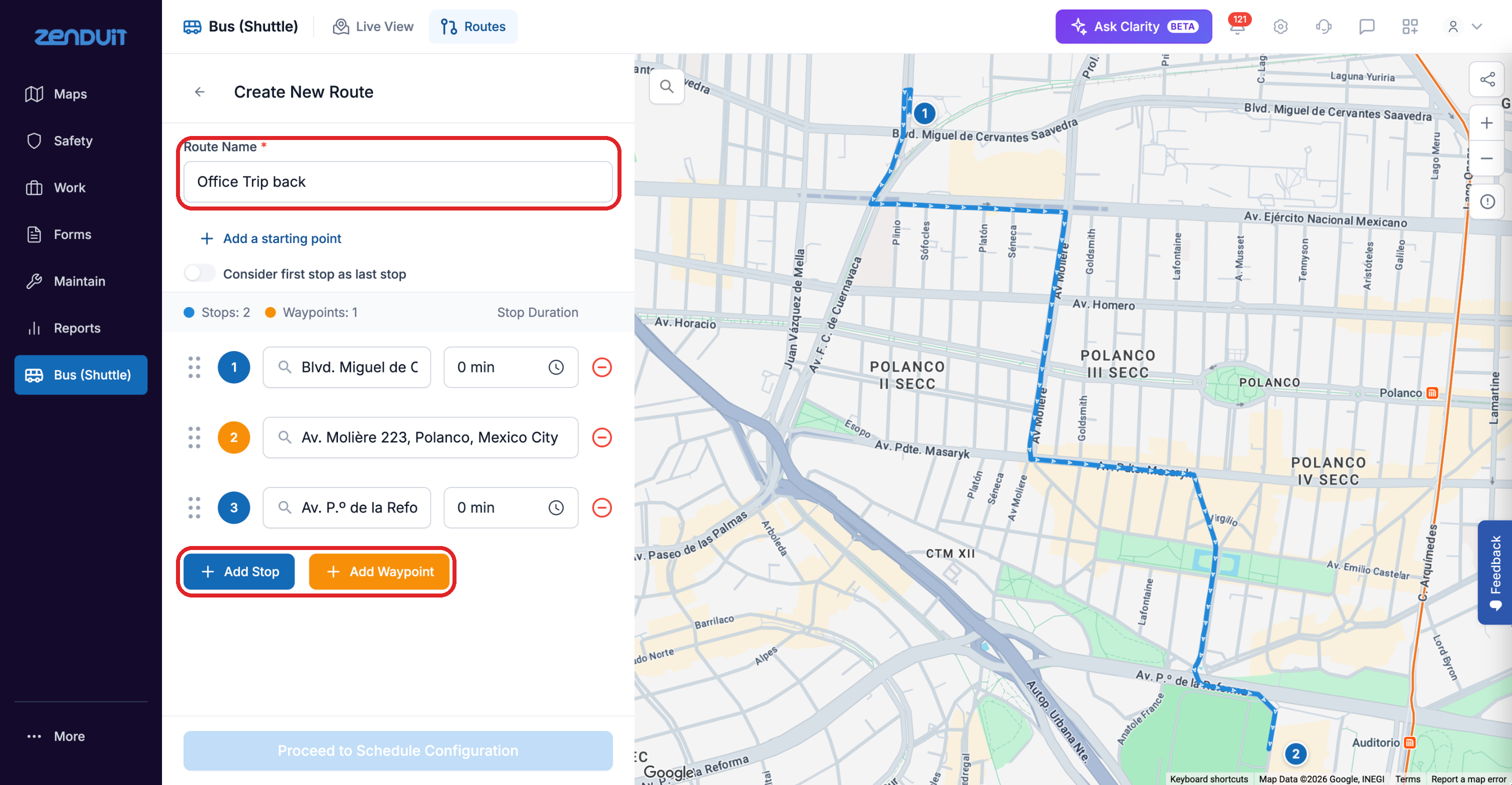
Create New Route: stops with their dwell time, drawn on the map.
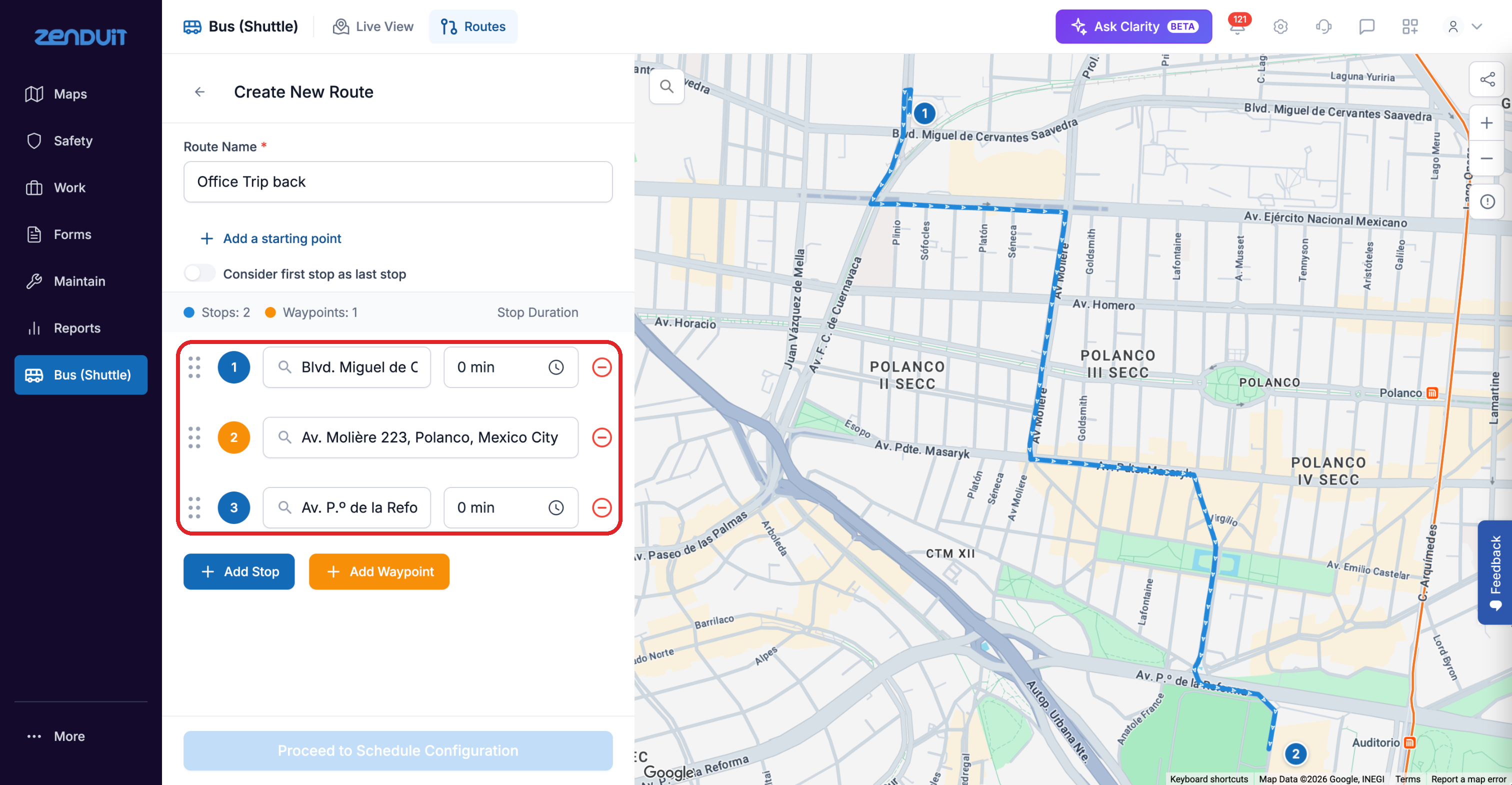
Stops (blue) have an address and a dwell time. Waypoints (orange) are placed on the map and have no dwell time.
Save a new stop location
When you add a stop at an address that isn't saved as a location yet, the Add Stop Location window opens.
Enter a Name for the location.
Choose a Location Type, for example Collection Site, Customer, Depot / Yard, Home, Maintenance Shop or Office.
Check the Address.
Click Save.
The location is saved with a 250 m geofence around it, the only detail filled in automatically, so you can reuse it in other routes. To see or change its details, go to Maps > Locations in the main menu. You can add more details to the location there if you want.
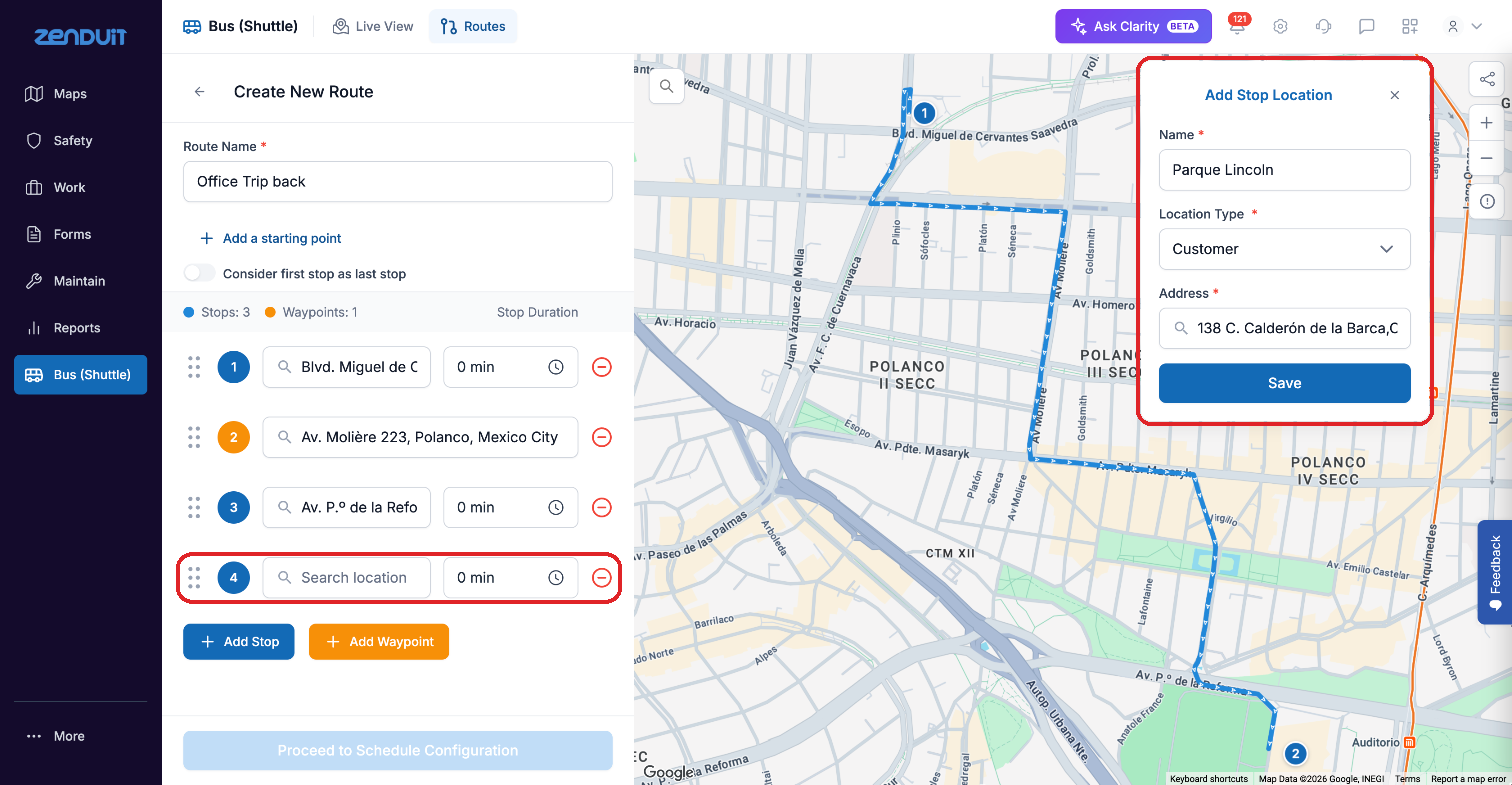
Add Stop Location: name the location, choose its type and confirm the address.
Tips
Create a separate route for each run, for example a morning route and an afternoon route.
Place stops where the bus actually stops, such as the road shoulder, so arrival times and missed-stop records are accurate.
A wrong starting point makes the whole route time wrong. Check it if a route's duration looks too long.
Was this helpful?
Still need help? Ask the team