Migrating StreaMAX Devices to ZenduONE
Follow these steps to migrate your StreaMAX units from another provider to ZenduONE. This ensures that the cameras are properly set up and connected to our system.
Written By Support Team
1. Configure the Server to Point to ZenduONE Domain
Since your StreaMAX units are not initially pointed to the ZenduONE domain, you’ll need to configure them to connect to our system.
Steps to configure the server:
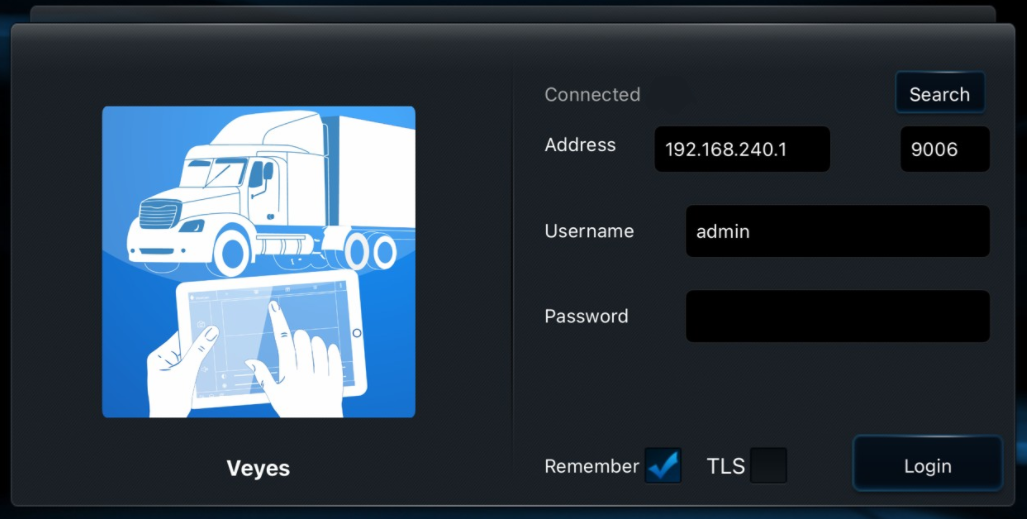
Download and open the Veyes app on your device:
Double click the panic button of the camera to enable hotspot
Connect to the camera's Wi-Fi network (Usual Wifi Name is ST-[Camera Serial])
For IOS devices, when you see the message of “The Wi-Fi network does not appear to be connected to the internet” (It usually occurs around 2 mins after connecting to the WI-Fi of the camera) proceed with the option of “Keep Trying Wi-Fi”
For Android devices, when you see the message of “This Wi-Fi network has no Internet access. Stay connected?” (It usually occurs around 2 mins after connecting to the WI-Fi of the camera) proceed with the option of “YES”
Access the Veyes app and log in with the admin/admin username and password (or the custom login credentials set by your previous provider).
Navigate to Preferences > Network > Server Setup.
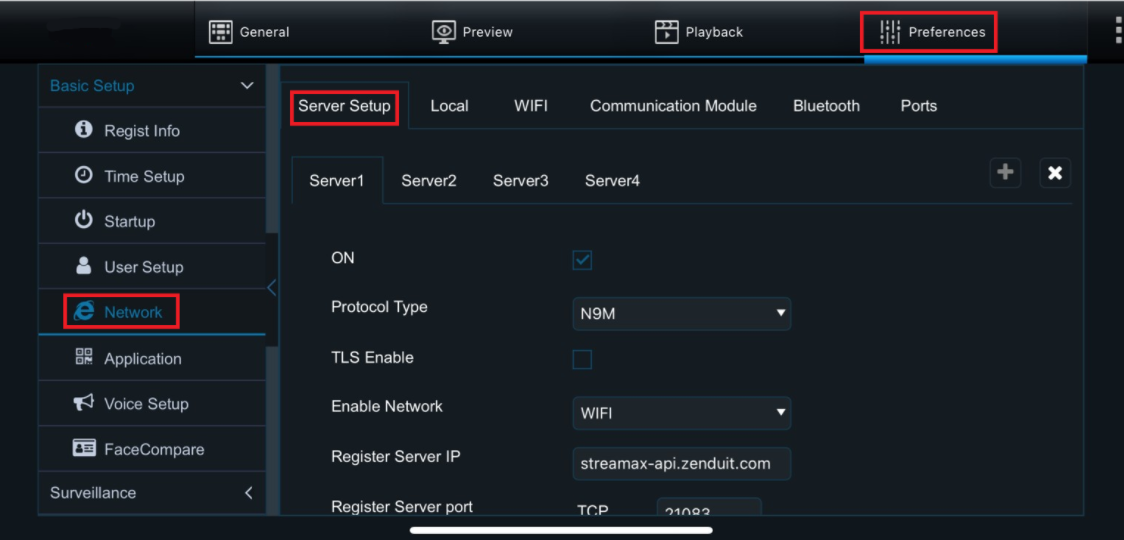
Set the Server 1 to point to the ZenduONE domain using the following configuration:
ON: Enable Checkbox
Protocol Type: N9M
TLS Enable: Disable Checkbox
Enable Network: Module 1
Register Server IP: streamax-api.zenduit.com
Register server port:
TCP: 21083
TLS: 6556
Media Server IP: streamax-api.zenduit.com
Media server port:
TCP: 21083
TLS: 6556
Still within Preferences, navigate to Time Setup.
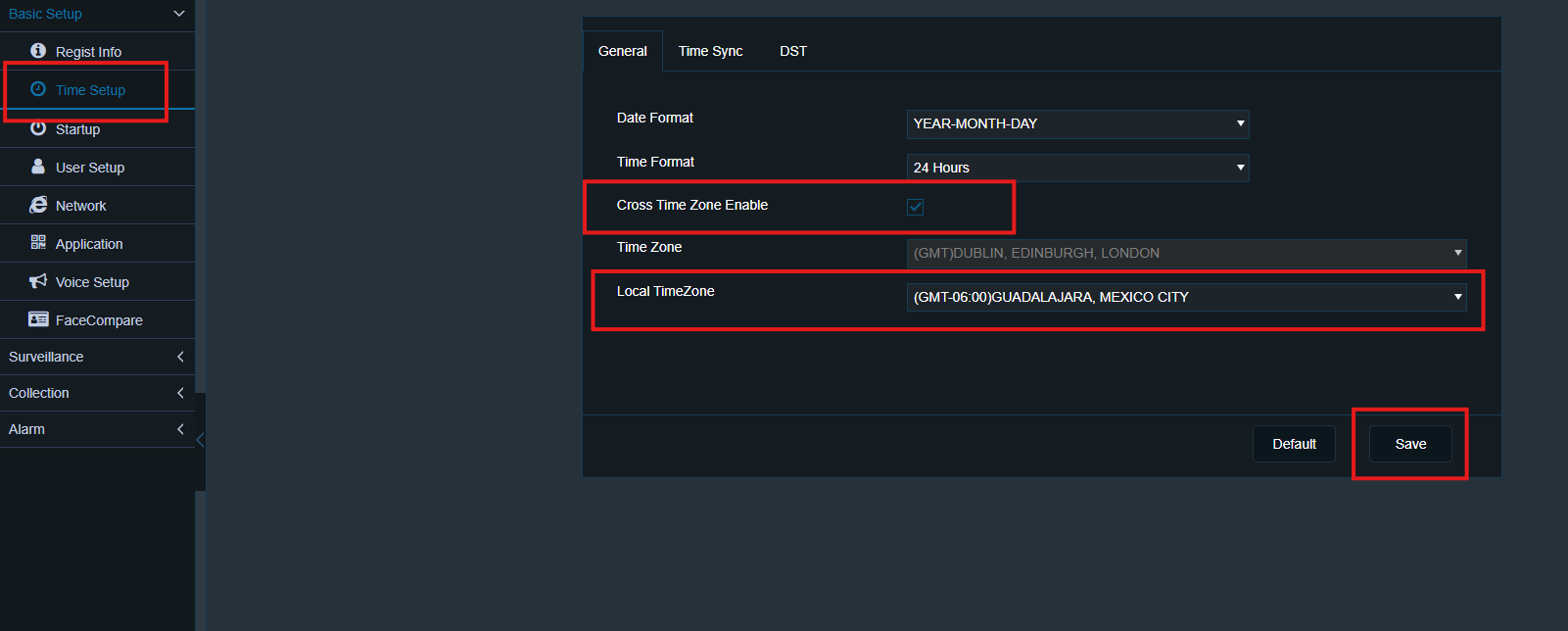
Enable the option “Cross Time Zone Enable”
Under “Local Timezone”, select the correct timezone corresponding to your region
This will ensure the camera reports the correct local time within the ZenduONE platform.
2. Submit the Camera Information Form
After configuring the camera to point to the Zenduit system, fill out the form with the following details for integration purposes:
Have in hand the following information so filling out the form result easier
Camera Serial Number
SIM Number
Current SIM provider
Previous solution provider
This information helps us ensure that everything is set up correctly in our system and allows us to follow up on the devices.
3. Pre-Install Setup for On-Site Installations
If you're installing the cameras and setting them to our servers at the time of installation, please submit the information form ahead of time. This allows us to:
Add the cameras to our server.
Complete any necessary backend steps.
By submitting the form in advance, once the camera is pointed to our server and rebooted, it should come online directly.
Was this helpful?
Still need help? Ask the team