Select, View, and Edit Data by Scanning Barcodes and Fiix QR Codes (on Mobile)
Written By Kamakshi Mahajan
Overview
The Fiix mobile app allows users to efficiently manage assets by scanning barcodes and Fiix QR codes. This functionality enables users to add new items to inventory or access existing asset information quickly, such as work orders and detailed asset data.
Key Features
Barcode Scanning: Users can scan barcodes for items not currently in inventory and add them directly. This feature supports various asset types including Locations/Facilities, Equipment, Tools, and Parts.
Fiix QR Codes: Scanning Fiix QR codes reveals associated asset information, including work orders, enhancing navigation and data access.
Site Selection: Users can switch between different sites within the app to ensure they are accessing the correct records based on their location.
Procedures
1. Adding Barcodes to Existing Assets
To add barcodes to existing assets:
Open the desired asset and select the Edit button.
Tap the Barcode button.
Align the barcode within the viewfinder rectangle to scan it.
The barcode information will automatically populate in the asset record.
Press the Save button to finalize the addition.
2. Creating an Asset by Scanning a Barcode
To create a new asset by scanning a barcode:
Select the Barcode button from the relevant module (Locations/Facilities, Equipment, Tools, or Parts).
Position the barcode within the viewfinder rectangle to scan it.
Tap Create.
Choose the asset type.
Enter the necessary information and press the Save button.
3. Scanning Fiix QR Codes
To scan Fiix QR codes:
Navigate to the appropriate tab (Work Orders, Locations/Facilities, Equipment, Tools, or Parts) or use the Scan Barcode button on the Dashboard.
Align the QR code within the viewfinder to scan.
The app will generate and display the asset information associated with the scanned QR code.
4. Scanning Barcodes and QR Codes in Work Orders
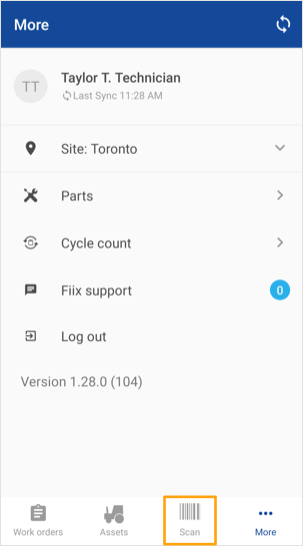
If your organization uses QR codes on printed work orders or affixes barcodes to assets, you can navigate directly to the corresponding record by scanning:
Ensure the correct site is selected for your organization.
Tap the Scan icon in the feature menu.
Point your phone at the barcode or QR code.
If access to the scanned item is available, the app will open its details. If not, an error message will indicate that the item couldn’t be found, potentially due to site selection issues.
Notes
Printing Fiix QR Codes: QR codes can be printed and affixed to assets for easy scanning. Refer to the "Print QR-code Asset Tags" section for detailed instructions.
Supported Barcode Types: For a list of barcode types supported by the mobile app, refer to the "Supported Barcode Types" documentation.
By utilizing these scanning features, users can streamline their asset management processes, ensuring quick access to essential information and facilitating efficient operations.