Monitor buses in Live View
Live View shows today's routes and every active school bus on one real-time map, with route progress, delays and ETAs.
Written By Vishal Singh
Live View shows today's routes and every active school bus on one real-time map, with route progress, delays and ETAs, so you can spot problems while they can still be fixed.
What you see
The routes of the current day, so you see what is running now and what is still to come today.
All active buses on the map, with locations updating in real time.
Each active route's progress: completed, current and upcoming stops.
Route status and ETA for every active trip.
Delays.
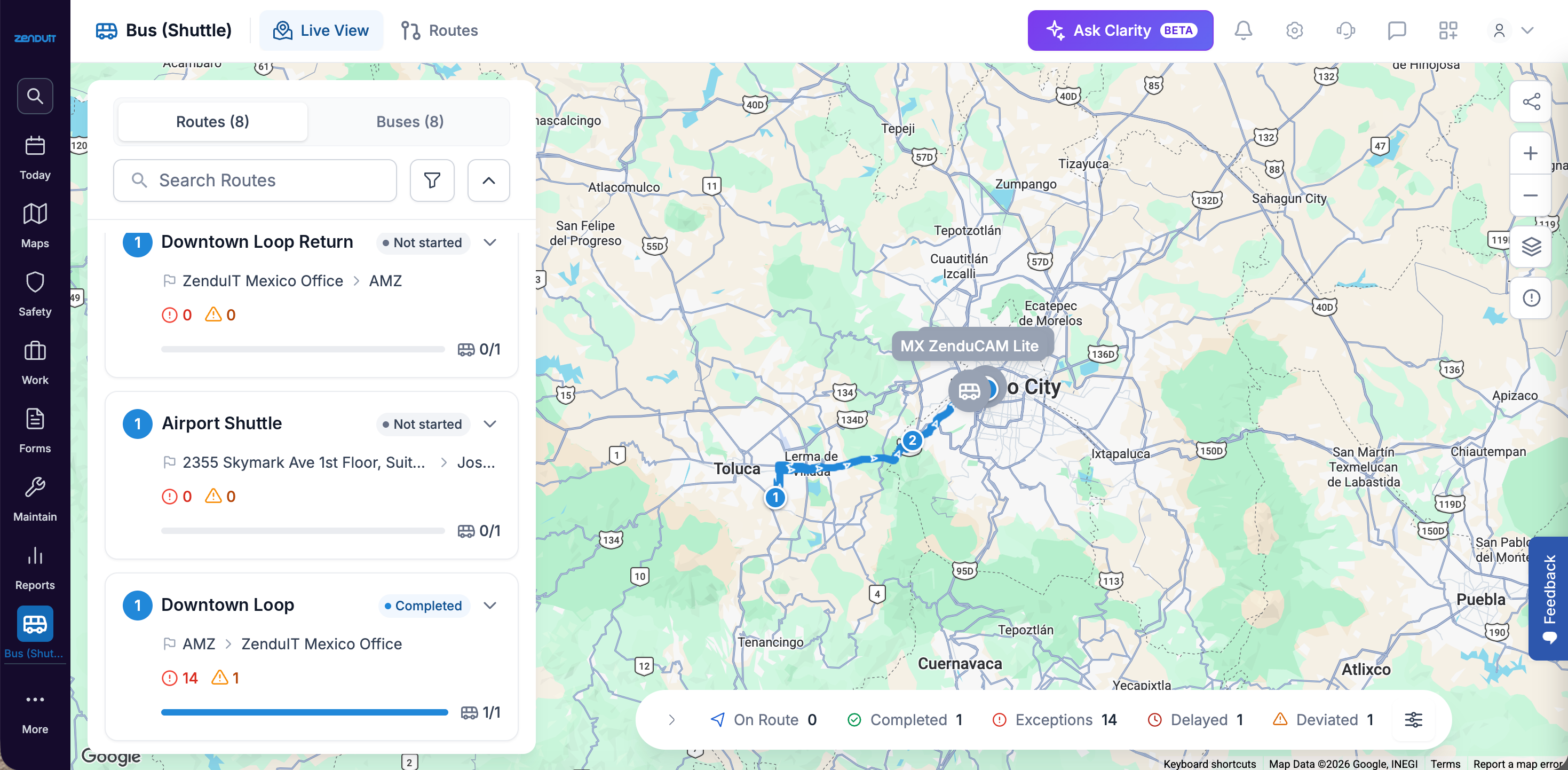
Live View with trips running: the Routes and Buses tabs on the left, the bus on the map, and the status bar at the bottom.
Switch to the Buses tab to see each bus with its driver, exception and deviation counts, stops done, ETA and next stop.
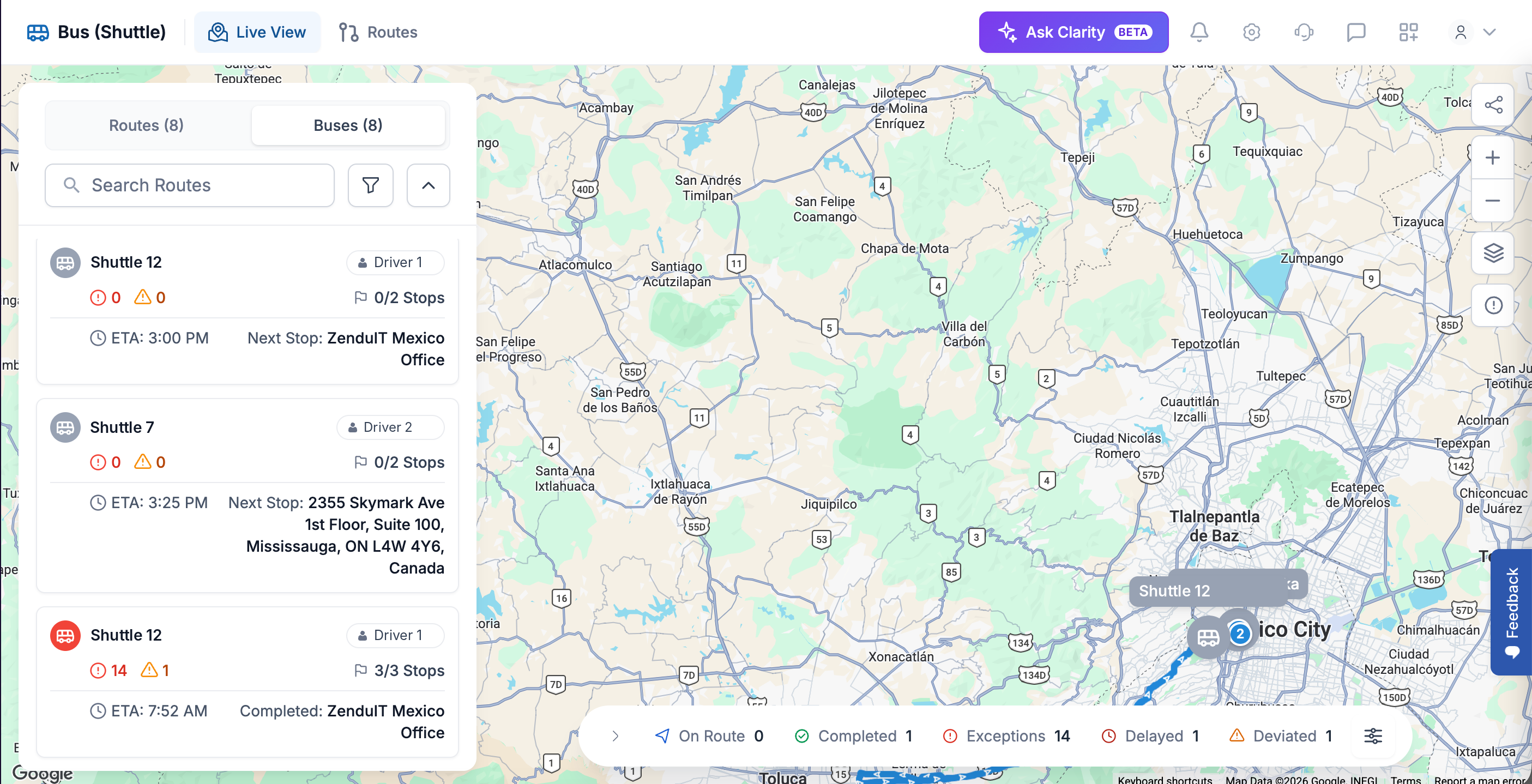
The Buses tab.
Bus statuses
The status bar at the bottom of the map counts buses by status:
Icon | Status | What it means |
|---|---|---|
 | On Route | The bus is running its route |
 | Completed | The bus has finished its trip |
 | Exceptions | The bus triggered one or more of your rules |
 | Delayed | The bus arrived at a stop 5 minutes or more after its scheduled time |
 | Deviated | The bus has left the planned path |
Exceptions come from your safety, productivity and maintenance rules. To set them up, go to Settings > Rules (under Automation & Manage Process).
To choose which buses appear on the map, open the Status list and tick or clear each status. The list shows how many statuses are selected.
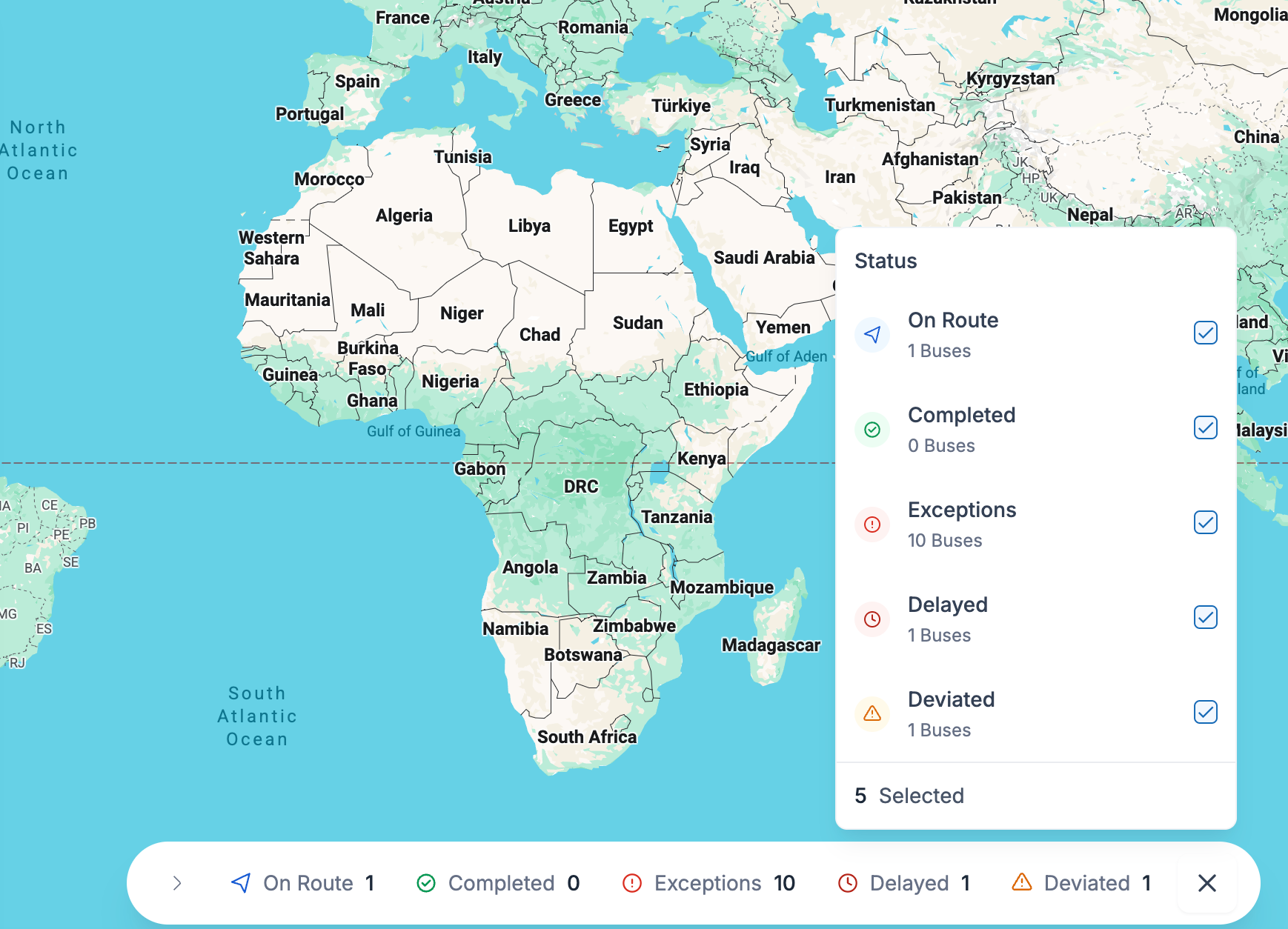
The Status list and the status bar at the bottom of Live View.
Use Live View
Go to Live View.
To focus on part of the operation, open Filters, choose the Routes and Vehicles to show, and click Apply. Clear Filter shows everything again.
Select a bus to open its trip card with progress, ETA and next stop.
To share live tracking, use Share Public View.
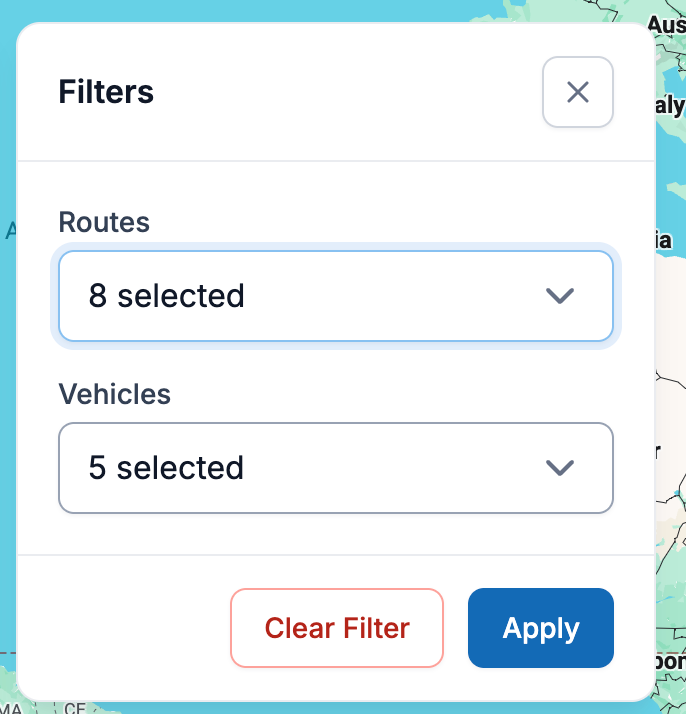
Filters: choose which routes and buses Live View shows.
The trip card
Each bus's trip card shows:
the bus and its driver, and the route the trip belongs to
the counts of exceptions and deviations on the trip
the trip status: when the bus arrives at a stop 5 minutes late, the card shows Delayed
stops done out of the total, with a progress line
the ETA and the next stop
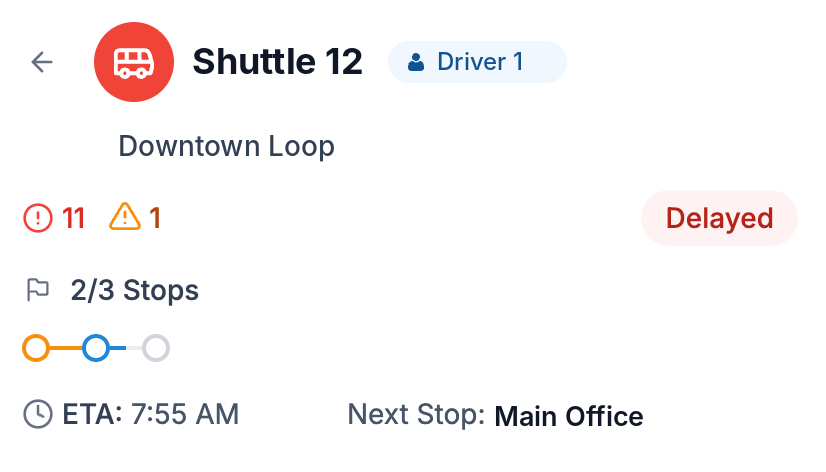
A trip card for a delayed trip.
Good to know
Live View covers the current day only. For earlier days, open the route's trip history.
Buses need a working tracking device to appear.
Was this helpful?
Still need help? Ask the team