Show a route in the Driver App
Drivers see their shuttle trips in the ZenduONE Driver app through the vehicle assigned to each departure.
Written By Vishal Singh
Drivers see their shuttle trips in the ZenduONE Driver app. A trip reaches the driver through the vehicle: you assign a vehicle to each departure of the route, and you assign the driver to that vehicle.
New to the Driver App? See the Drivers App user guides for logging in, jobs, forms and settings.
Route → departure (day and time) → vehicle → driver → Driver App
Before you start
The route is created and has a schedule. See Create a route and Schedule a route and assign vehicles.
The driver has a ZenduONE user with the user type Driver.
The driver has the latest Driver App installed and can log in.
Step 1: Assign a vehicle to each departure
Open Bus (Shuttle) > Routes and click the route.
Click Edit Route, then Proceed to Schedule Configuration.
For each day the route runs, choose the vehicle next to each departure time.
Click Save Changes.
Step 2: Assign the driver to that vehicle
Click the gear icon to open Admin Settings, then User Management.
Open the Drivers tab and click the driver. For a new driver, click Create User and set the user type to Driver.
Click Edit.
Under Profile Details, choose the vehicle in Asset Assigned.
Click Save.
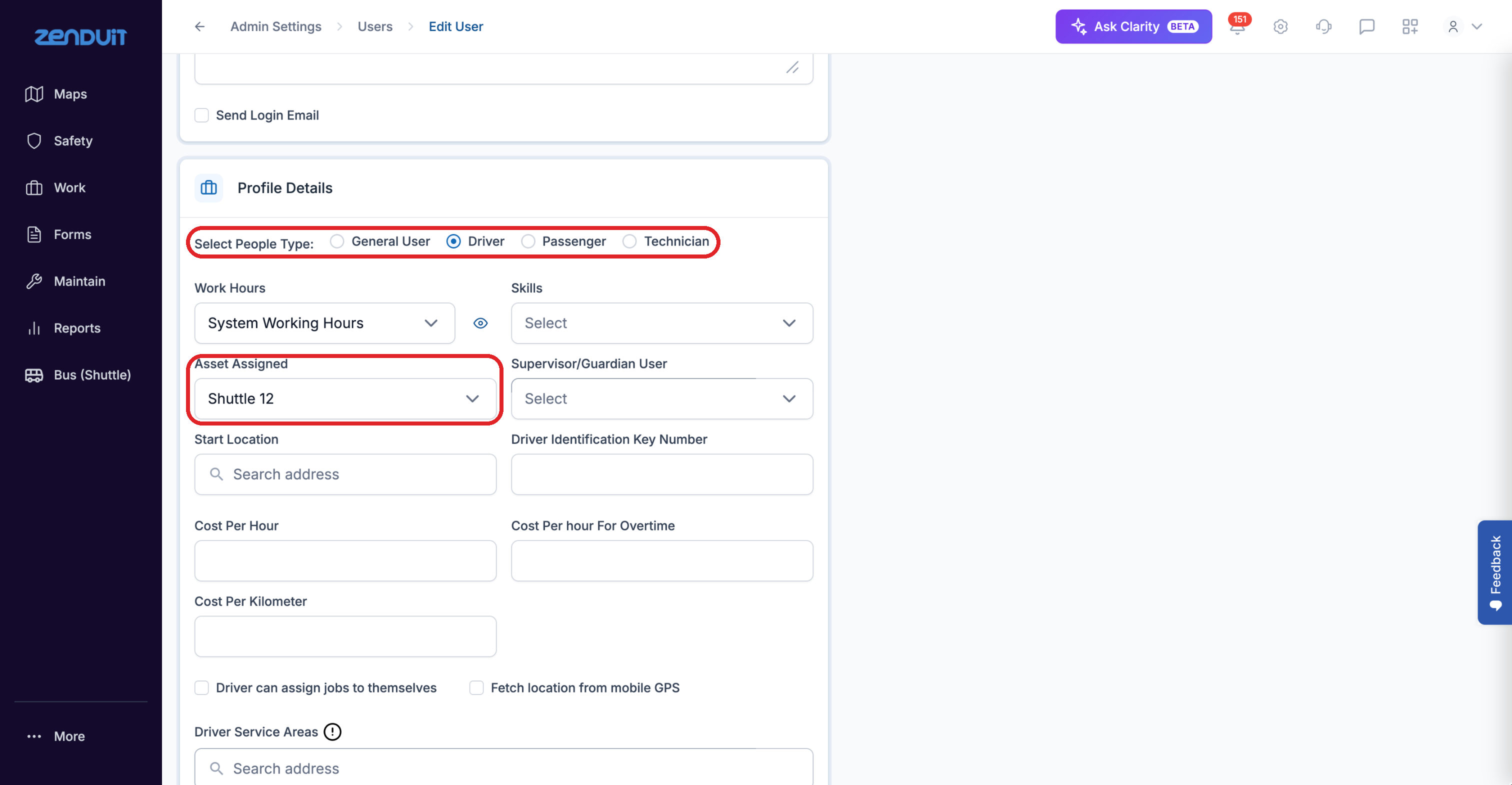
Edit User > Profile Details.
Step 3: Check the Driver App
Ask the driver to log in to ZenduONE Driver. The route's trips appear under Jobs with the route name, vehicle, stops in order and scheduled times. Drivers see today's trips and can also see trips on other days. When the driver arrives at a stop, the app detects the stop's geofence and marks the stop as complete, then moves to the next one. Drivers should stay at each stop for the dwell time set when the route was created.
To navigate, the app opens Google Maps, which guides the driver along the route's stops and waypoints.
Good to know
More than one driver can be assigned to the same vehicle, for example a morning driver and an afternoon driver. Each of them sees that vehicle's trips.
To change who runs a departure, change the vehicle on the departure, or change the vehicle assigned to the driver.
The driver doesn't see the route
Check, in this order:
The departure has a vehicle selected in the route schedule.
The driver's Asset Assigned is that same vehicle.
The route runs on that day.
The driver is logged in with their own account, on the latest app version.
Was this helpful?
Still need help? Ask the team