How to Generate a Driver Login/Logout Report in Geotab
If you need to generate a report showing when a driver logs in and logs out, you can easily do so using the Advanced HOS Logs report in Geotab. This guide will walk you through the steps to generate and download the report.
Written By Micaela Barattini
Steps to Generate the Driver Login/Logout Report:
Log in to MyGeotab:
First, sign in to your MyGeotab account using your credentials.
Access the Reports Section:
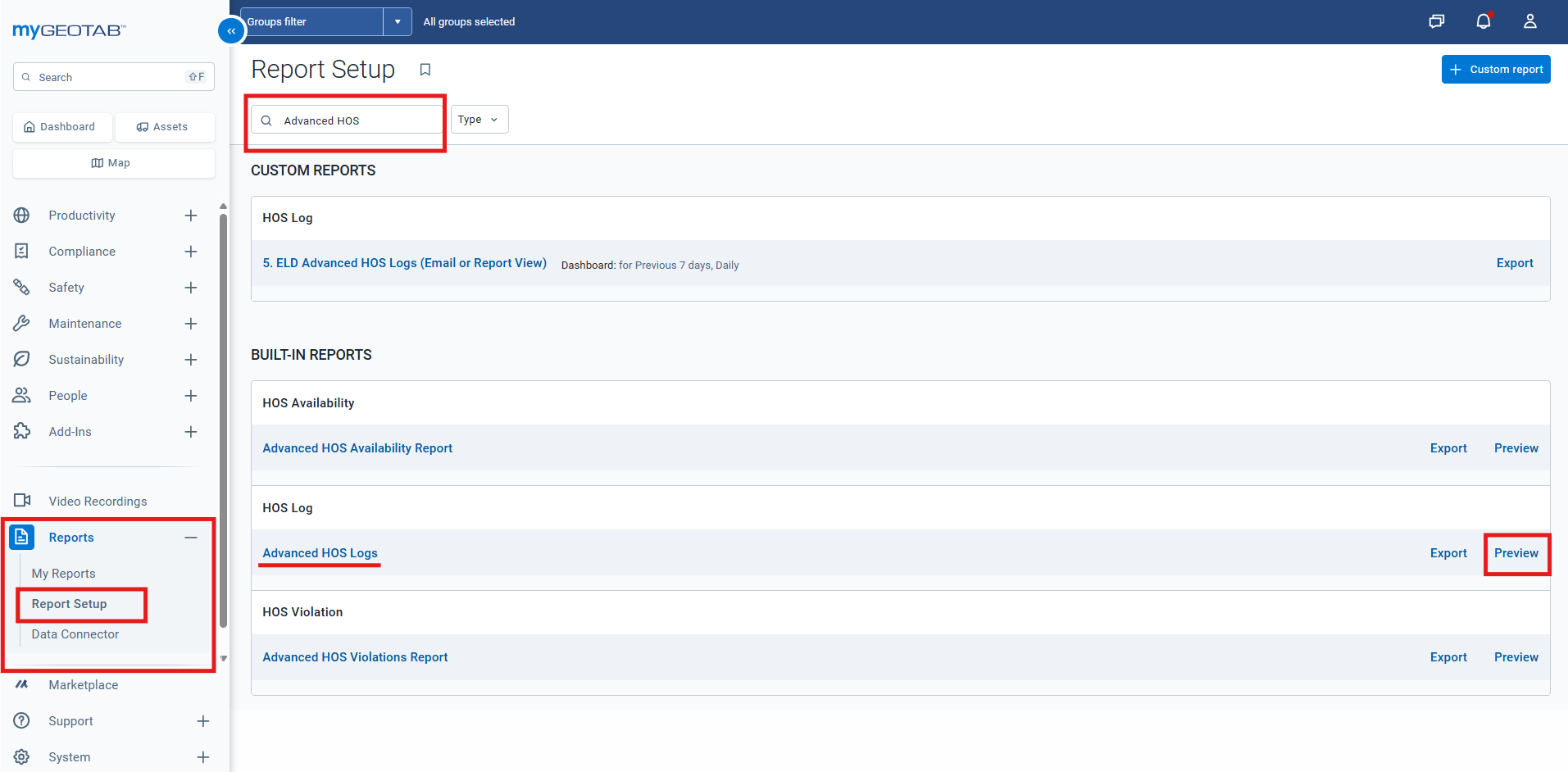
Once logged in, navigate to the Reports section in the main menu and click on Report Setup.
Search for the Advanced HOS Logs:
In the search bar, type "Advanced HOS". You will see Advanced HOS Logs appear in the list. Click on Preview to see the report details.
Apply Filters:
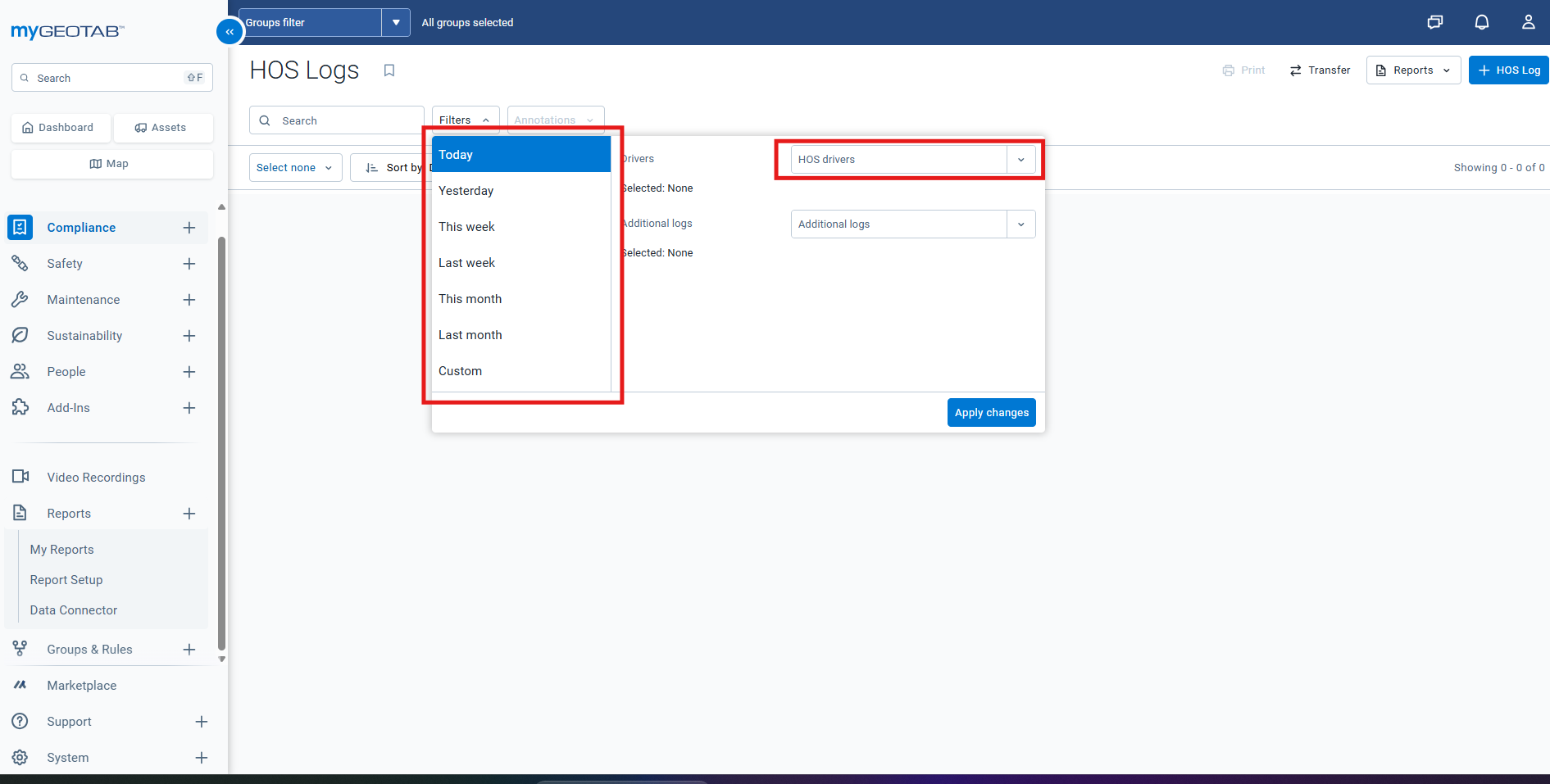
In the preview window, click on the Filters button to customize your report.
Select the Driver you want to view and choose the time range for the report.
Once the filters are set, click Apply changes. The report will be generated in just a few moments.
Download the Report:
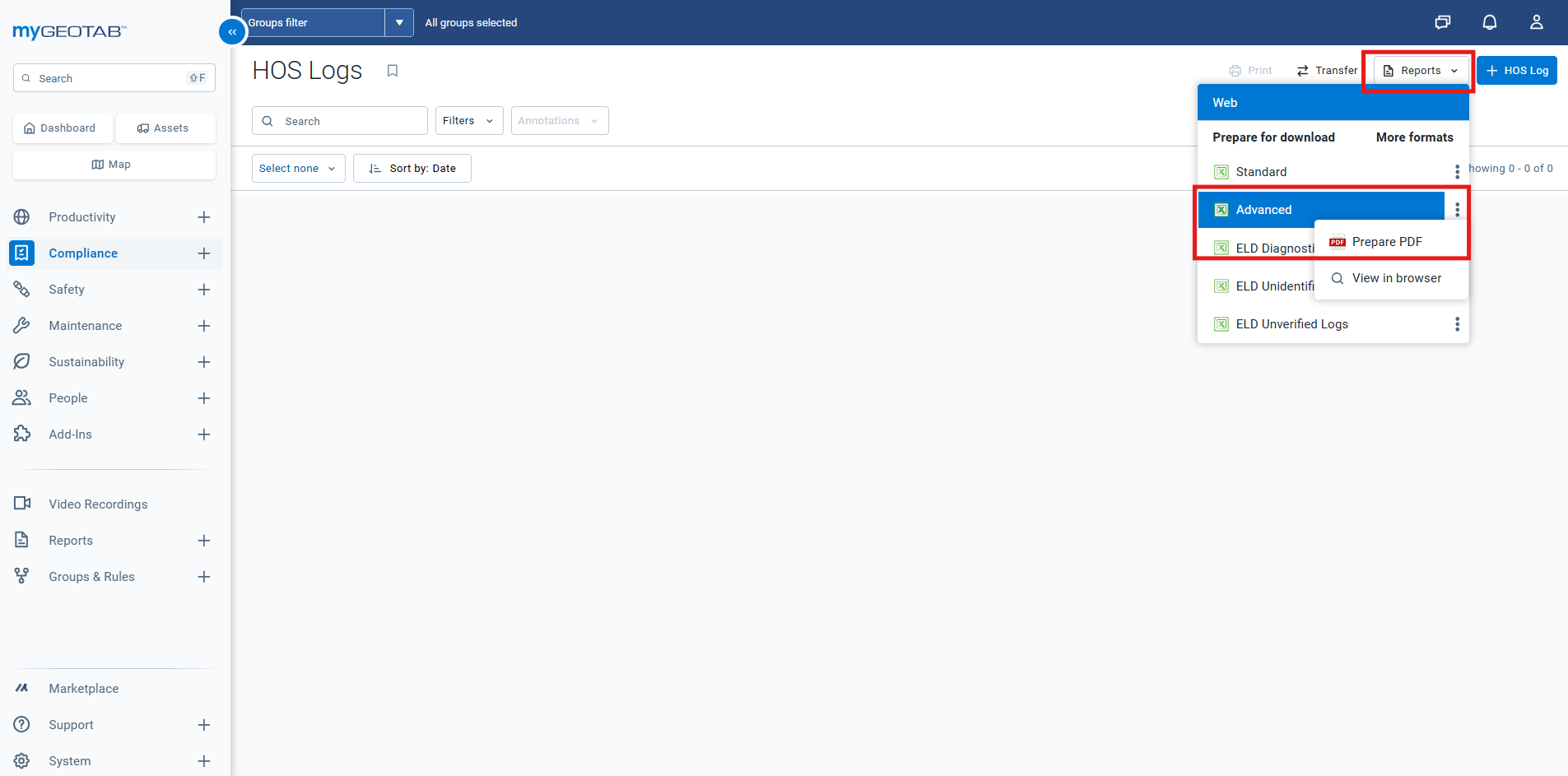
Once the report is ready, select Reports and click on Advanced to download a XLSX file (sheet).
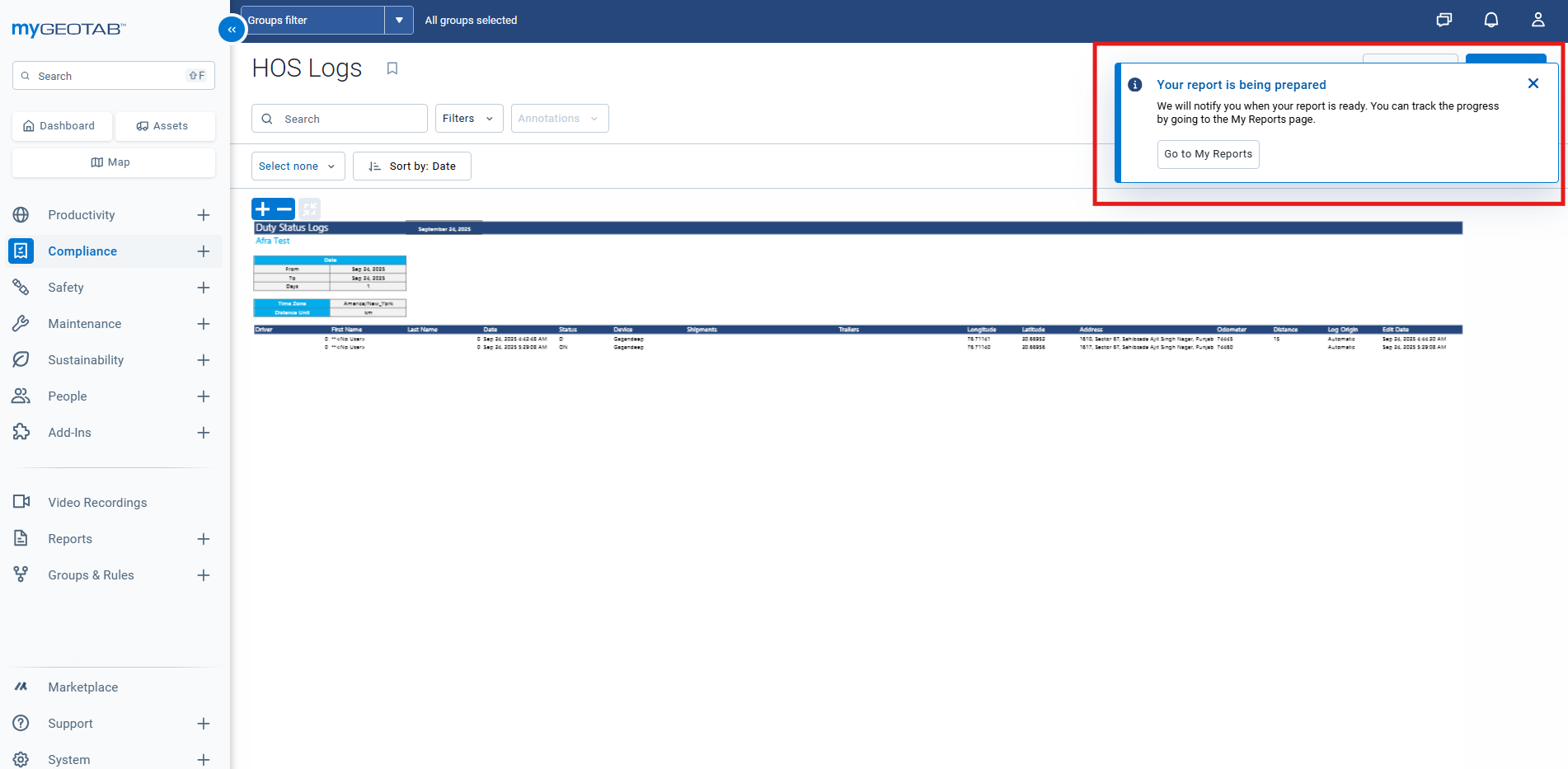
If you prefer a PDF version of the report instead of an Excel file, click the three dots next to Advanced and select Prepare PDF. You will be notified once your file is ready for download.
Was this helpful?
Still need help? Ask the team