R-Watch Installation
Written By Onboarding and Implementation Team
Hardware Setup Based On ZenCAM Type
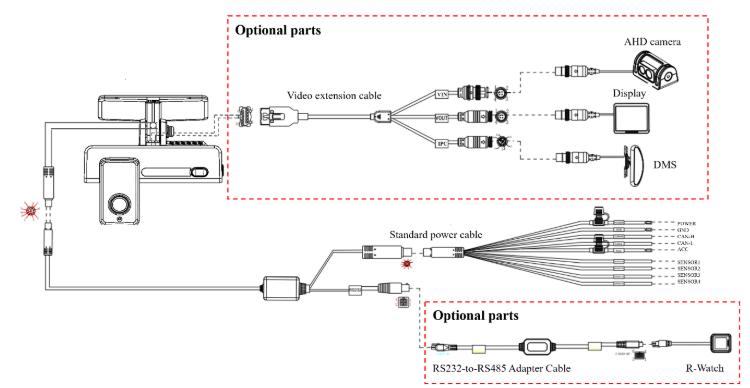
ZenCAM PLUS with Standard Power Box
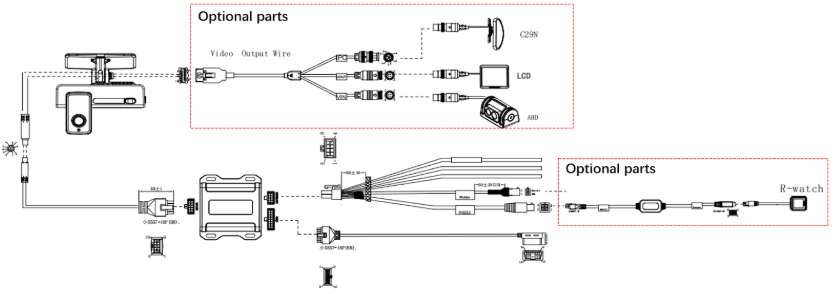
ZenCAM PLUS with Diagnostic Box
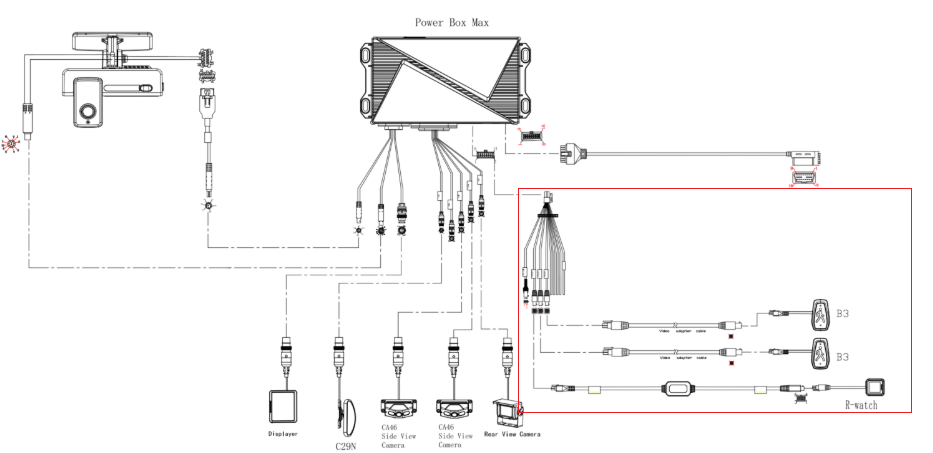
ZenCAM PLUS with Power Box MAX
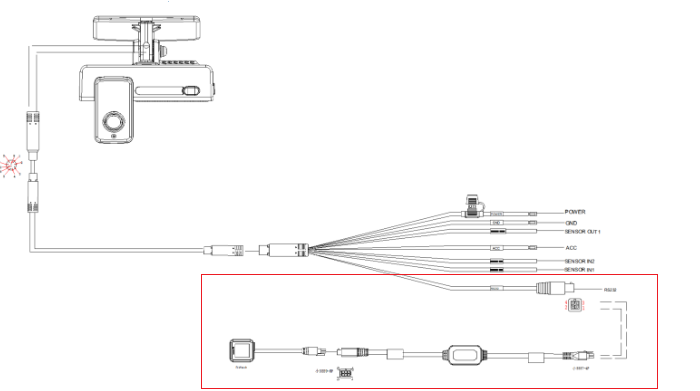
ZenCAM LITE
Software Setup
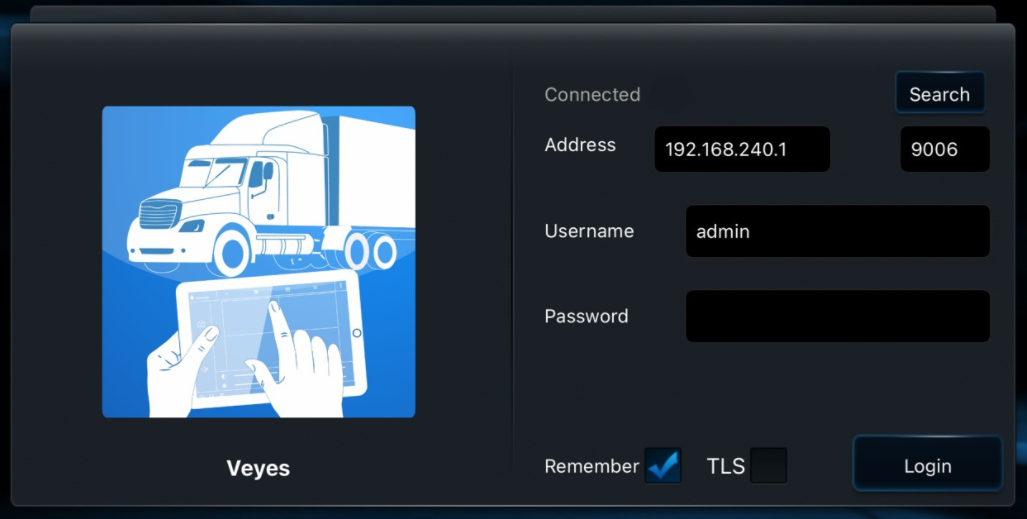
Download and open the Veyes App on your mobile app:
Double click the panic button of the camera to enable hotspot
Connect to the camera's Wi-Fi network (Usual Wifi Name is ST-[Camera Serial])
For IOS devices, when you see the message of “The Wi-Fi network does not appear to be connected to the internet” (It usually occurs around 2 mins after connecting to the WI-Fi of the camera) proceed with the option of “Keep Trying Wi-Fi”
For Android devices, when you see the message of “This Wi-Fi network has no Internet access. Stay connected?” (It usually occurs around 2 mins after connecting to the WI-Fi of the camera) proceed with the option of “YES”
Access the Veyes app and log in with the admin/admin username and password
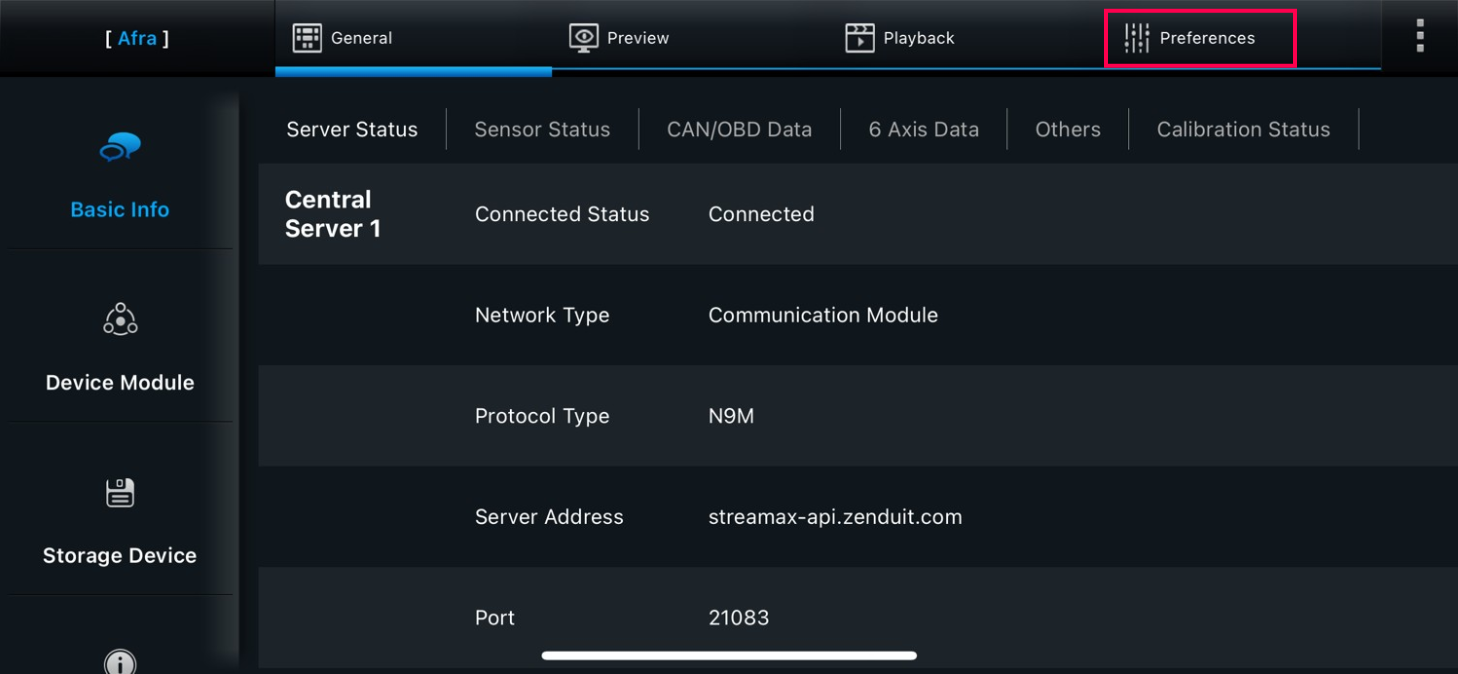
Navigate to Preferences
Expand Collection tab and select General
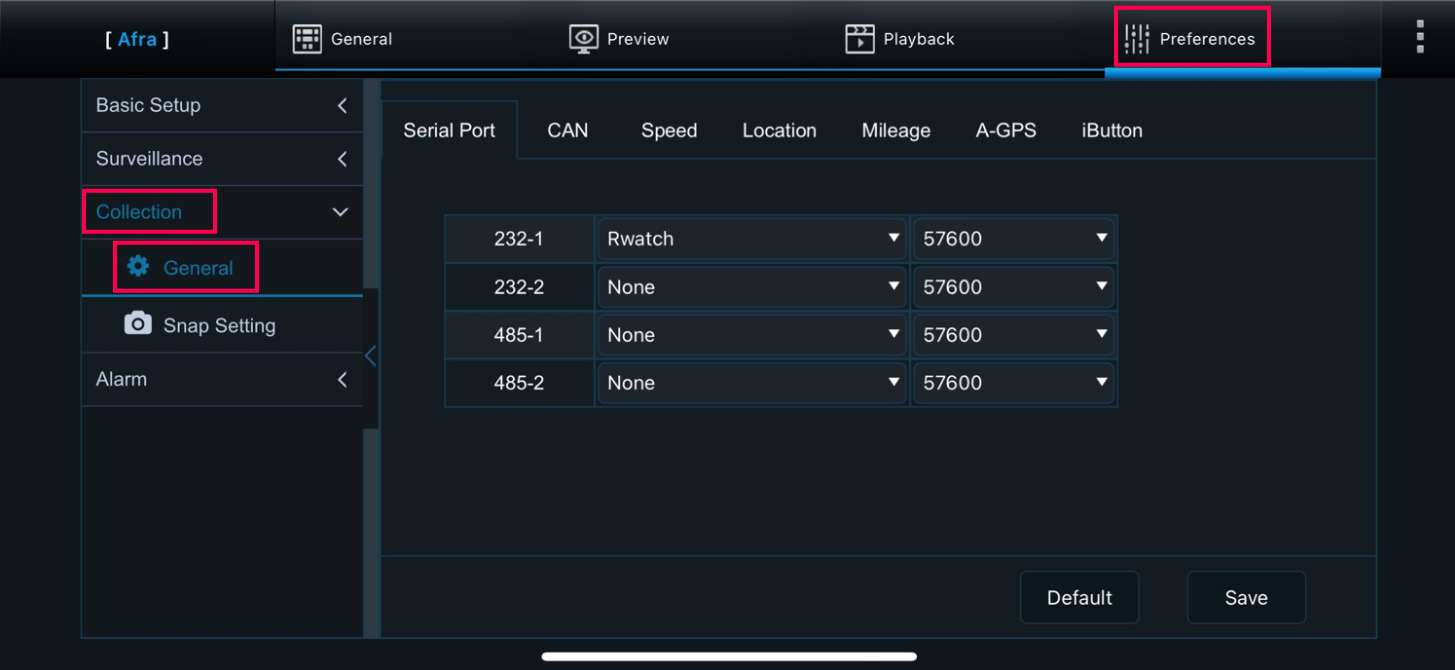
Under Serial Port, based on serial port number the R-Watch is inserted to (232/485), select the R-Watch option
Ensure Baud Rate is 57600
Save
Expand Alarm tab and select AI App
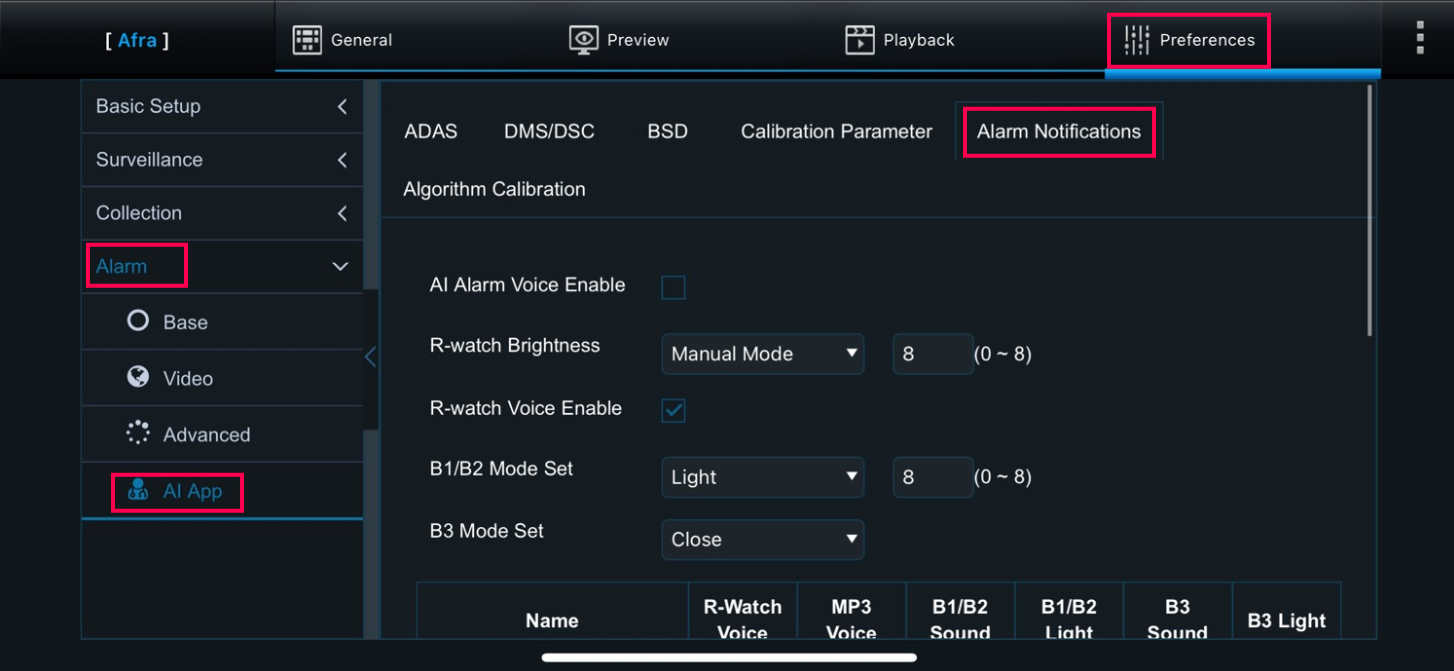
Click on the subtab Alarm Notifications
Enable “R-Watch Voice Enable”
Scroll down to the Alarm List
For each alarm, check off the alarms that need to appear under R-Watch under the R-Watch Voice Column
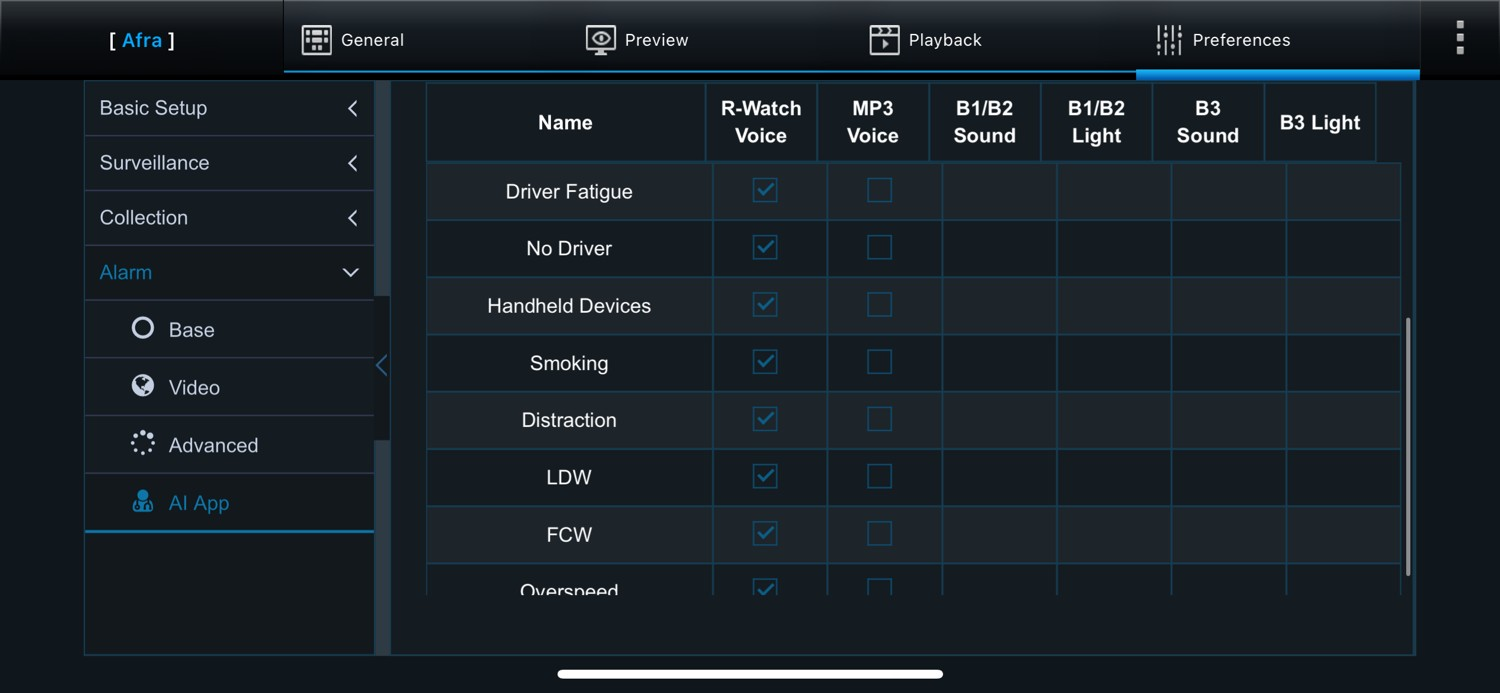
Save
Still need help? Ask the team