ZenEye Sensor & ZenEye Beacon – Troubleshooting & FAQ
Troubleshooting & FAQ
Written By Support Team
4.1 Troubleshooting
Issue 1: ZenEye device not visible in Eye App
Possible causes:
Device not activated.
Low battery.
Phone Bluetooth disabled.
How to check:
Confirm Bluetooth is enabled on the phone.
Ensure the device was activated with a magnet:
Try placing the magnet on the activation area again and look for a green LED blink.
Move the phone closer to the device.
If still not visible:
Try with another phone.
If multiple phones cannot see it, mark device for RMA/QA.
Issue 2: ZenEye device visible in Eye App but not showing in ZenduOne
Possible causes:
ZenTRACK gateway is not installed, not powered, or misconfigured.
Gateway is too far or BLE signal is blocked.
ZenduOne asset not created/linked.
How to check:
Verify the ZenTRACK gateway for that vehicle/area:
Is it online in ZenduOne?
Is BLE scanning enabled (using ZenduIT standard config)?
Confirm the ZenEye device is physically within reasonable BLE range of the gateway (avoid heavy shielding, deep inside metal compartments).
Check ZenduOne:
Has an asset been created for the ZenEye device?
Is the correct MAC Address used as Serial Number?
Issue 3: Temperature/Humidity values look wrong (ZenEye Sensor)
Possible causes:
Sensor is mounted near heat sources (engine, exhaust, heater).
Sensor in a location with poor air circulation.
Environmental extremes outside sensor spec.
How to check:
Compare with another known temperature/humidity reference in the same area.
Check the mounting location:
Avoid direct sunlight on dark surfaces, engine compartments, or heaters.
If value is clearly unrealistic (e.g., constant extreme value):
Use Eye App to check live metrics.
If Eye App also shows incorrect data, suspect hardware fault → escalate.
Issue 4: Door / magnet status not changing (ZenEye Sensor)
Possible causes:
Magnet not correctly aligned or too far from the sensor.
Magnet missing or installed on the wrong side.
Sensor mounted incorrectly.
How to check:
Verify the magnet exists and is installed.
Check alignment:
When door is closed, magnet should be within the specified distance from the sensor (typically a few cm).
Use Eye App:
Open/close the door and check if magnet/door status changes in real time.
If Eye App shows proper changes but ZenduOne does not:
Check gateway configuration and platform mapping.
Confirm the device is associated with the correct asset.
Issue 5: Cannot access configuration in Eye App (password issues)
Possible causes:
Wrong password entered.
Device firmware changed to a different password.
How to check:
Default password is
123456.If it was changed:
Check internal documentation or configuration policies.
If no password is known, device may need to be reset/replaced as per Teltonika procedures.
4.2 FAQ
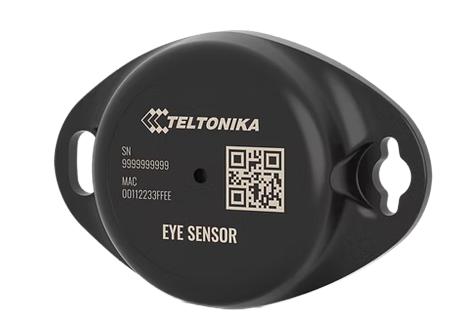
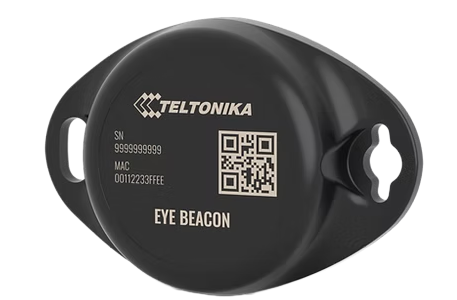
Q1. What is the difference between ZenEye Sensor and ZenEye Beacon?
A:
ZenEye Sensor provides ID + telemetry (temperature, humidity, magnet/door, motion, etc.).
ZenEye Beacon mainly provides ID (presence/identification) and is used as a simple tag.
Q2. How do I turn a ZenEye device ON?
A: Place a magnet over the device’s activation area. A green LED blink confirms activation and that the device has started advertising over BLE.
Q3. Which ID should I use in ZenduOne for ZenEye?
A: Always use the MAC Address printed on the device as the Serial Number when creating the asset in ZenduOne.
Q4. How are ZenEye devices shown in ZenduOne?
A: Each ZenEye device is created as a separate asset with Tracker Type = BLE Beacon. It can be logically associated with a vehicle/trailer/equipment as needed.
Q5. Can I change configuration (intervals, power, etc.)?
A: Yes. Use Teltonika Eye App, select the device, and log in with password 123456. Only modify settings based on Product/Engineering instructions to avoid impacting battery life or system behavior.
Q6. What metrics can I see in Eye App for ZenEye Sensor?
A: Eye App can display:
Temperature
Humidity
Magnet/door/attachment status
Battery voltage
Motion/accelerometer info
These metrics help validate correct operation before and after deployment.
Q7. Do I need to configure datapayloads manually?
A: No. When used with ZenTRACK gateways configured with ZenduIT default files, parsing for Eye devices is handled centrally. You don’t need to set iBeacon/KSensor/Eddystone offsets manually.
Was this helpful?
Still need help? Ask the team