ZenTitan Installation Guide
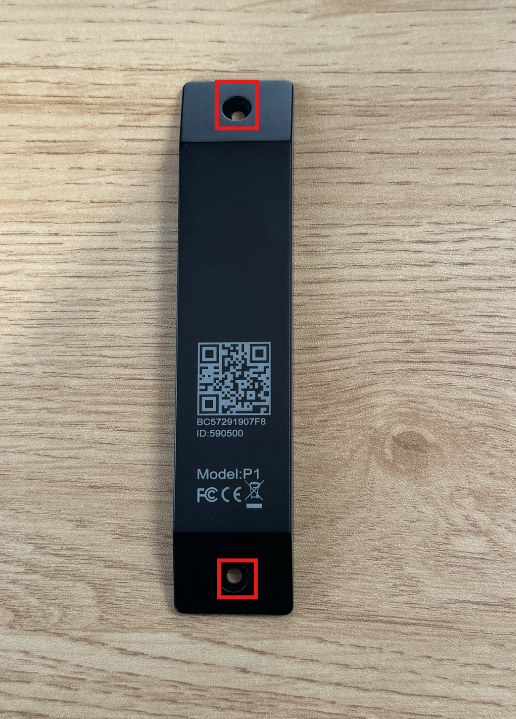
Product Overview: ZenTitan is a BLE beacon designed for asset tracking. It continuously broadcasts presence information and is ideal for vehicles, containers, pallets, or other assets. The device comes in a large rectangular casing with a hole on each short side for mounting (two screws total). Batteries are non-replaceable, and the device is always on.
Written By Support Team
1. Key Features
Presence tracking: Constantly advertises its presence via BLE.
Rugged design: Durable rectangular housing for asset applications.
Mounting options: Screws only (tape not included).
BLE beacon: Compatible with ZenCam, IOX-BT, Asset Trackers, and ZenduOne.
Battery & power: Non-replaceable; device is always powered on.
2. Before You Start
You will need:
ZenTitan device
Screws for mounting (purchased separately or included if specified)
Compatible BLE gateway
Smartphone with KBeacon Pro app installed (iOS/Android)
3. Step 1 – Prepare the Device
Remove the ZenTitan from packaging.
Verify that the device is broadcasting using KBeacon Pro.
Check that the device is visible and reports its MAC address.
Confirm signal strength in the app.
Note: The device is always on; no internal button or activation is required.
4. Step 2 – Mounting the Device
Choose a flat, stable surface for installation.
Align the device’s two holes on the short sides with the mounting surface.
Secure the device using two screws (one per hole).
Ensure the device is stable and will not shift during transport or handling.
Note: Tape is not included and is not recommended for secure installation.
5. Step 3 – Verifying Operation
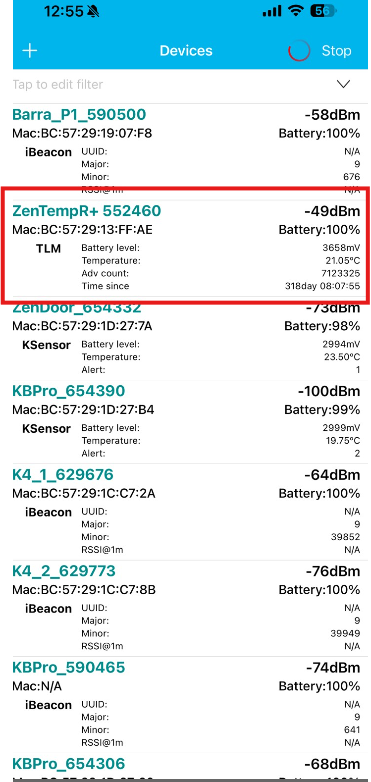
Open KBeacon Pro on your smartphone and scan for nearby BLE devices.
Select the ZenTitan beacon to verify:
Device is broadcasting.
Beacon is visible in the app.
MAC address is correct.
6. Step 4 – Linking to ZenduOne
Log in to ZenduOne and navigate to the BLE Beacon / Devices section.
Add a new beacon:
Type: BLE Beacon / Asset Tracker
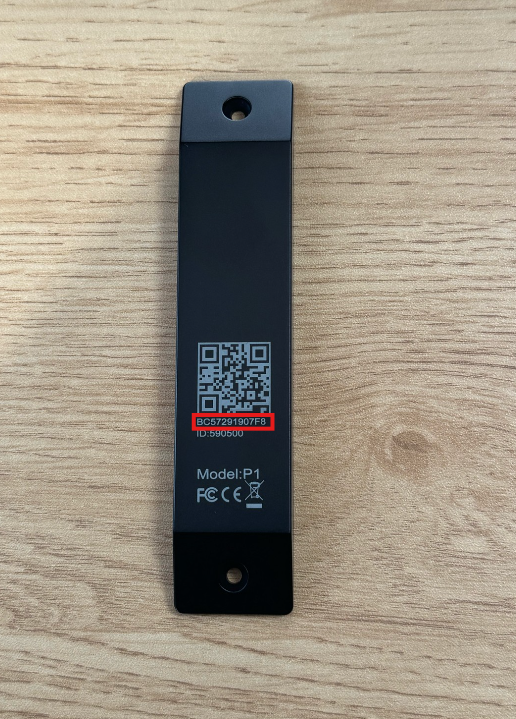
Identifier: Enter ZenTitan serial/MAC
Assign to the correct asset (vehicle, container, or pallet).
Verify that the device is visible and reporting in ZenduOne.
7. Best Practices & Notes
Always use screws for mounting; tape is not provided and may not be secure.
Confirm beacon is broadcasting before final installation.
Document device serial and installation location for support or maintenance.
Was this helpful?
Still need help? Ask the team