Schedule a route and assign a bus
A schedule says which days a route runs, at what time, and with which bus.
Written By Vishal Singh
A schedule says which days a route runs, at what time, and with which bus. Trips are created from the schedule.
Steps
After you create the route, click Proceed to Schedule Configuration. For an existing route, open it and click Edit Route first. The Schedule & Service step opens.
Under Weekly Schedule, turn on each day the route runs. For school routes, this is usually Monday to Friday. Days left off show No service.
For each day, set the departure time and choose a bus in Assign vehicle.
To add another run on the same day, click the three dots next to the day, then Add departure.
To use the same schedule on other days, click the three dots next to the day, then Copy to days… and choose the days.
Under Ends, choose when the schedule ends: Never to keep it running, On to end it on a specific date, or After to end it after a set number of occurrences.
Click Save schedule.
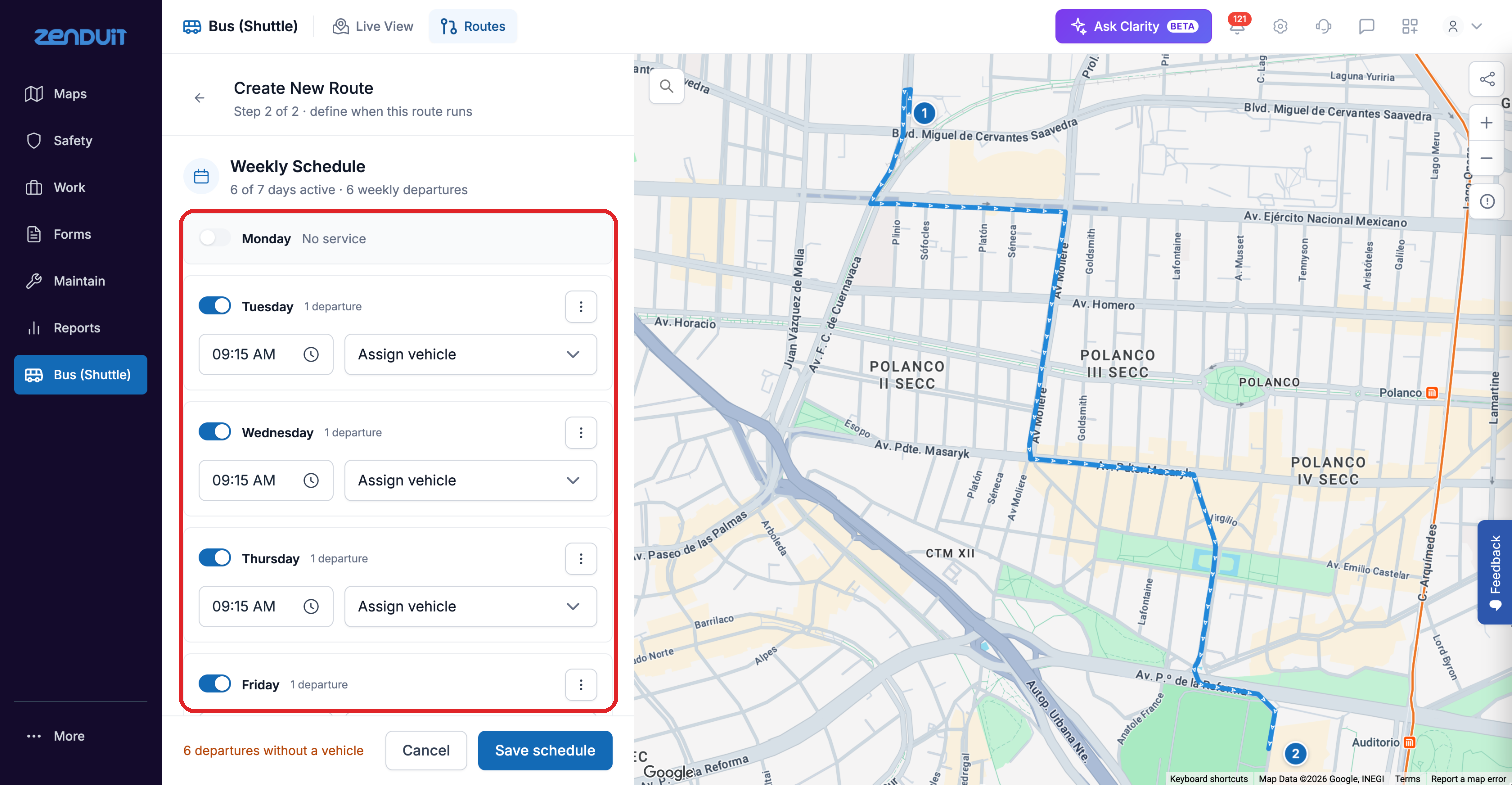
Schedule & Service: turn days on, then set each departure time and bus.
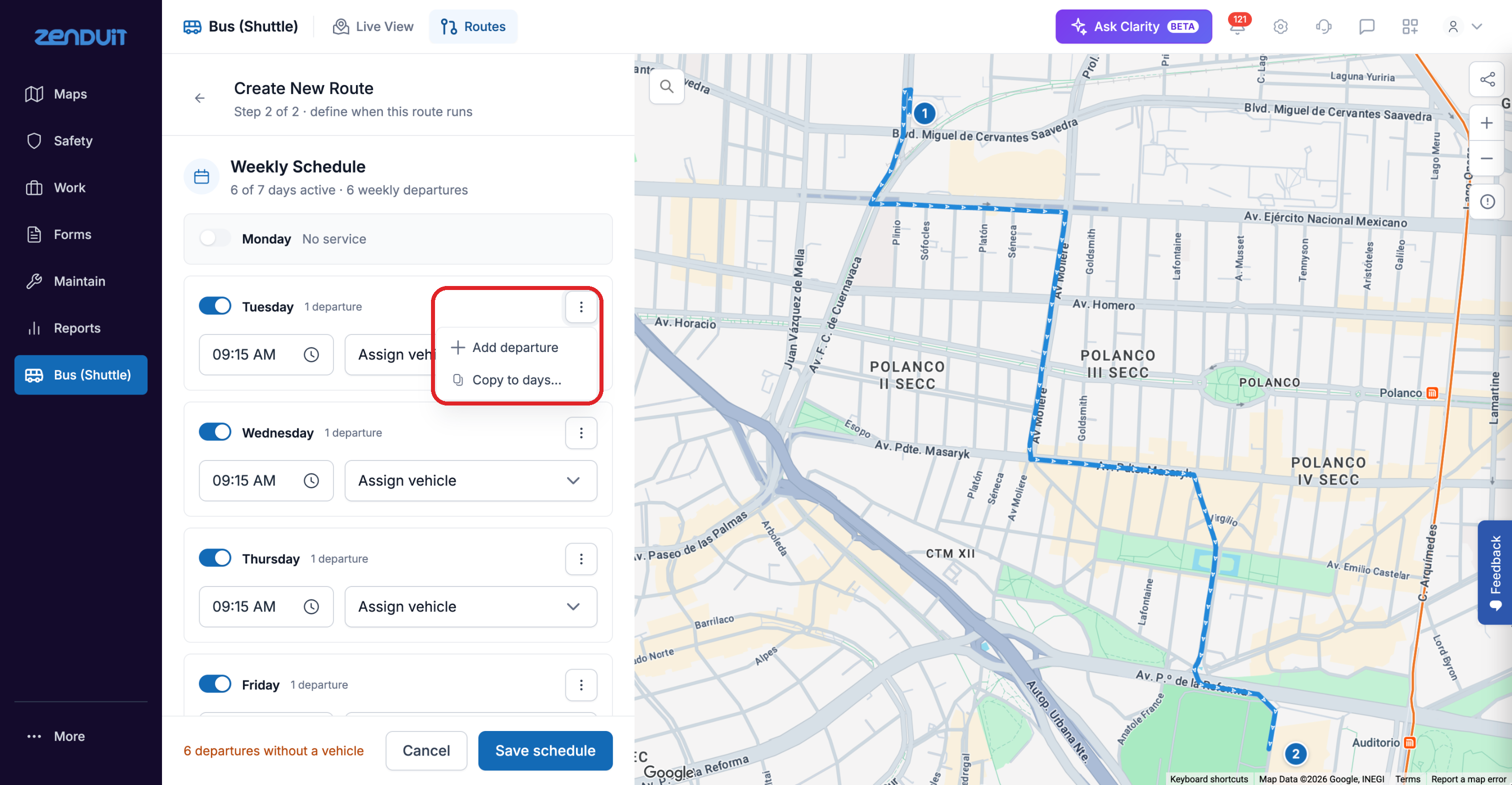
The day menu: Add departure, or Copy to days to reuse a day's schedule.
Good to know
Each departure has one bus. A bus can't be assigned to two departures at the same time. You can change it at any time.
Drivers are linked to the bus, not to the departure. See Show routes in the Driver App.
Turn off days with no service, such as weekends, so those days don't show as missed trips.
Was this helpful?
Still need help? Ask the team