Show routes in the Driver App
Drivers see their school bus trips in the ZenduONE Driver App through the bus assigned to each departure.
Written By Vishal Singh
Drivers see their school bus trips in the ZenduONE Driver App. A trip reaches the driver through the bus: you assign a bus to each departure of the route, and you assign the driver to that bus.
New to the Driver App? See the Drivers App user guides.
Route → departure (day and time) → bus → driver → Driver App
Step 1: Assign a bus to each departure
In the route's schedule, choose the bus for each departure and save. See Schedule a route and assign a bus.
Step 2: Add the driver and assign the bus
Click the gear icon to open Admin Settings, then User Management.
Open the Drivers tab and click the driver. For a new driver, click Create User and set the user type to Driver.
Click Edit.
Under Profile Details, choose the bus in Asset Assigned.
Click Save.
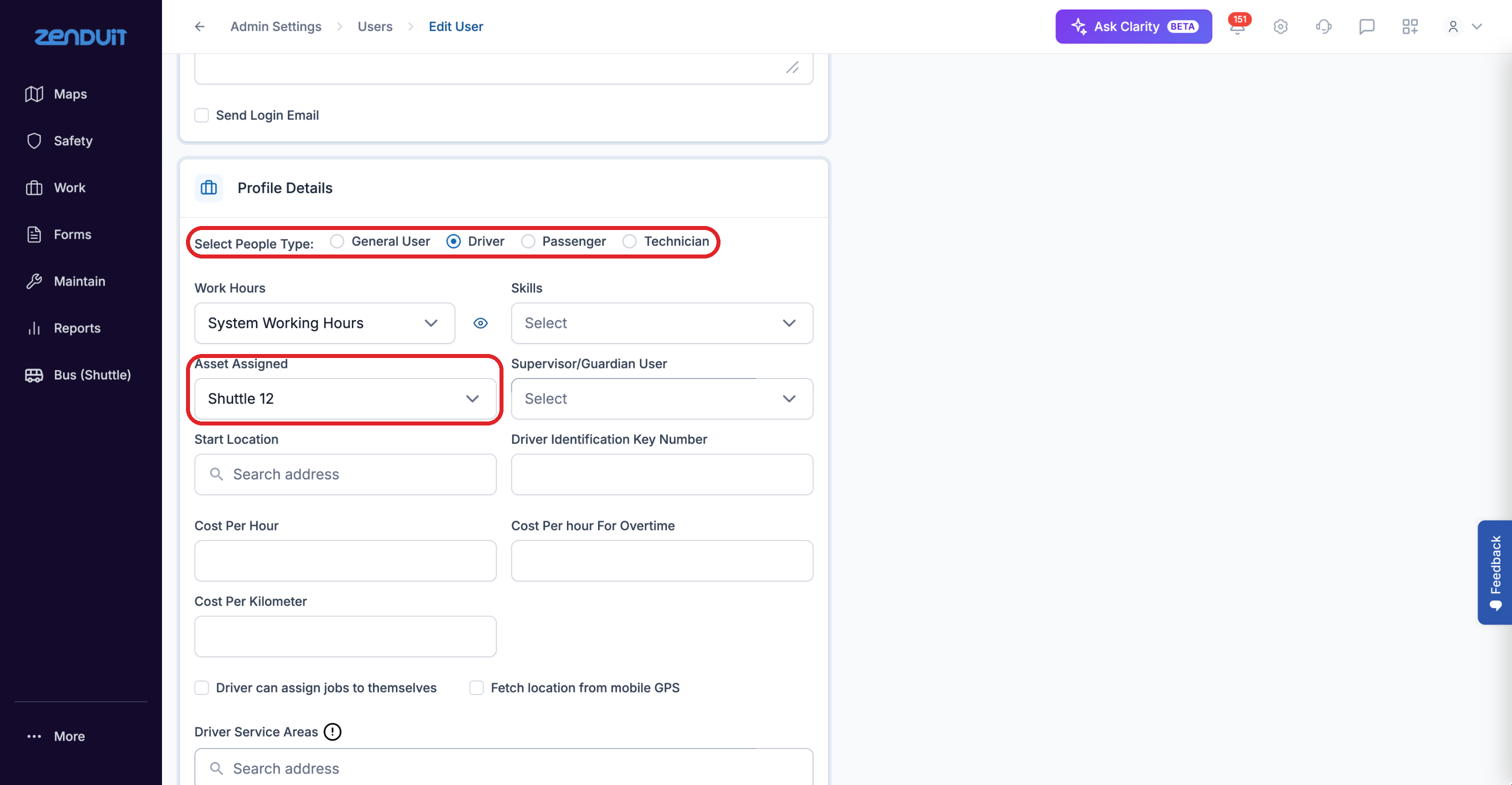
Step 3: Check the Driver App
Ask the driver to log in. Their trips appear under Jobs with the route, bus, stops in order and scheduled times.
Good to know
More than one driver can be assigned to the same bus, for example a morning driver and an afternoon driver. Each of them sees that bus's trips.
Substitute drivers: assign the bus to the substitute and they see the same route and stops.
Drivers see the students at each stop.
Was this helpful?
Still need help? Ask the team