Show live ETAs on a display monitor
Show your Share Live View public link on a TV or kiosk screen so passengers can see when the next shuttle arrives.
Written By Vishal Singh
A display monitor is a TV or kiosk screen that shows your Share Live View public link, so passengers in a lobby or terminal can see when the next shuttle arrives. There is no separate monitor setup: you create the public link in Live View and open it on the screen.
Where to use it
Lobbies, terminals, waiting areas, campus hubs and front entrances.
Steps
In Live View, click the share icon on the map to open Share Public View.
Choose the routes to show on the screen.
Choose how long the link works. See Share Live View with a public link or QR code.
Click Generate link and copy it.
On the screen's computer or smart TV, open the link in a browser and set it to full screen.
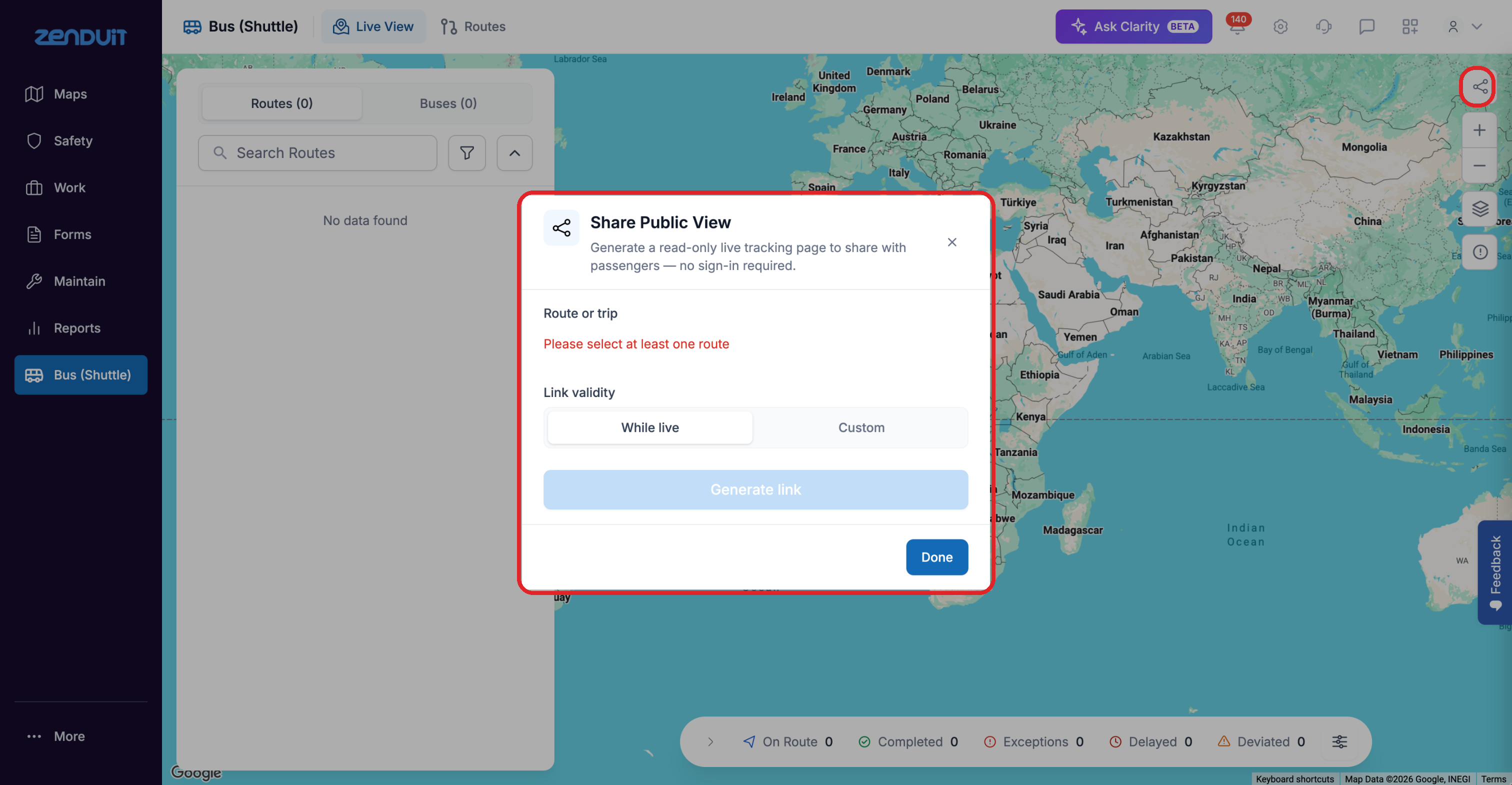
Share Public View.
Good to know
The monitor shows the same public page passengers open from a link or QR code.
The screen needs an internet connection. If the connection drops, the screen keeps showing the last data it received.
Outside service hours, the screen shows "No live routes".
When the link expires, generate a new one and open it on the screen.
Was this helpful?
Still need help? Ask the team