Share Live View with a public link or QR code
Share Live View creates a public link and QR code so passengers can track shuttles in real time, with no app and no login.
Written By Vishal Singh
Share Live View creates a public link and QR code so passengers can track shuttles in real time, with no app and no login.
Steps
Go to Live View and click the share icon on the map. The Share Public View window opens.
Under Route or trip, select the routes to include in the link, or select All live routes.
Under Link validity, choose how long the link works: While live (the link works while the routes are live; when none are running, the page shows "No live routes") or Custom (the link works until the date you choose).
Click Generate link. A public link and a QR code appear.
Click Copy link, or Download QR Code, then click Done.
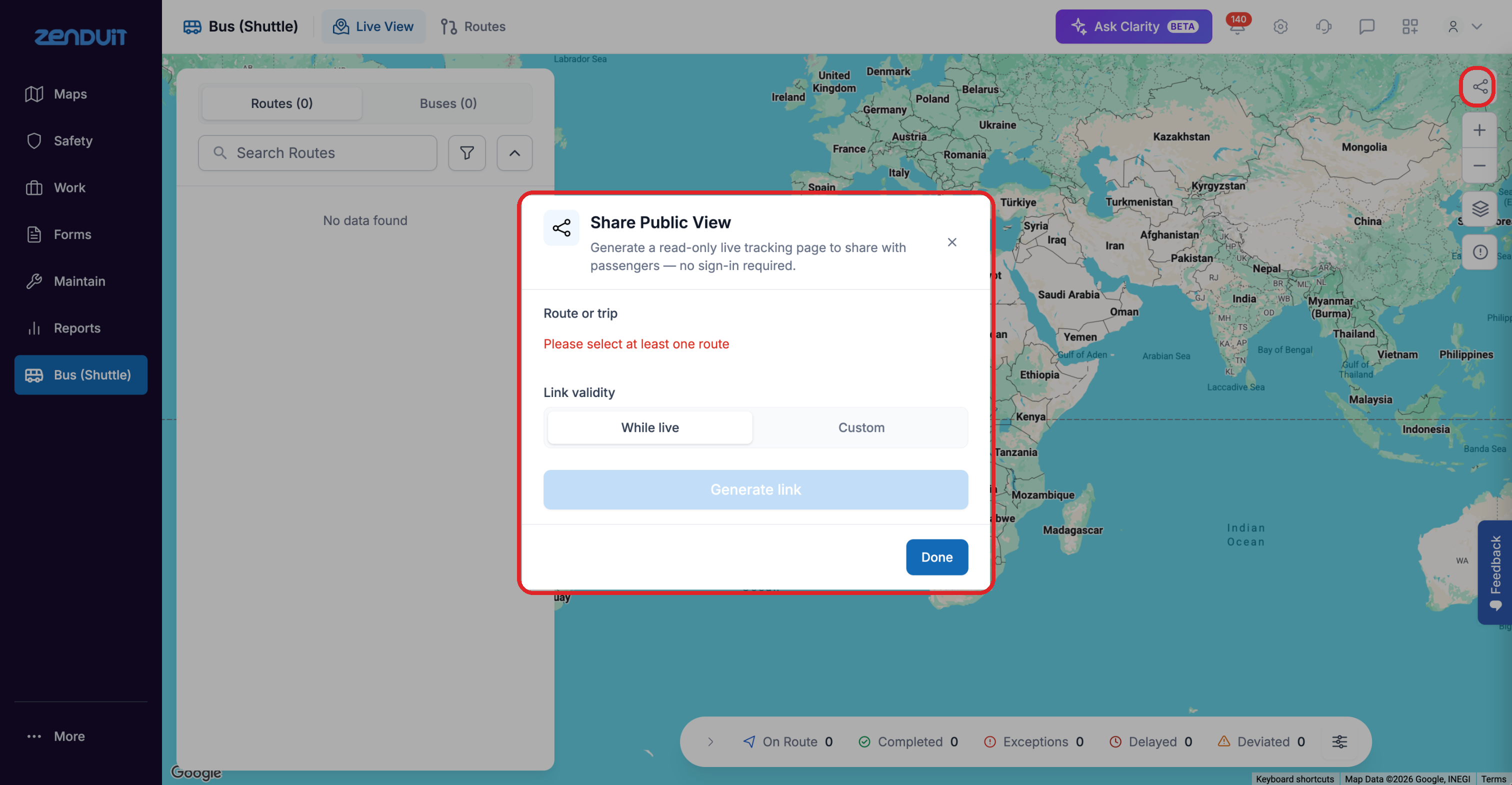
Choose the routes and how long the link works.
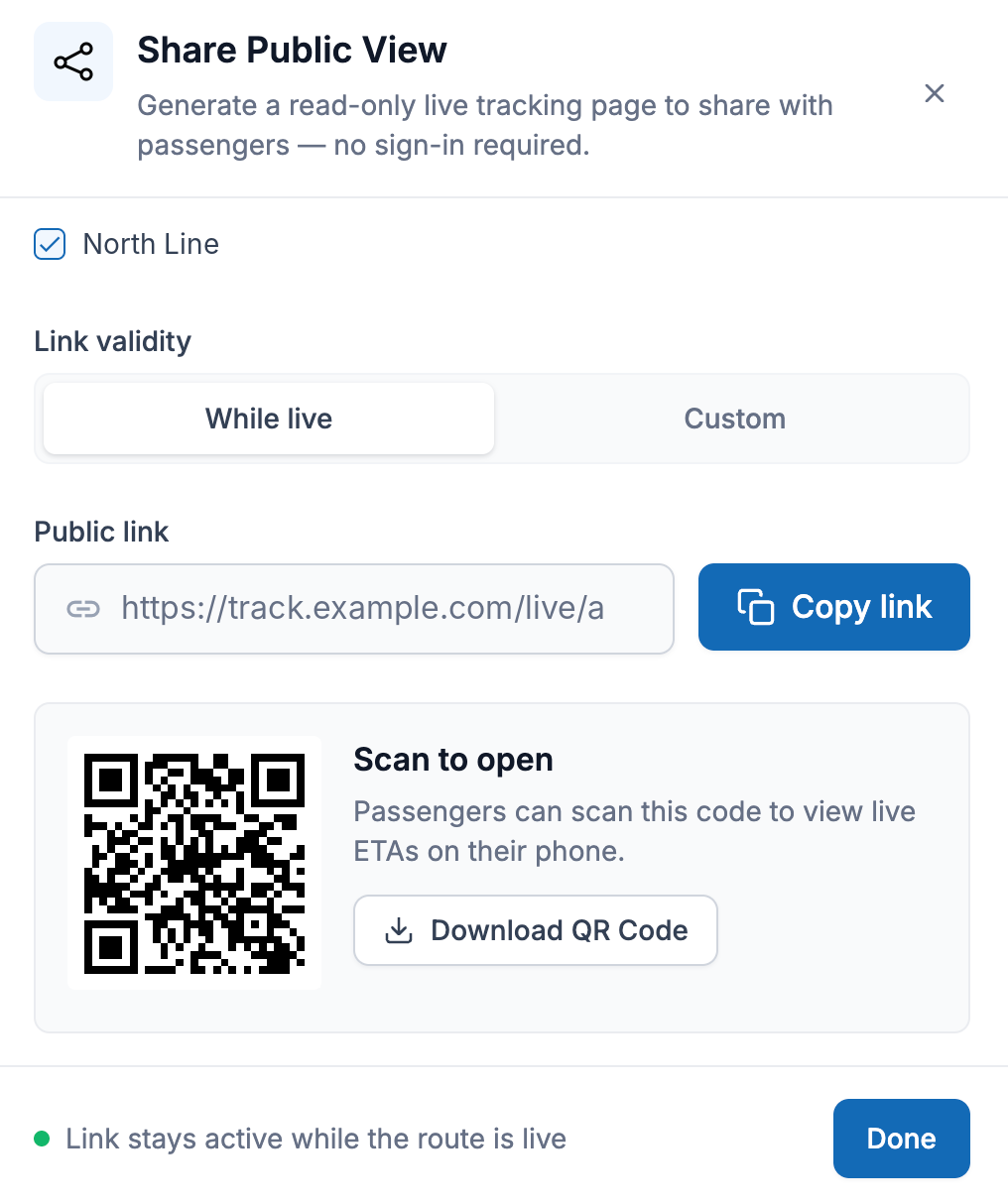
After you generate the link: copy it or download the QR code.
What passengers see
When passengers open the link or scan the QR code, they see the Live Bus Tracking page, with no sign-in. For each route it shows the vehicle, the trip status, and the stops with their ETAs.
A vehicle in the depot isn't live, so passengers don't see it on the page.
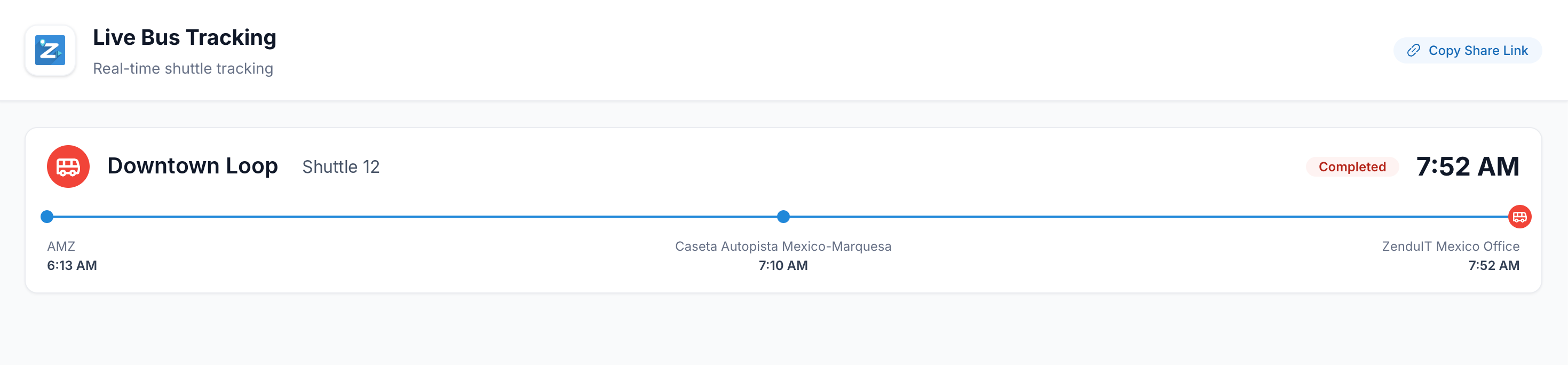
The public tracking page.
Ways to share it
Email or text message
A QR code at the stop or in a lobby
Digital signage or an internal page
Was this helpful?
Still need help? Ask the team