Import routes from a KMZ file
Import routes from a Google Earth KMZ file to bring existing routes into ZenShuttle without recreating them by hand.
Written By Vishal Singh
Import routes from a Google Earth KMZ file to bring existing routes into ZenShuttle without recreating them by hand; you review every route before it is saved.
Before you start
Export your routes from Google Earth as a .KMZ file.
Sample file
To see how a file should be built, or to try the import before using your own routes, download the sample file: in ZenduONE, go to Routes, click Upload routes, then click Download Sample KMZ.
Build your own file in Google Earth
Draw each route as a path and give it the route name.
Add each stop as a placemark on the path and give it the stop name.
Group paths in a folder called Routes and stops in a folder called Stops, as in the sample.
Save the folder as a .KMZ file.
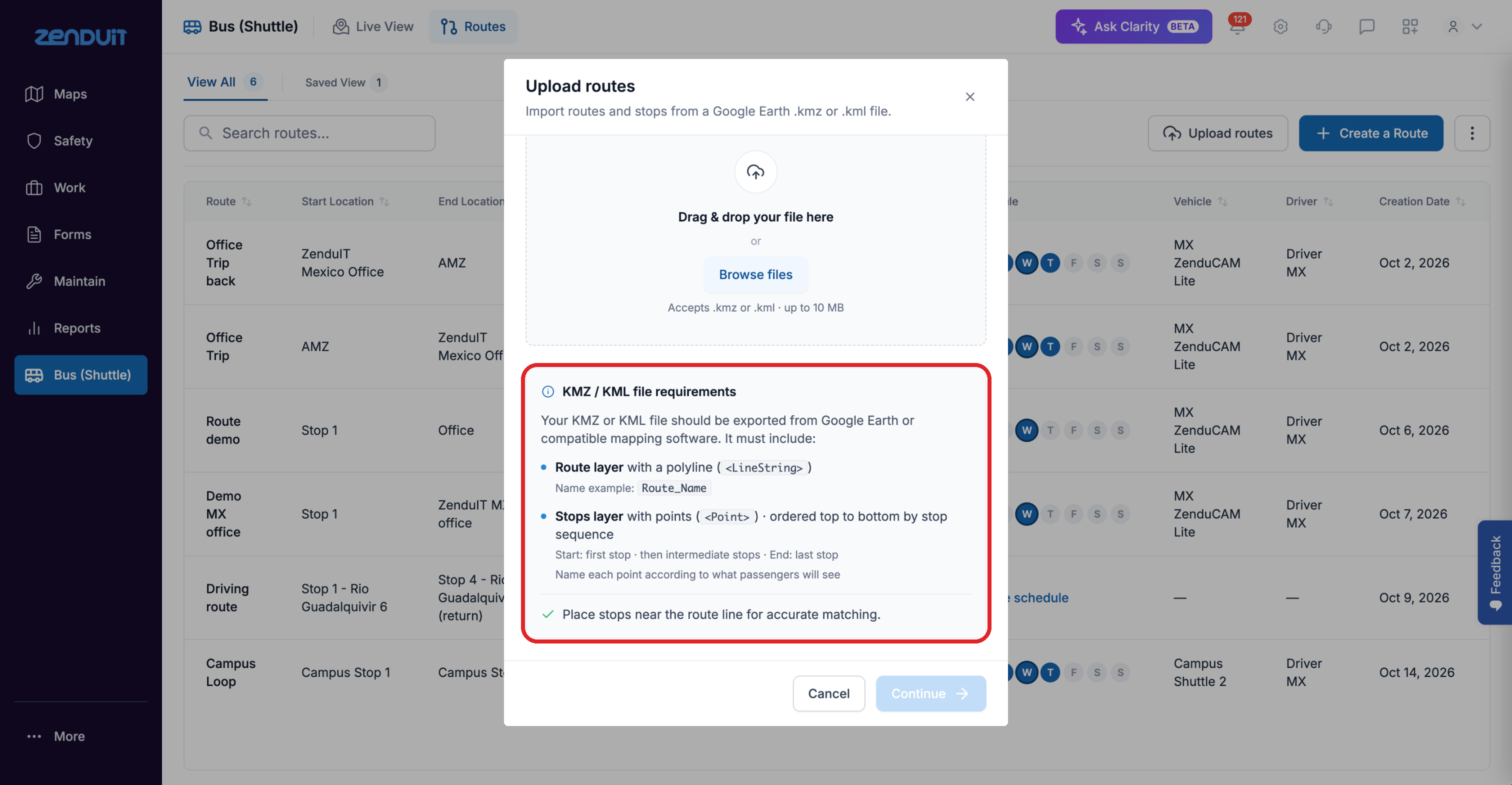
The file requirements shown in the Upload routes window.
Steps
Go to Routes > Import KMZ.
Upload your KMZ file.
ZenShuttle detects the routes and stops in the file.
Review each detected route. Before importing you can edit the route name, stops and waypoints.
Confirm the import. The routes are added to the Route Library.
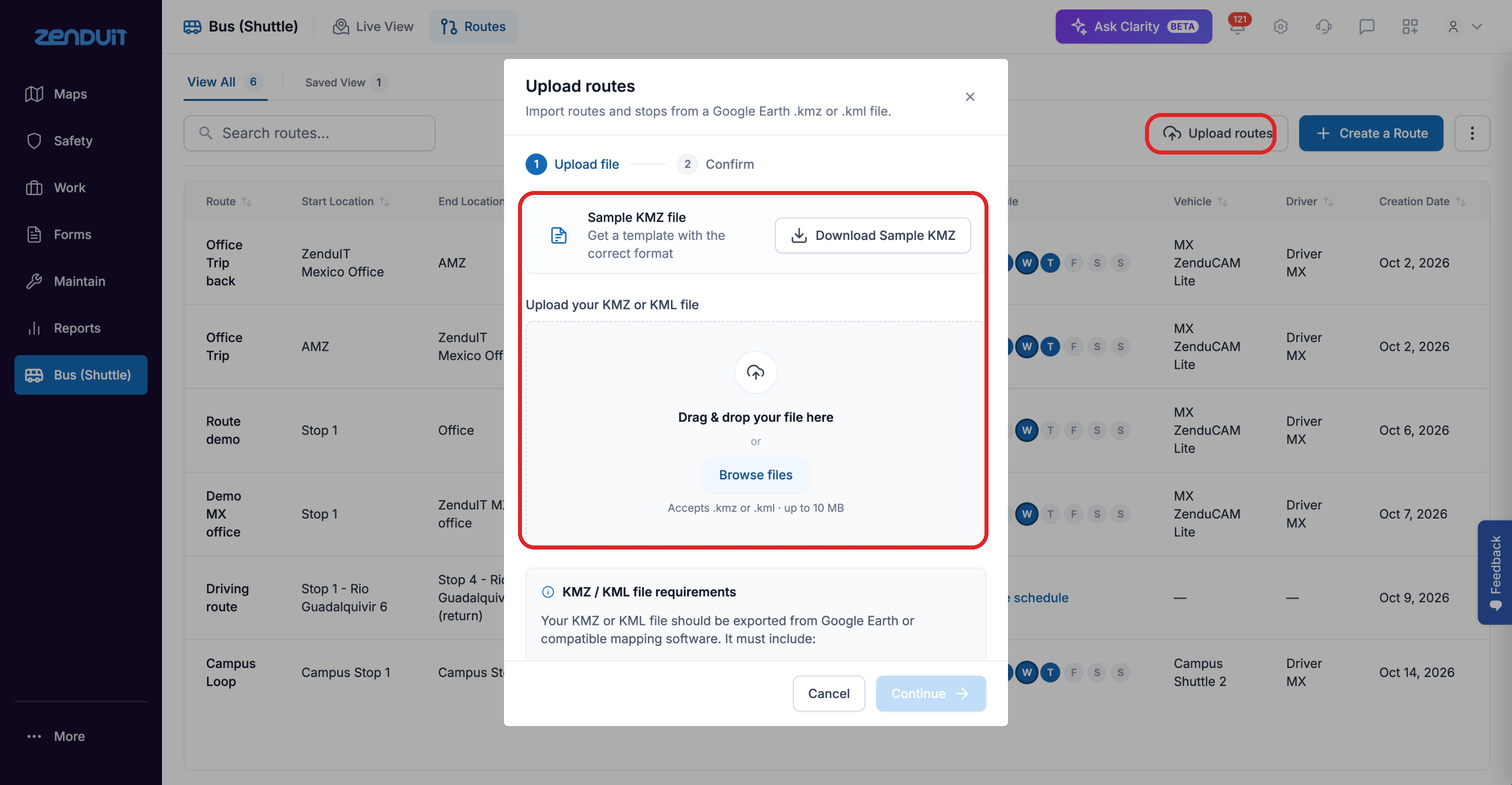
Routes > Upload routes.
After importing
Imported routes behave like any other route: edit them, schedule them and assign vehicles.
Was this helpful?
Still need help? Ask the team