ZenduMA Setup on GeoTab
Written By Shubham Mishra
Solution Overview
Zendu Maintenance (ZenduMA) is a comprehensive fleet maintenance management tool designed to streamline and automate maintenance processes. It utilizes data collected by telematic hardware, including vehicle fault codes, performance metrics, and DVIR, to automate maintenance work order creation. This integration allows fleet managers and technicians to proactively address vehicle issues before they escalate into costly repairs or downtime. Through an intuitive interface, maintenance tasks are efficiently managed and tracked from initial identification through to resolution.
Common Questions and Concerns Addressed by ZenduMA
1. How can we streamline our maintenance operations?
ZenduMA offers a centralized platform for managing all maintenance aspects, including work orders, asset tracking, preventive maintenance scheduling, inventory management, and reporting. By consolidating these tasks into one system, ZenduMA helps streamline workflows and improve efficiency.
2. How can we ensure our assets are properly maintained?
ZenduMA allows creation and scheduling of preventive maintenance tasks based on time, usage, or meter readings. Track asset health and performance in real-time, receive alerts for upcoming maintenance tasks, and analyze historical data to optimize maintenance schedules and improve asset reliability.
3. How can we reduce downtime and unplanned maintenance?
ZenduMA helps minimize downtime and unplanned maintenance by implementing proactive maintenance strategies. With preventive maintenance scheduling, predictive analytics, and condition-based monitoring, identify potential issues before they occur and take preventive action to avoid costly disruptions.
4. How can we manage our inventory more effectively?
ZenduMA's inventory management module allows tracking of spare parts, consumables, and supplies in real-time. Set up reorder points, track stock levels, and generate purchase orders to ensure right parts are on hand when needed, minimizing stockouts and optimizing inventory costs.
5. How can we improve asset utilization and productivity?
ZenduMA provides insights into asset utilization, downtime, and performance metrics to help optimize asset utilization and productivity. By identifying underutilized assets, scheduling maintenance during off-peak hours, and improving maintenance efficiency, maximize the lifespan and performance of assets.
6. How can we ensure compliance with regulatory requirements?
ZenduMA helps ensure compliance with regulatory requirements by maintaining comprehensive maintenance records, tracking inspection schedules, and providing audit trails for maintenance activities. Define user roles and permissions to control access to sensitive information and functionalities within the ZenduMA platform, enhancing data security and privacy.
7. How can we improve communication and collaboration among maintenance teams?
ZenduMA facilitates communication and collaboration among maintenance teams through its mobile app, allowing technicians to create, update, and complete work orders from the field. Assign tasks, share documents, and communicate with team members in real-time, improving coordination and responsiveness.
8. How can we track maintenance costs and performance?
ZenduMA provides comprehensive reporting and analytics capabilities to track maintenance costs, performance metrics, and key performance indicators (KPIs). Generate custom reports, visualize data through graphs and charts, and identify trends and opportunities for improvement, enabling data-driven decision-making.
Add-in Setup
What is an Add-in?
An add-in, also known as an add-on or plugin, refers to a software component that adds specific features or functionality to an existing application or program. It is designed to extend the capabilities of the host application and provide additional tools or services.
Installation Steps
Login to your MyGeotab Account
Navigate to System > System Settings
Click the "Add-Ins" tab
Set Allow unverified Add-Ins to "Yes"
Click "+ Add-In"
Copy and paste the following JSON configuration into the text field under the Configuration tab:
{
   "name": "ZenduMaintenance",
   "supportEmail": "support@zenduit.com",
   "version": "1.0.2",
   "items": [
       {
           "path": "",
           "menuName": {
              "en": "Zendu Maintenance",
              "fr": "Zendu Maintenance"
           },
           "icon": "https://storage.googleapis.com/zenduit-icons/ZenduMaintenance.svg",
           "menuId": "zenduitMenuLink"
       },
       {
           "url": "https://bobo.zenduit.com/AddIn/ZenduBOBO/Install?addin=zenduma&nongeotabbilling=true",
           "path": "zenduitMenuLink/",
           "menuName": {
              "en": "Zendu Maintenance",
              "fr": "Zendu Maintenance"
       },
       "icon": "https://storage.googleapis.com/zenduit-icons/ZenduMaintenance.svg"
     },
     {
       "url": "https://bobo.zenduit.com/AddIn/ZenduBOBO/Configure?addin=zenduma&nongeotabbilling=true",
       "path": "zenduitMenuLink/",
       "menuName": {
          "en": "Manage Users & Vehicles",
          "fr": "Manage Users & Vehicles"
       }
     }
   ],
   "solutionId": "zenduMaintBOBO",
   "isSigned": false
}
Click "OK" to add your add-in to the list
Click "Save" on the top left to finish the installation
For additional information: https://community.geotab.com/s/article/How-to-install-add-an-add-in-I-have-developed-into-a-MyGeotab-database?language=en_US
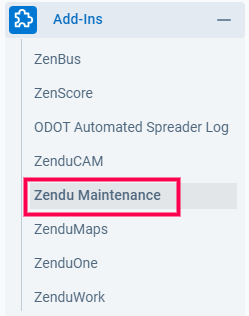
The Add-in should now be installed and you can find the Zendu Maintenance application on the side menu bar on your MyGeotab account.
System Setup
When selecting the Zendu Maintenance add-in, there are two options:
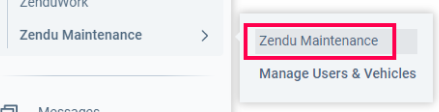
1. Accessing Zendu Maintenance
By selecting this option, you'll encounter a button displayed on the screen. Upon clicking it, you'll be directed to the Zendu Maintenance CMMS solution. You'll seamlessly access the system through Single Sign-On (SSO), automatically logged in.
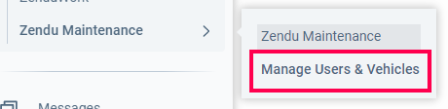
2. Manage Users & Vehicles
By choosing this option, you'll encounter a dropdown menu presenting various actions. This empowers you to oversee your Zendu Maintenance account through the add-in. These actions include:
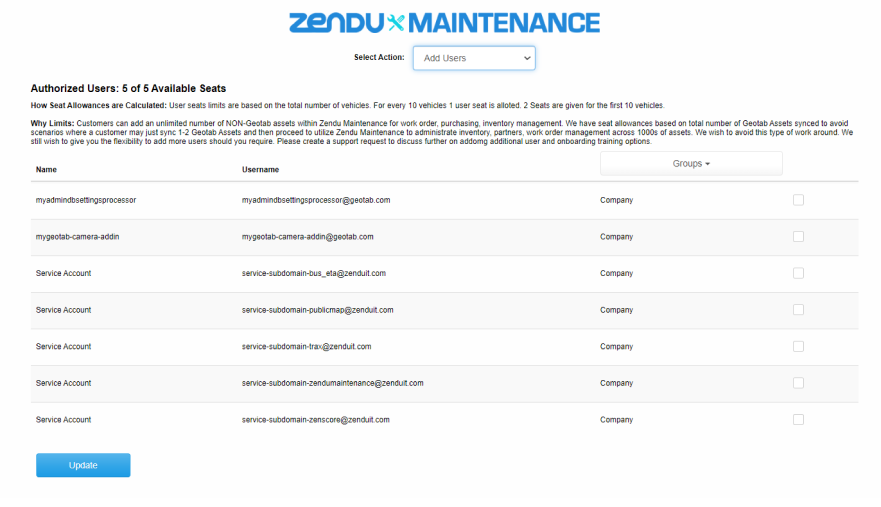
Add Users
The displayed list will indicate users within your account who haven't been assigned a license/seat in Zendu Maintenance. If you wish to provide access to a user, simply tick the box next to their name and choose "Update" to apply the changes.
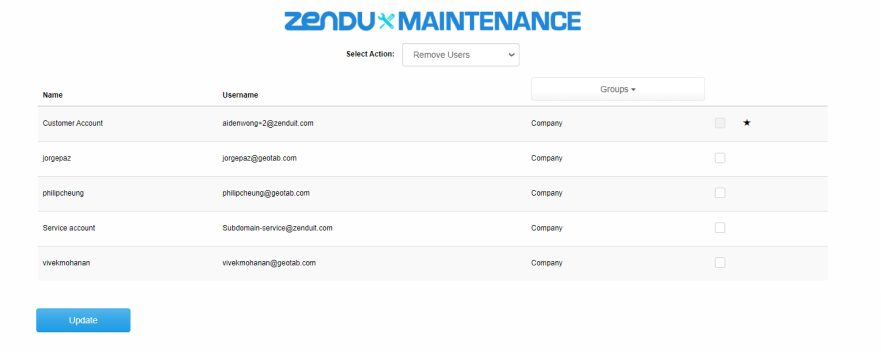
Remove Users
The provided list will display users who've been allocated a license/seat in Zendu Maintenance. Should you wish to withdraw a user's access, simply mark the checkbox beside their name and click "Update" to confirm the changes.
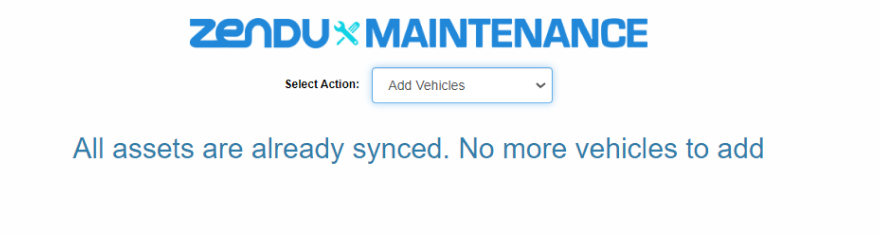
Add Vehicles
Just like with users, you can also include more vehicles here for synchronization from your telematics hardware and service provider to Zendu Maintenance. If you've already added all the vehicles, you'll receive a prompt indicating "All assets are already synced. No more vehicles to add."
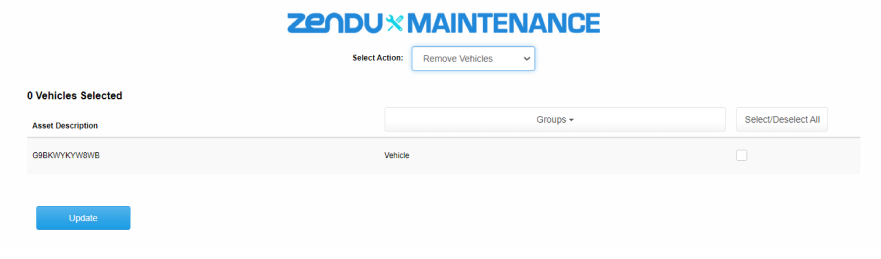
Remove Vehicles
Similar to managing users, you can also delete specific devices and assets from your Zendu Maintenance account here. This list displays all currently active vehicles and assets in your account. To remove them, just select the asset and click "Update" to confirm the changes.
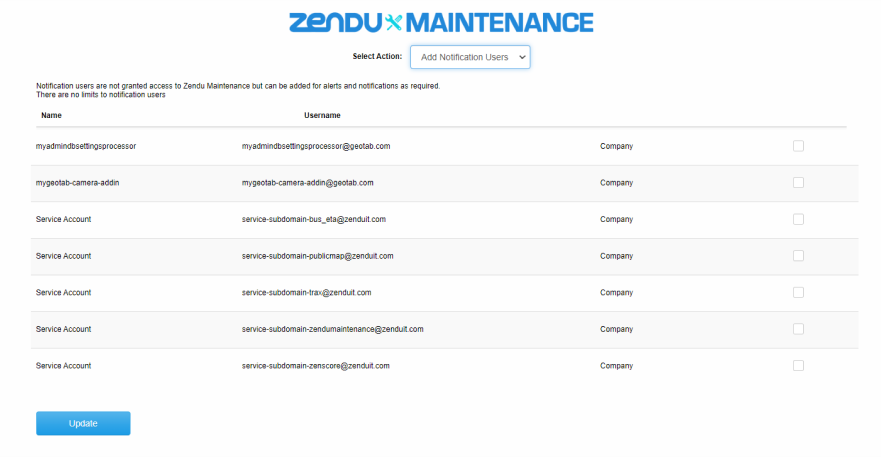
Add Notification Users
Notification users are not granted access to Zendu Maintenance but can be added for alerts and notifications as required. There are no limits to notification users.
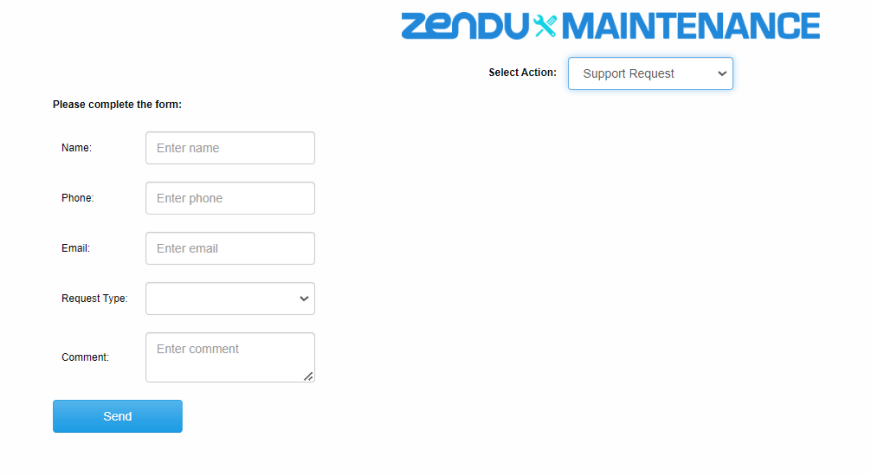
Support Request
If you have any questions or concerns, please use the "Support Request" action to submit your inquiries, and a service specialist will get in touch with you promptly.
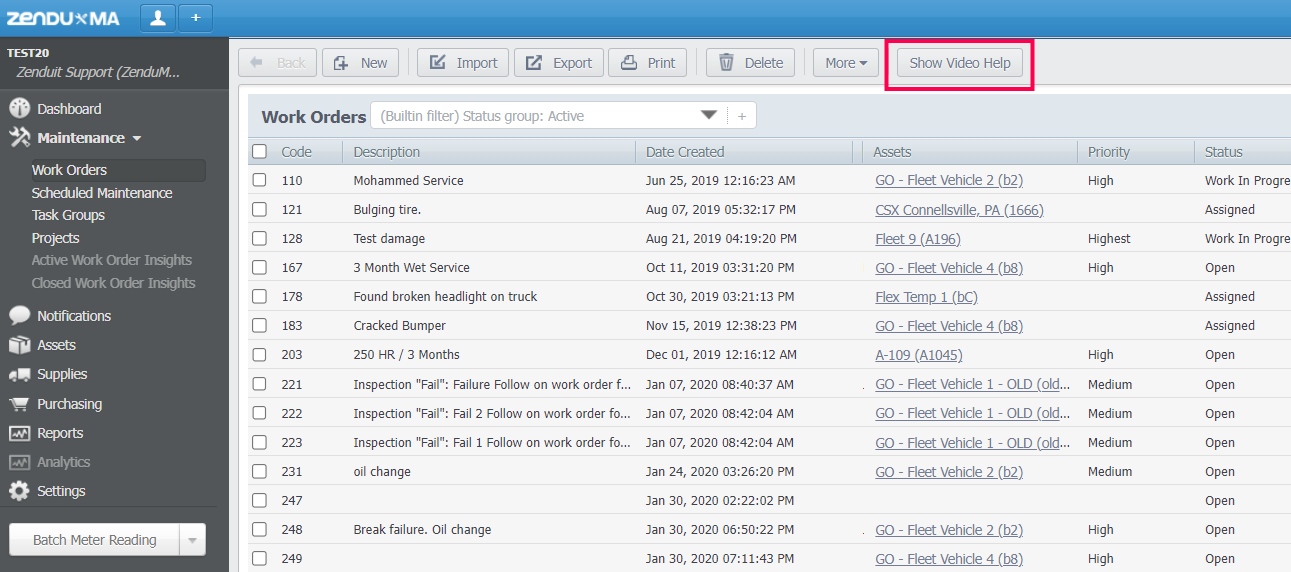
Key Modules
Maintenance: Focuses on work orders and scheduled maintenance tasks
Assets: Manages and tracks fleet assets and equipment across facilities
Supplies: Oversees inventory management and parts required for maintenance
Reports: Generates detailed reports for operational insight and decision-making
Tutorial Videos
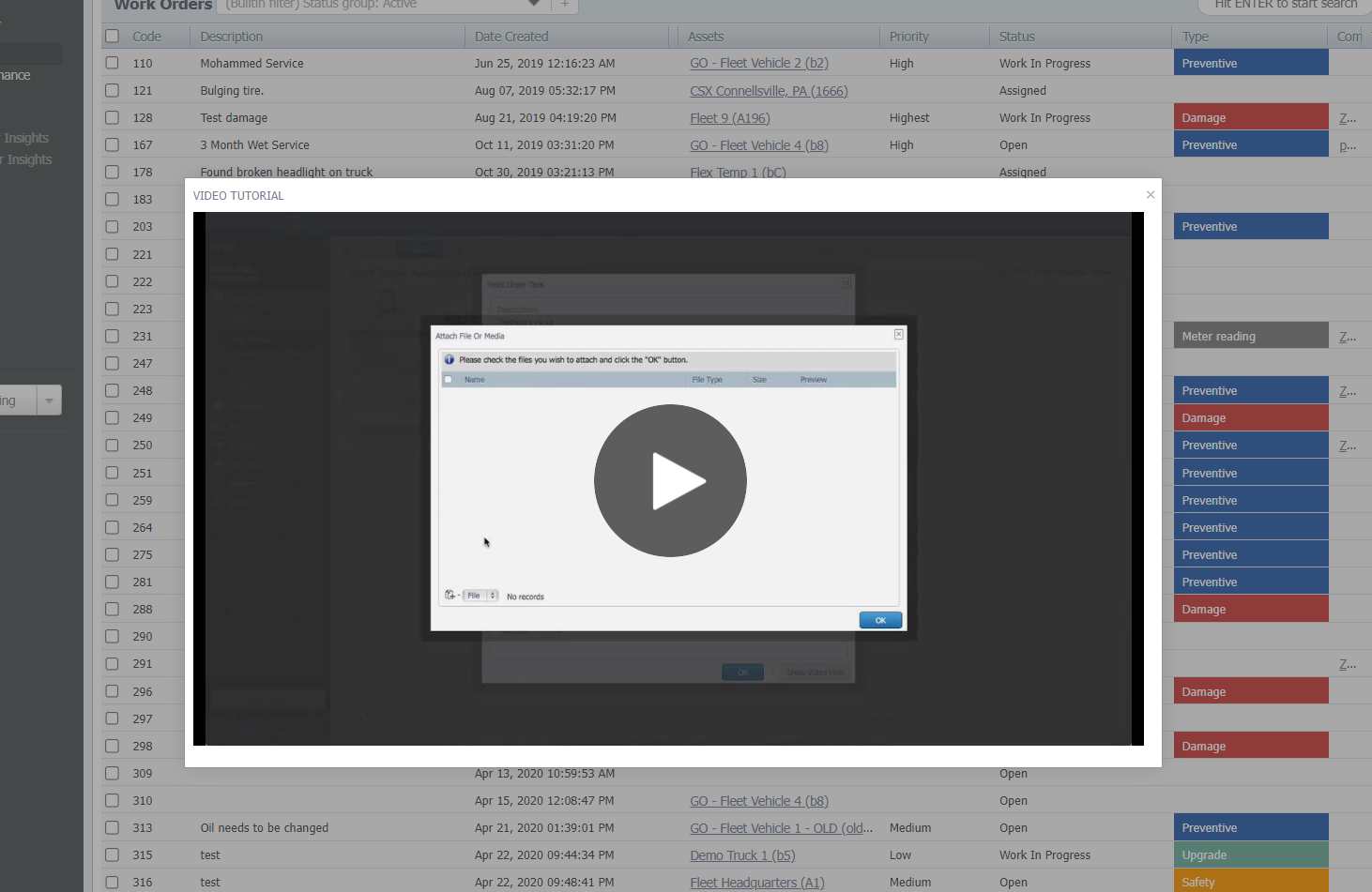
Each module includes video tutorials to assist you in getting started and guiding you through the configuration of your Zendu Maintenance CMMS. Please consider reviewing the tutorials before reaching out to support, as most frequently asked questions are addressed in these videos.
Still need help? Ask the team