How to access a Job in the ZenduONE applcation ?
Written By Kamakshi Mahajan
This article explains how to access a Job in the ZenduONE Application?
This article explains how to access a Job in the ZenduONE applcation.
Access a Job
Note: The application where drivers can access jobs is called “ZenduONE”. The application is available on both the iOS and android app stores. Please ask your drivers to download this application on their phones or tablets.
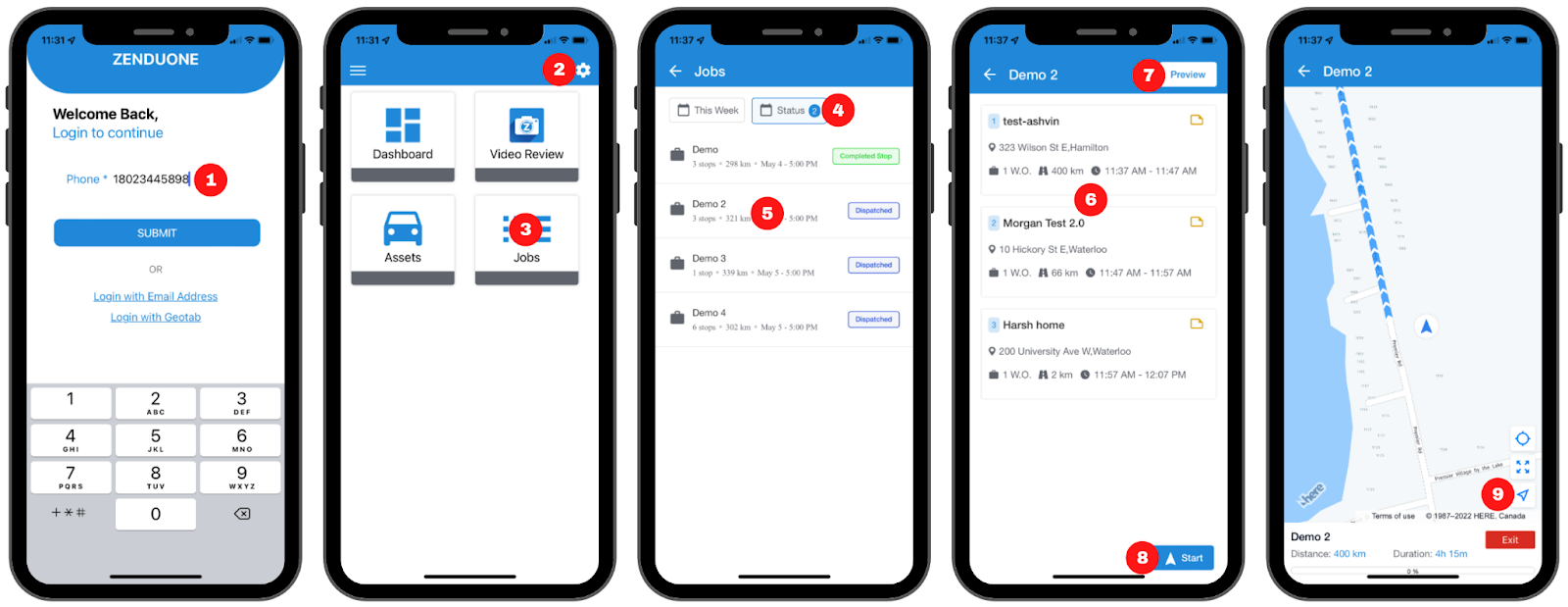
Log in to the application by entering your phone number. Include the country code but do not include the “+” sign (e.g. 18023445898). Enter the OTP verification code when prompted.
Click the gear icon in the top right of the screen and enable “Activate tracking”.
Return to the home page and click the “Jobs” card.
Use the “Date Range” and “Status” filters at the top of the screen to find relevant jobs.
Select the job you plan on starting.
This page provides a summary of steps necessary to complete the job.
Click “Preview” to view the recommended route.
Click “Start” to begin the job.
The option to open an external navigation app (to see turn-by-turn navigation) is available by clicking on the arrow button in the bottom right corner of the screen.
How to complete a Job
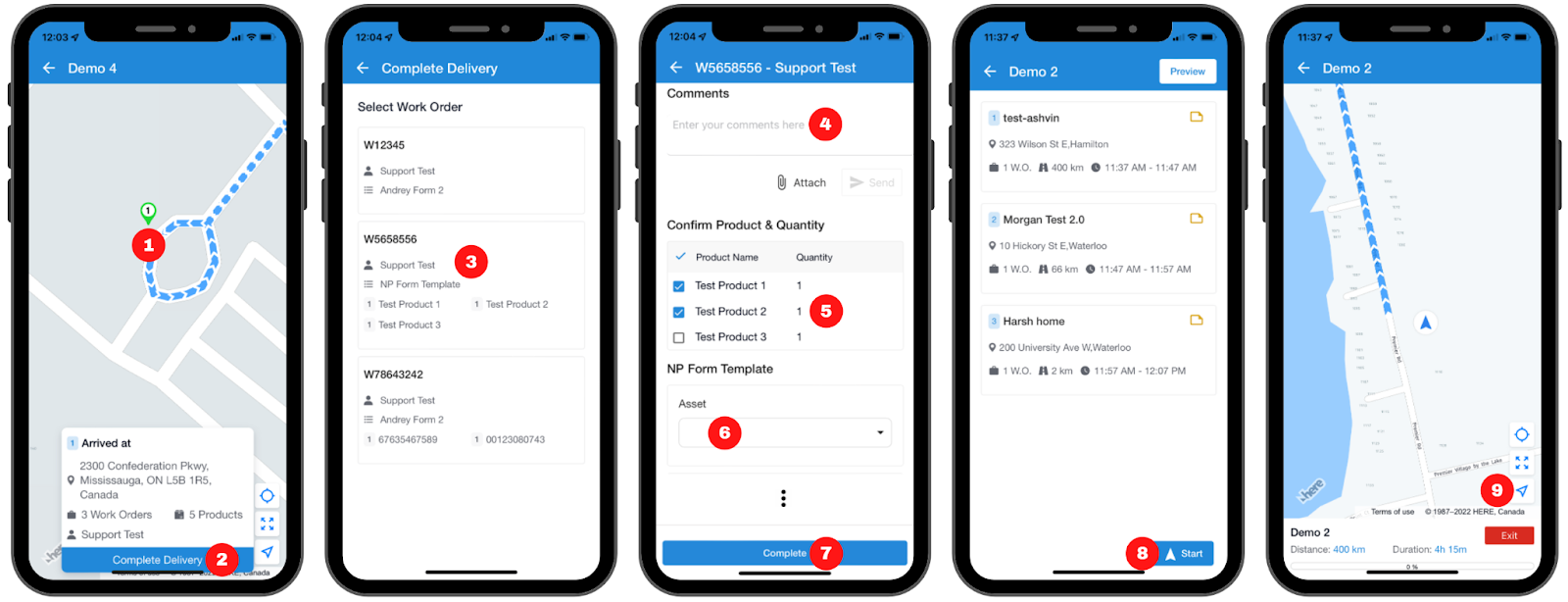
Once you arrive at the stop location, you will be prompted to complete the delivery. Alternatively, you can click on the stop to complete the delivery.
When prompted, click “Complete Delivery”.
Select the work order you wish to complete.
If necessary, you can add comments for your supervisor here.
Select the products or parcels related to the stop.
Fill out the other available fields.
Once you are done, click “Complete”.
Complete other pending work orders by repeating steps 3-7.
Resume your job and navigate to the next stop. Complete deliveries for other stops by repeating steps 1-8.
Was this helpful?
Still need help? Ask the team