ZenDoor+ Troubleshooting-FAQ
FAQ - ZenDoor+ (outdoor operations)
Written By Support Team
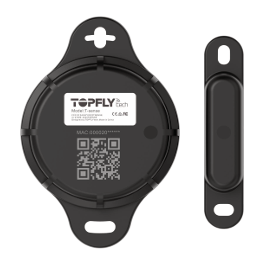
Q1: Is the battery replaceable?
A: No. ZenDoor+ uses a sealed, non-replaceable battery to support IP67 protection and reliability. When the battery is depleted (after roughly 1650 days under typical settings), the entire unit should be replaced.
Q2: What is the maximum distance between the device and magnet for a “door closed” status?
A: The device and its magnet must be within 3 centimeters (3 cm) when the door is closed. Greater distances can cause the system to read the door as open.
Q3: Can I change the transmission interval or other advanced settings?
A: Technically, yes, via the TFTBLE app—but we strongly recommend not changing these settings unless instructed by your telematics provider or support team. Changes may:
Reduce battery life
Affect communication range
Break integration with your platform
Q4: What happens if I forget the configuration password?
A: The default password is 654321. If this no longer works, contact your system administrator or support team. They may need to reset or replace the device depending on your environment and policies.
Q5: Can I fully cover the device?
A: Avoid covering the front light sensor during initial activation. After activation, the device can operate in darker environments (e.g., inside trailers), but metal or heavily shielded enclosures can significantly reduce wireless range.
Q6: What is the typical battery life?
A: Approx. 1650 days (~4.5 years) under default settings and normal operation. Actual life may vary depending on environment, transmission rate, and temperature.
Troubleshooting
Issue 1 – Door Always Shows “Open”
Possible causes:
Magnet is too far from the beacon when the door is closed
Magnet and sensor are misaligned
Door sensor not enabled in TFTBLE
What to check:
Measure the distance between magnet and device when the door is closed.
Confirm it is ≤ 3 cm.
Confirm magnet is positioned directly opposite the sensor area, not offset or rotated.
Open TFTBLE:
Connect to the device → Config → confirm Door toggle is ON.
Make sure you saved the configuration.
Issue 2 – Door Always Shows “Closed”
Possible causes:
Magnet is always within 3 cm, even when the door is “open”
The door doesn't move far enough away
The device is installed on the wrong part of the door/frame
What to check:
When the door is open, ensure the magnet moves well beyond 3 cm from the device.
If the door doesn’t move enough, consider repositioning:
Move the magnet further along the door so it travels farther when opening.
Confirm that only the closed position places the magnet within the 3 cm zone.
Issue 3 – No Data or Device Not Seen by the Platform
Possible causes:
Device not activated (no light exposure at first)
Out of range of the gateway/receiver
Gateway or platform not configured to ingest this beacon
What to check:
Activation:
Ensure the device was exposed to light at least once to power on.
Range:
Move closer to the gateway (ideally within a few meters for testing).
Platform configuration:
Confirm with your system administrator that the gateway/platform is:
Scanning for TFT Eddystone beacons
Set up to recognize this device’s ID
Issue 4 – TFTBLE Cannot Find the Beacon
Possible causes:
Bluetooth disabled on the phone
Too far from the device
Device not yet activated
Phone location/permissions blocking BLE scan
What to check:
Confirm Bluetooth is turned ON in your phone settings.
Stand within a few meters of the beacon.
Make sure the device has been activated via light.
Check app permissions:
Ensure TFTBLE has Bluetooth and Location permissions (as required by your OS).
Issue 5 – Range Seems Much Less Than 200 m
Possible causes:
Obstructions (metal walls, containers, trailers)
Interference from other wireless devices
Device installed inside a metal enclosure
What to check:
Test line-of-sight range outdoors or in an open area.
Avoid mounting the device inside fully enclosed metal spaces.
If possible, move the gateway or device to reduce obstructions.
Issue 6 – Temperature Not Updating
Possible causes:
Platform updates at longer intervals
Device recently activated and data not yet refreshed
Communication issue between gateway and platform
What to check:
Wait a few minutes and refresh your platform dashboard.
Confirm that your system shows any data from the device (e.g., door events).
If other data is received but temperature is missing, contact support for your platform configuration.
Was this helpful?
Still need help? Ask the team