ZenduOne Work Setup on Geotab
Written By Shubham Mishra
Overview
GoZen provides 14 years of expertise in developing customer-centric solutions within the Geotab ecosystem, focusing on innovation and consultation. Deep experience has led to numerous custom apps and integrations designed to empower Geotab resellers and customers. Specialization includes enhancing fleet management with AI-driven fleet cameras, comprehensive tracking solutions (asset and indoor tracking), and advanced middleware services for seamless integrations. Commitment to excellence makes GoZen a trusted partner in the Geotab community, continuously delivering solutions that drive efficiency and safety.
Solution Overview
ZenduOne Work is a comprehensive work and dispatch solution designed to streamline job management and enhance fleet operations efficiency. By enabling creation and dispatch of jobs directly to drivers, complete with forms for proof of delivery, ZenduOne Work facilitates seamless communication and operational flow between fleet managers and on-ground teams. Integration with Geotab enhances capabilities, providing a robust platform for optimizing routes, managing dispatches, and improving service delivery.
Planning and Preparation
Requirements and Prerequisites
Geotab account setup and Go devices installed in vehicles
Helpful Documentation
Reference documents for user information and contact points:
User Manual - Supervisors: https://workdrive.zohoexternal.com/external/3c59dd70a268db3f8b59347b4dc4a18d34ffa943667604285c0cf2adb6c5d7ee
User Manual - Drivers: https://workdrive.zohoexternal.com/external/b878ace9658a9f82be257435afab5526b8d9895e8c20ea56373fa523123de65a
Geotab Product Guide: https://docs.google.com/document/d/14GNbMq_ZKSUpkmSdJ8ws-DyO4P_HmTYOIu3k52f7KKY/edit#heading=h.lx59cxj0nhcp
How to Install an Add-In: https://community.geotab.com/s/knowledge-article-ra?language=en_US&solutionid=221222144336360
Geotab Drive App Manual: http://goo.gl/IbyARS
Setup and Deployment
Implementation Workflows
Setup the Service Account
Reseller Sign Up & Setup
Access the add-in
Setup the Service Account
Step 1: Create New User in MyGeotab
Log in to MyGeotab and navigate to Administration > Users, click Add button
Complete New User page with following details:
User (Email): Use convention service-<YourDatabaseName>-zenduiot@zenduit.com
Password: Create strong password
Force password change on next login: Toggle to No
Security clearance: View Only
Data access: Select Everything
Click Save


Reseller Sign Up & Setup
New Reseller Registration
For setting up customer account on ZenduONE, first sign up as reseller on ZenduONE Admin (existing resellers skip step 1).
Step 1: Reseller Sign Up (New Resellers Only)
Access ZenduONE Admin Account: https://traxadmin.zenduit.com/login.html#/
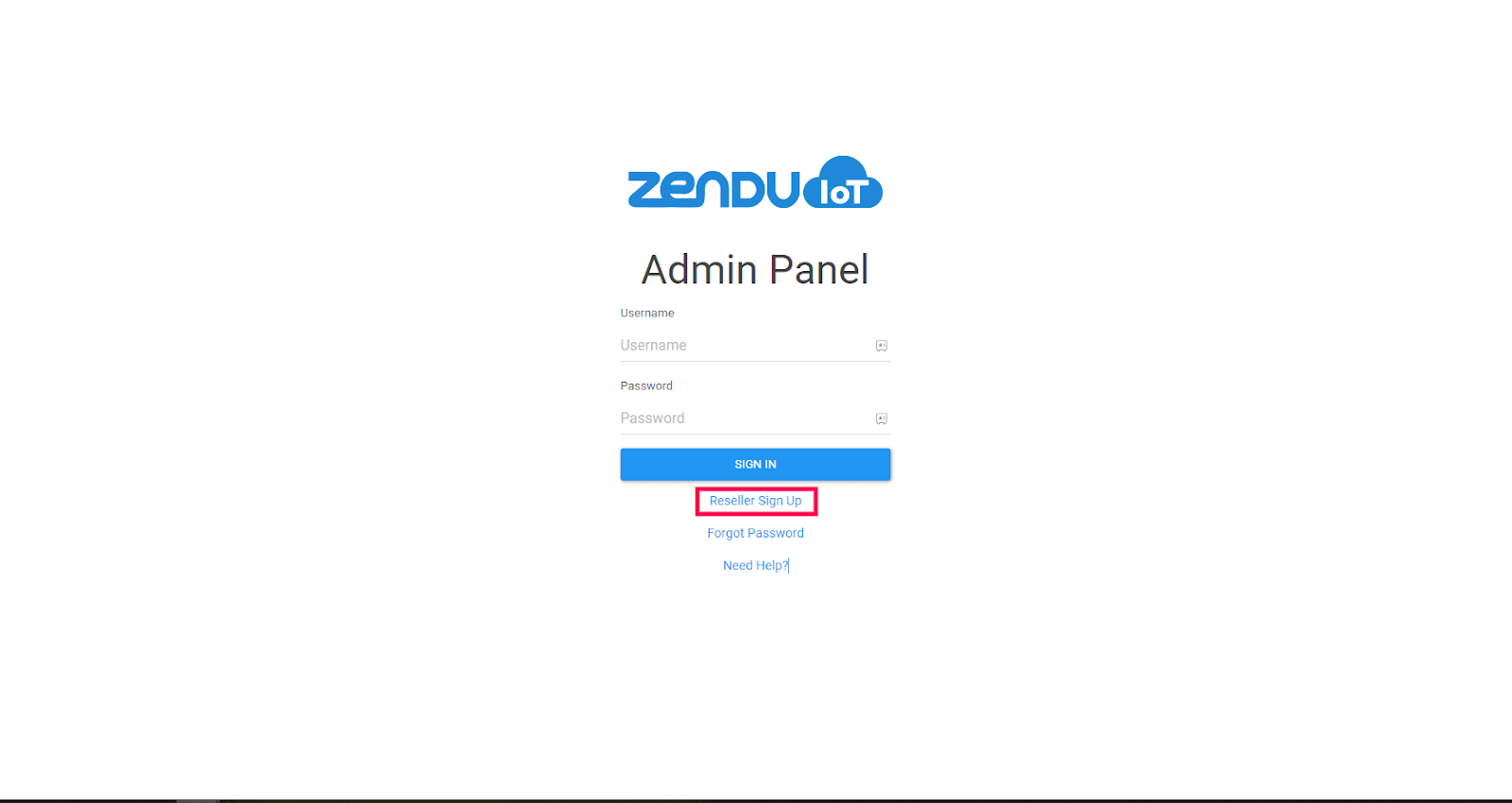
Enter registration details:
Receive email with account credentials after signup
Step 2: Customer Account Setup

Access ZenduONE Admin account with provided credentials
Navigate to companies tab
Create new company account and fill out details
Setup Geotab Database using service account
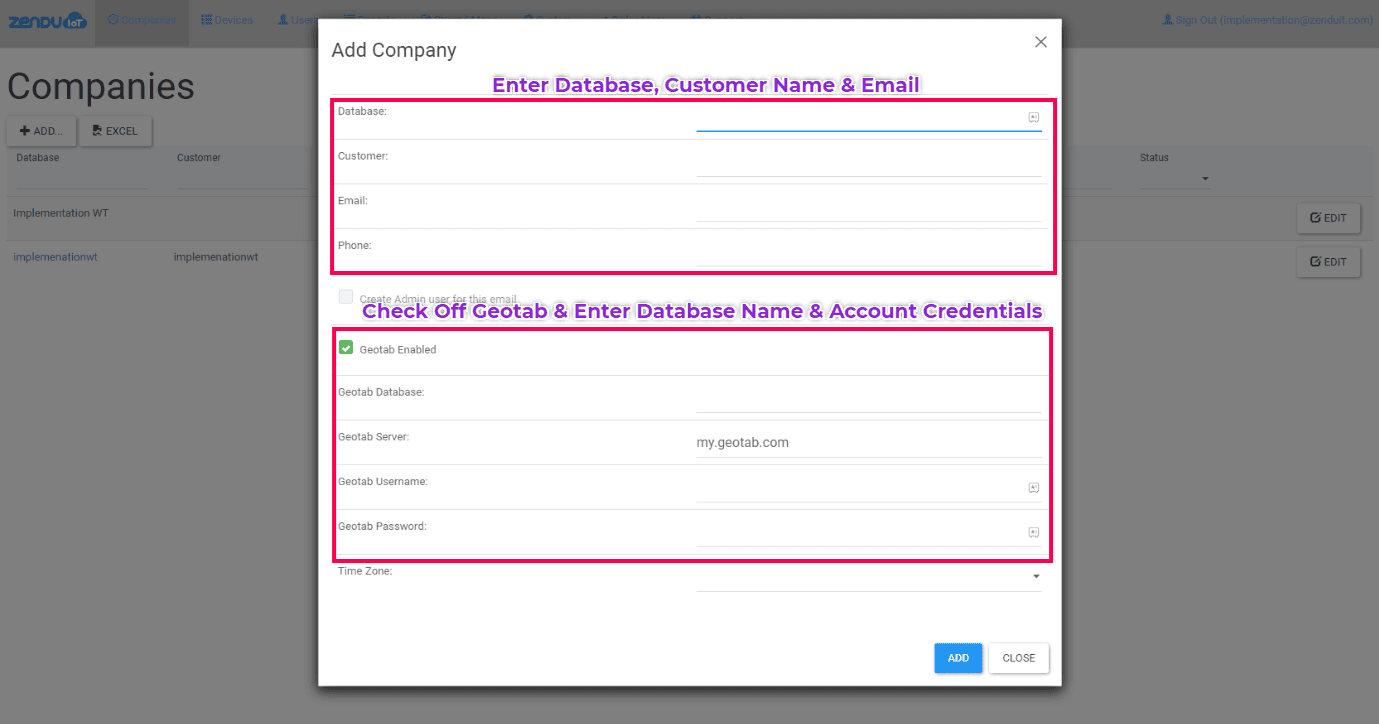
Save configuration
Step 3: Manual Add-In Installation
Log in to MyGeotab and navigate to Administration > System > System Settings
Select Add-Ins tab
Click New Add-In button
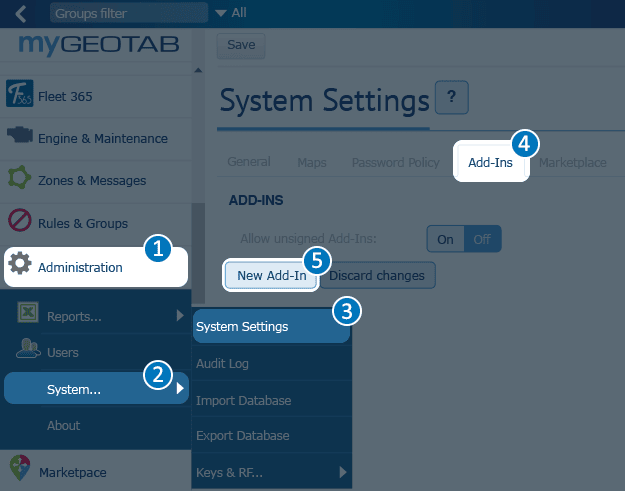
Paste JSON configuration code below into Add-In Configuration window, replacing sample code

Click OK
In System Settings page, toggle "Allow unsigned Add-Ins" to On
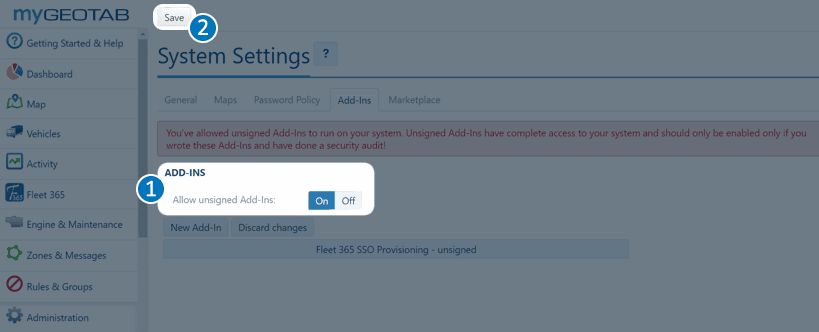
Click Save at top of page
JSON Configuration File
{
   "name": "ZenduWork",
   "supportEmail": "servicedesk@zenduit.com",
   "version": "1.0",
   "items": [
       {
            "url": "https://trax.zenduit.com/trax.html",
            "path": "ZenduCAM",
            "menuName": {
                "en": "ZenduWork"
            },
            "icon": "https://storage.googleapis.com/zenduit-icons/ZenduWork.svg"
       }
   ],
   "isSigned": false
}
Step 4: Enable Beta Version
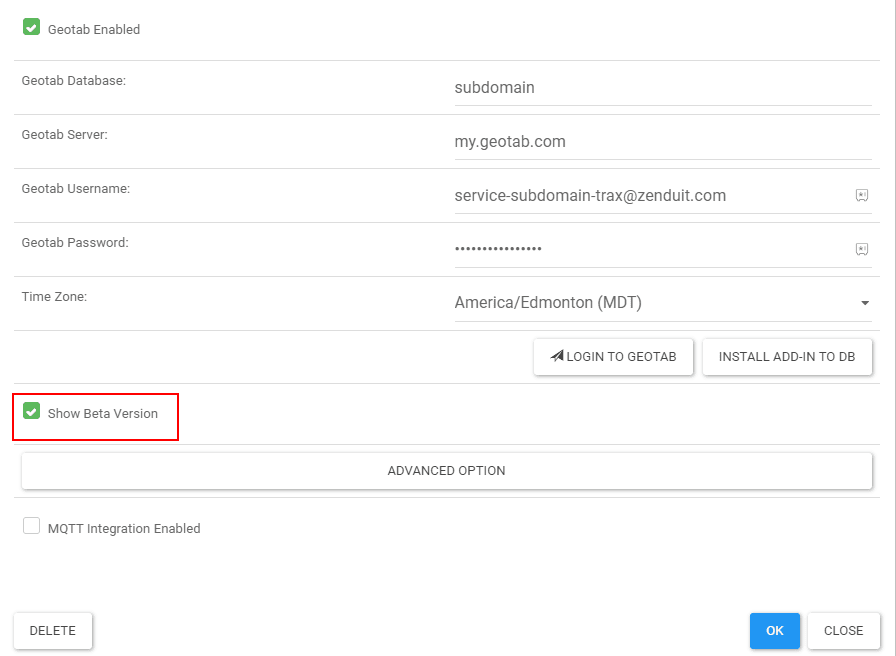
On ZenduONE admin portal, under Companies tab, click "Edit" for the company
Enable "Show Beta Version"
Click "OK"
Access the Add-In
Accessing ZenduOne Work
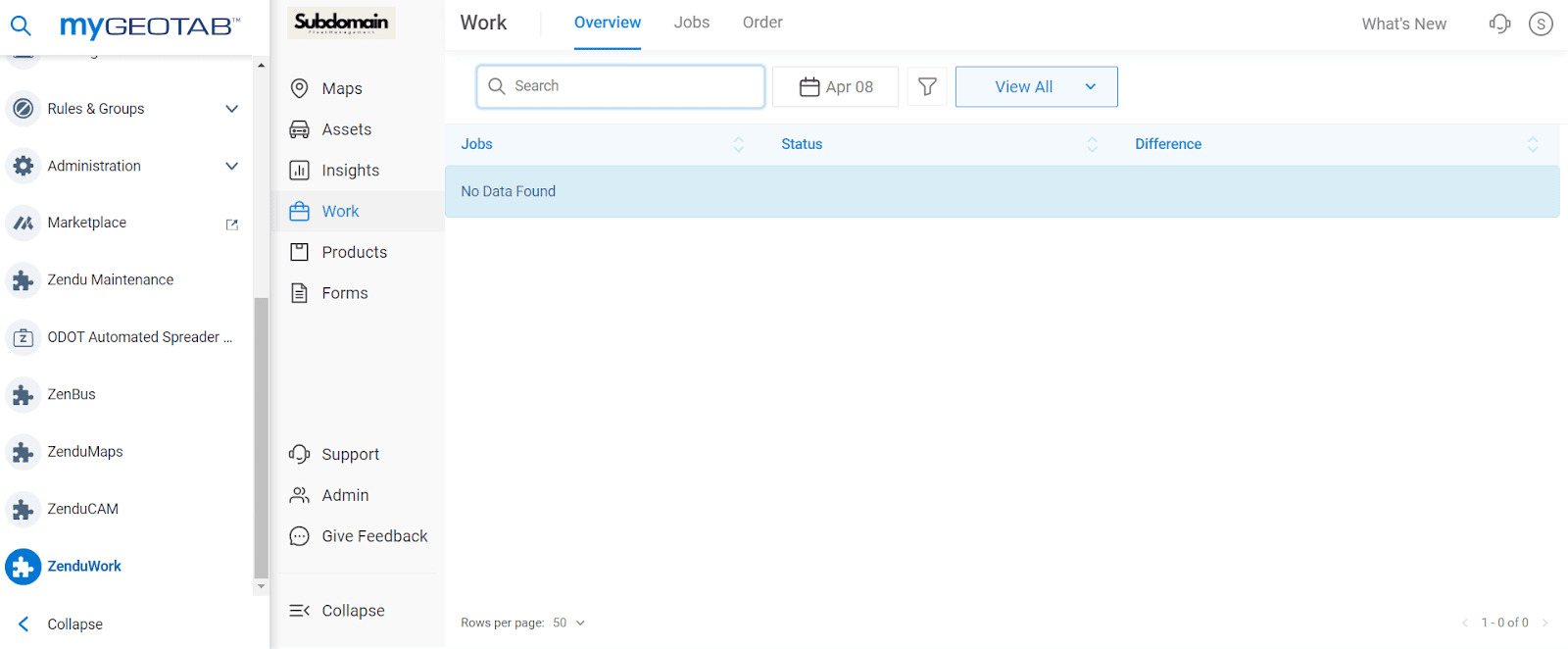
Log in to MyGeotab and enable beta option
Navigate to ZenduOne Work > Work tab from side menu
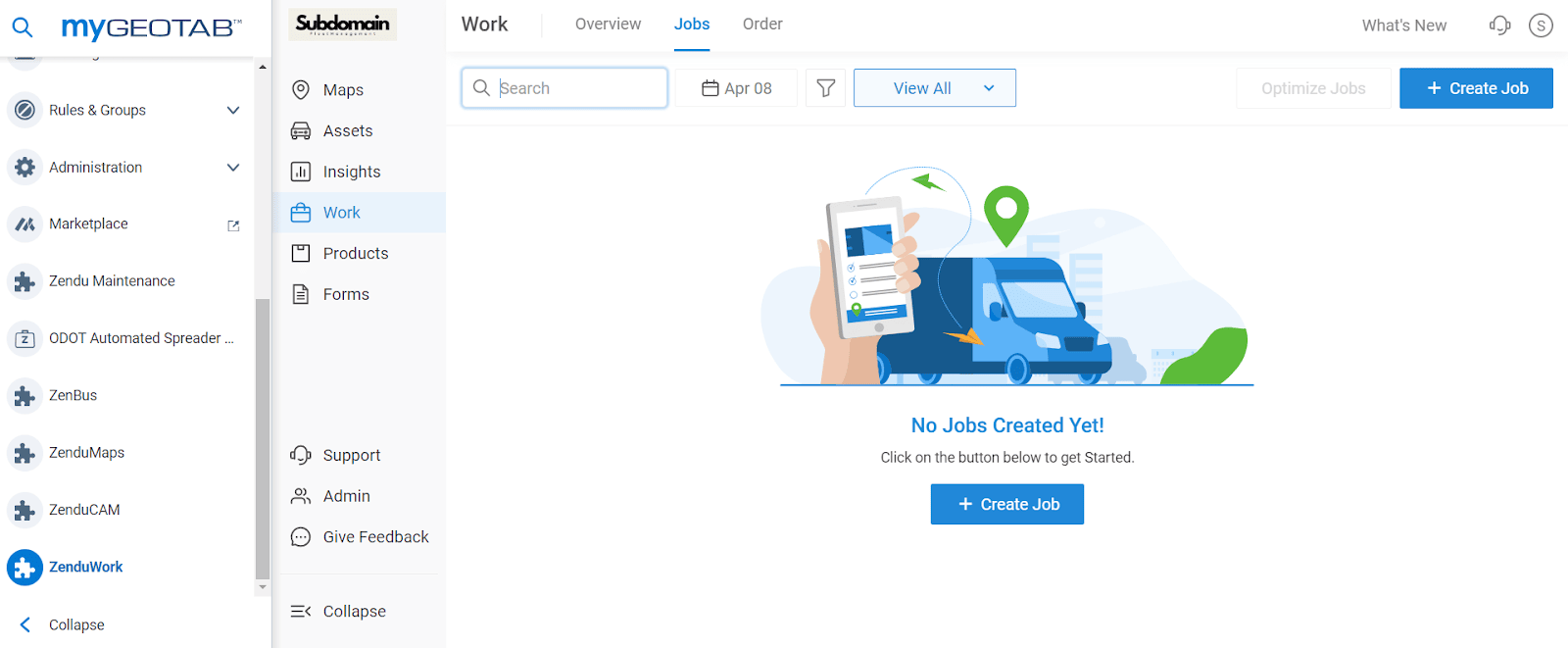
Navigate to Jobs tab from top menu
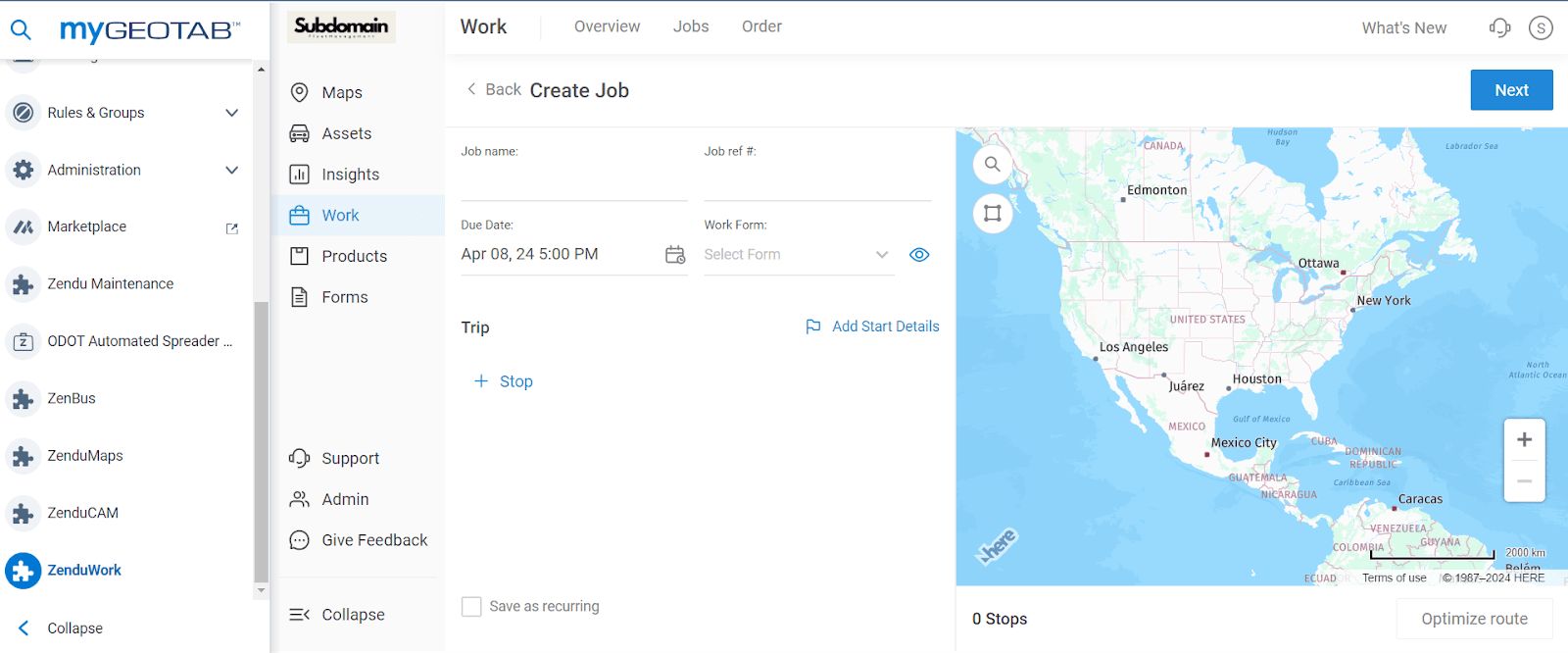
Click "+ Create Job" button to get started
Still need help? Ask the team