Camera Data Limit Reached: How to Optimize Camera Data Usage
Written By Philip Stanoev
Why You're Seeing This Alert
We show the alert when you reach your data limits. If your camera hits its monthly data limit, we notify you to help you stay informed about your usage. This is just a warning, in future updates, video functionalities may be limited, but tracking and on-demand requests will still work..
Your Immediate Options
Option A: Quick Fix - Increase Your Data Plan
Pros: Immediate resolution
Cons: Increases monthly billing
Upgrade your data plan:
Log into your account portal
Go to "Assets" → "Edit Asset → Settings"
Select affected device and choose new plan size
Confirm - takes effect immediately
Your camera resumes full functionality instantly
Your next bill will reflect the prorated change
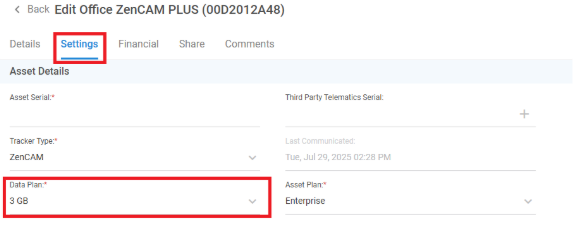
Note: If you are unable to do the above, connect with your solution provider to upgrade your plan.
Option B: Investigate and Optimize
Pros: No additional costs, often solves the issue permanently
Cons: Requires some configuration changes
Continue reading below for optimization steps →
Step 1: Investigate Why This Happened
Check Your Usage Pattern
Ask yourself:
Has someone been viewing live streams frequently?
Did you recently add new users who might be streaming?
Were there unusual events triggering excessive recordings?
Check exceptions page for this current month and compare with previous months to see if there excessive rules being triggered
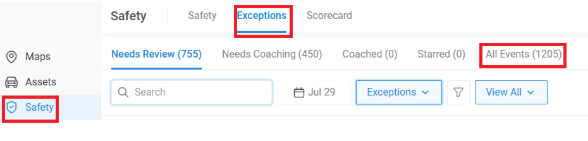
Is this the first time or does it happen monthly?
Determine If This Is Normal for Your Operations
Signs you NEED more data:
Multiple locations require constant live monitoring
Business operations demand 24/7 recording
This happens every month despite optimizations
Signs this is a ONE-OFF issue:
Someone left live stream running accidentally
New employee unfamiliar with efficient monitoring
First time this has happened
Step 2: Take Action Based on Your Findings
If This Is Normal Usage → Upgrade Your Plan
Recommended data plans by use case:
Standard Operations (snapshots, occasional live): 1GB
Active Monitoring (daily live viewing, events): 2-3GB
High Security (frequent streaming, multiple users): 5GB
24/7 Operations (continuous streaming): 10GB+
To upgrade, see "Option A" above or contact your solution provider.
If This Was a One-Off → Optimize Your Settings
Immediate Changes You Can Make:
Switch from Unlimited Streaming to Adaptive/Limited Streaming
Contact your solution provider to help with this update
Turn Off Hotspot if it is enabled
Contact your solution provider to help with this update
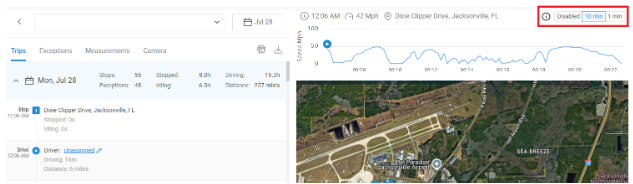
Decrease Hyperlapse Frequency if Set To 1 min Setting
Access asset’s Trips
Select the 10 mins Hyperlapse option and confirm
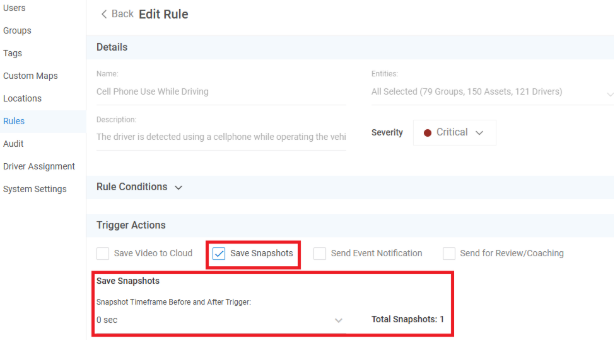
Update Video Rule Actions To Snapshots
Access Your Video Rules In Admin
Change From Video To Snapshot
For Example, Speeding Should Only Be Set For Notifications Without Any Media Action
Decrease Resolution & FPS Of The Device
Contact your solution provider to help with this update
Educate Your Team
Don't leave live streams running in background
Use snapshots for routine checks
Only stream live when actively investigating
Best Practices to Avoid Future Limits
Set Up Smart Monitoring
Use Hyperlapse & Exceptions for general surveillance
Reserve live streaming for active incidents
Create User Guidelines
Train staff on efficient camera use
Assign live stream privileges only to key personnel
Regular Maintenance
Remove unnecessary event triggers
Was this helpful?
Still need help? Ask the team