ZenduBUS Setup on Geotab
Written By Shubham Mishra
Overview
ZenduBUS is a software application that equips school and shuttle administration (managers) with the ability to create Bus Routes, providing real-time notifications and updates on bus location and arrival. The ZenduBUS mobile app is a simple and effective way to deliver school bus data while increasing student safety.
Solution Overview
How does this solution work?
The ZenduBUS application works by communicating with telematic hardware installed on buses. The hardware transmits real-time data of the bus activity/location along with various other information. This information is gathered and relayed into the application for parents and passengers to easily digest.
The ZenduBUS solution has two services: (1) School & (2) Shuttle. Depending on the service purchased, the experience and setup will vary.
Common Questions and Concerns Addressed by ZenduBUS
Passenger/Parent Concerns
"I want to know when the bus is running late or canceled"
"What time will the bus arrive at my stop?"
"Is my child on the bus?"
"Did my child get off the bus? If so, where?"
School/Organization Benefits
"I want to reduce inquiries and calls regarding bus activity"
"I want to monitor bus activity for safety and operational purposes"
"I want to increase school and shuttle bus adoption by providing a positive experience"
ZenduBUS Terminology
Key Definitions
Traveller: The individual who will be on and off-boarding the school bus (i.e., Student)
Guardian: The individual responsible for the "Traveller" and will be monitoring school bus and student activity via the ZenduBUS App
Waypoint: Specific points or locations set by a user to define a customized route that deviates from the automatically generated path. By adding waypoints, users can direct the navigation system to follow a particular course, bypass certain areas, or include specific destinations along the journey, providing greater control over the route taken
Add-in Setup
What is an Add-in?
An add-in, also known as an add-on or plugin, refers to a software component that adds specific features or functionality to an existing application or program. It is designed to extend the capabilities of the host application and provide additional tools or services.
Installation Steps
To add the ZenduBUS Add-in, follow these steps:
Login to your MyGeotab Account
Navigate to System > System Settings
Click the "Add-Ins" tab
Set Allow unverified Add-Ins to "Yes"
Click "+ Add-In"
Copy and paste the following JSON configuration into the text field under the Configuration tab:
{
   "name": "ZenBUS",
   "supportEmail": "support@zenduit.com",
   "version": "1.0.0",
   "items": [
         {
             "url": "https://zendu-bus-eta.firebaseapp.com/assets/geotab-addin.html",
             "path": "",
             "menuName": {
                   "en": "ZenBUS",
                   "fr": "ZenBUS"
             },
             "icon": "https://storage.googleapis.com/zenduit-icons/BusETA.svg"
         }
   ],
   "isSigned": false
}
Click "OK" to add your add-in to the list
Click "Save" on the top left to finish the installation
For additional information: https://community.geotab.com/s/article/How-to-install-add-an-add-in-I-have-developed-into-a-MyGeotab-database?language=en_US
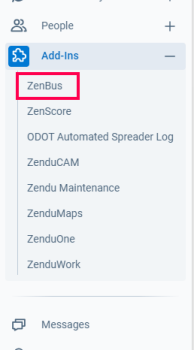
The Add-in should now be installed and you can find the ZenduBUS application on the side menu bar on your MyGeotab account.
System Setup - School Service
For safety and security reasons, Travellers and Guardians must be registered to ZenduBUS by the school administration via the Admin portal. There is no option for individuals to self-register. Only registered users setup by the school will be able to view the data on ZenduBUS. This means that the school must create the user accounts for both the Guardians and Travellers with the appropriate assigned pairing.
Setup Order
Please setup in the following order:
Route Configuration
Guardian Registration
Traveller Registration
Route Configuration
Navigate to the "Routes" tab
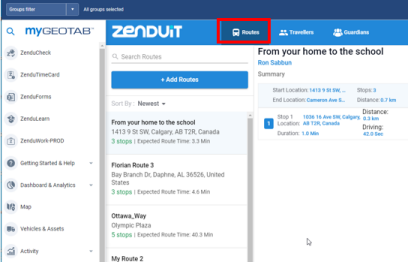
Select "+ Add Routes"
Populate the Route fields and Save
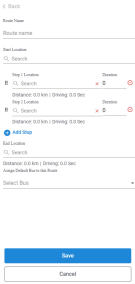
This route has now been saved and can be assigned to Travellers. Alternatively, the routes can be configured and setup using APIs. Please contact GoZen Service for support.
Guardian Registration
Guardians can be added either individually or through Excel file import.
Importing Guardians via Excel
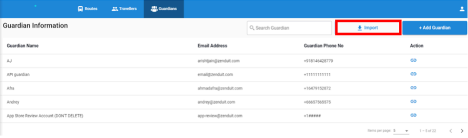
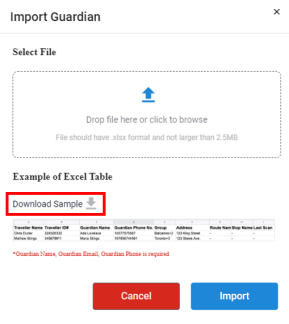
When adding many Guardians, it will be very tedious to individually enter the information. Therefore, for bulk adding we recommend selecting on the "Import" tab and downloading the Excel template. Once the template is downloaded, you can go ahead and populate the Excel sheet with the Guardian data and then upload the populated Excel file. This will allow the system to automatically create the Guardian users without hassle.
Adding Guardians Individually
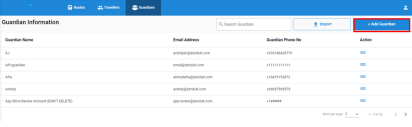
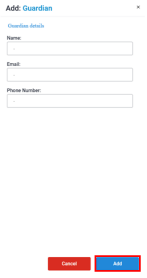
For the addition of a single Guardian, select on "+Add Guardian", populate the fields and select "Add" to save.
Traveller Registration
Travellers can be added either individually or through Excel file import.
Importing Travellers via Excel
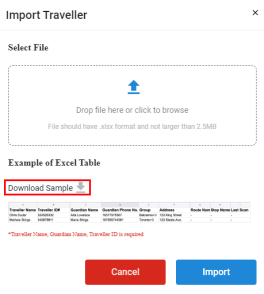
When adding many Travellers, it will be very tedious to individually enter the information. Therefore, for bulk adding we recommend selecting on the "Import" tab and downloading the Excel template. Once the template is downloaded, you can go ahead and populate the Excel sheet with the Traveller data and then upload the populated Excel file. This will allow the system to automatically create the Traveller users without hassle.

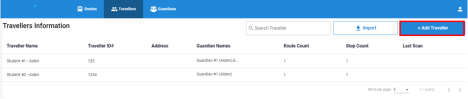
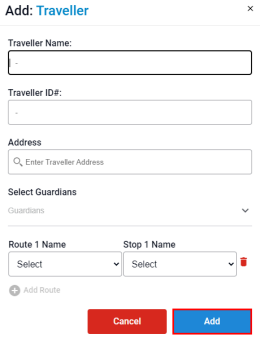
Adding Travellers Individually
For the addition of a single Traveller, select on "+Add Traveller", populate the fields and select "Add" to save. A traveller can only have one stop per route.
System Setup - Shuttle Service
Route Configuration
Navigate to the "Routes" tab
Select "+ Add Routes"
Populate the Route fields and Save
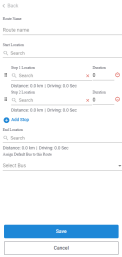
This route has now been saved and can be accessed and viewed by passengers. Alternatively, the routes can be configured and setup using APIs. Please contact GoZen Service for support.
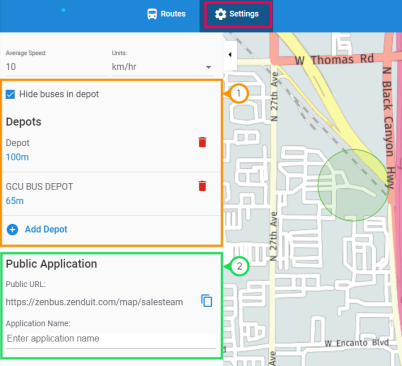
Shuttle Settings
The shuttle service includes additional configuration options:
Depot Configuration
This is where you have the option to establish a depot. It could be a designated facility or location where buses are stored, maintained, and dispatched. To uphold privacy and reduce passenger confusion, you can implement a geofence that conceals buses from public view once they enter the specified radius. This ensures that buses remain hidden while within the depot.
Public Application
The "Public Application" setting allows you to access the URL leading to a public web view of your routes. Additionally, you can assign a specific name to the portal, which will be visible on the public view.
Accessing & Viewing ZenduBUS
Via the ZenduBUS Mobile Application
Both ZenduBUS School and Shuttle services are viewable by our dedicated mobile app.
Download Links:
iOS Store Download (Apple Devices): https://apps.apple.com/ca/app/zenbus/id1576474079
Google Play Store Download (Android Devices):
https://play.google.com/store/apps/details?id=com.zenduit.eta&hl=en&pli=1
Via the ZenduBUS Web Application
Both ZenduBUS School and Shuttle services are viewable by our dedicated web app.
Web App Link: https://zenbus.zenduit.com/select-service
Still need help? Ask the team