How to Set Up and Verify Your Google Business Profile
Written By GTM Tribe / Marketing
Why This Matters
When a local construction owner, plumbing business operator, or logistics manager realizes they need to track their vehicles, they don’t usually start by looking for global software enterprises. They open Google or Google Maps and type "fleet tracking near me" or "GPS trackers for commercial vans [City Name]".
If your Google Business Profile isn't optimized, you are handing high-intent, inbound B2B buyers directly to your local competitors. This guide walks you through the exact steps to optimize your profile, dominate map rankings, and capture local fleet leads for free.
Watch the video below to understand exactly how this workflow works, and follow the step-by-step guide to implement it for your own business.
Step 1: Weaponize Your Business Title (Without Getting Suspended)
Google's algorithm places massive weight on the words inside your actual business title. However, simply stuffing keywords like "Best Fleet Tracking Solutions" can get your account flagged. You must balance your official brand name with your core local offer.
Bad Example: Apex Telematics (Too vague; doesn't tell Google or searchers what you actually sell).
Illegal Keyword Stuffing: Apex Telematics - Cheap Fleet Tracking GPS Camera Systems Near Me (High risk of account suspension).
The Sweet Spot:
[Your Brand Name] - Fleet Tracking & Dashcams(e.g., Apex Telematics - Fleet Tracking & Dashcams).
⚠️ Important: Ensure this exact name match is reflected on your website's footer to pass Google's automated verification checks.
Step 2: Select the Exact Right Categories
Google relies heavily on your primary and secondary business categories to decide when to display your map listing. If you select the wrong category, you will show up for consumers instead of commercial buyers.
Primary Category (Set to this):
Telecommunications Service ProviderorSecurity System Supplier(depending on whether your focus is on SaaS data or hardware tracking/dashcams).Secondary Categories (Add all that apply):
Electronics Store (Helps capture hardware searches)
Software Company (Signals the fleet management dashboard side)
Business to Business Service (Crucial for filtering out residential consumer queries)
Step 3: Craft a Keyword-Rich Business Description
You have 750 characters to explain what you do. Do not waste this space with generic corporate history. Use the first 250 characters (the part visible before users click "More") to front-load high-intent local search terms.
Copy, edit, and paste this optimized framework:
"[Your Company Name] is [Your City]'s trusted local partner for commercial fleet tracking, asset management, and AI dashcam solutions. We help local construction companies, HVAC businesses, and logistics operators reduce fuel costs, prevent vehicle theft, and protect drivers with real-time GPS tracking and smart dashcams. Serving [City Name], [Surrounding Suburb 1], and [Surrounding Suburb 2]. Contact us today for a live hardware demo right at your local office."
Step 4: Use the "Products" Tab to Display Hardware
Fleet managers want to see what they are buying. Google allows you to build a visual digital storefront directly within your map listing using the Products feature.
Set up individual product cards for your key solutions using these settings:
Product Name:
ZenTRACK Asset Tracker| Category: Fleet Tracking HardwareProduct Name:
ZenCAM AI Dashcam| Category: Video TelematicsProduct Description: Focus completely on local problems. “Commercial-grade vehicle tracker featuring real-time location pings, unbilled engine runtime alerts, and geofencing for local construction sites.”
Button: Set the Call-to-Action link directly to your website’s specific product landing page.
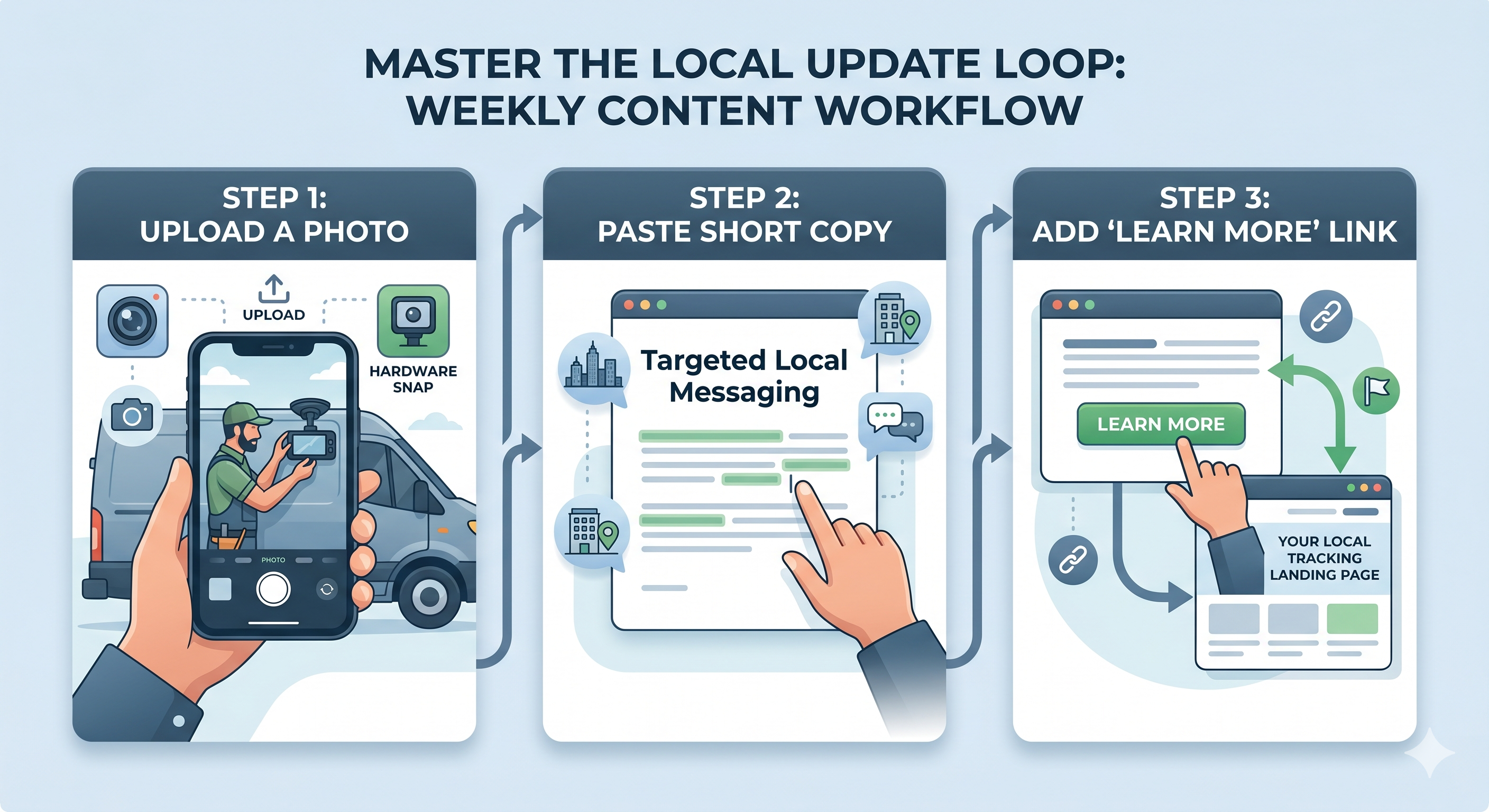
Step 5: Master the Local Update Loop (The Secret to Staying Relevant)
Google rewards active profiles. If your profile sits stagnant for six months, Google assumes your business is less active and drops your ranking.
Use the "Add Update" (formerly Google Posts) feature once a week to signal activity to the algorithm. You don't need to reinvent the wheel, repurpose the content you created using your Industry-Targeted AI Prompt Bank:
Step 6: The "Review Anchor" Strategy
Getting 5-star reviews is great, but getting 5-star reviews containing keywords is an algorithmic superpower. When Google searches for reviews containing the phrase "fleet tracking" to match a user's query, your profile will skyrocket.
When sending your review link to a satisfied local client, don't just say, "Please leave us a review." Instead, guide their wording gently:
"Hey [Client Name], glad we could get your fleet visibility sorted! If you have two minutes, could you leave us a quick review on Google? If you could mention [Your City Name] and how the fleet tracking/dashcams are working out for your trucks, it would incredibly help our local visibility!"
Was this helpful?
Still need help? Ask the team