Manage ZenBEACON with ZenduONE
Created by Weinna Z., Last updated by Nathan T. August 20,2025
Written By Philip Stanoev
This guide covers efficient management and monitoring of ZenBEACONs after completing setup and configuration on both beacon and gateway components. ZenduONE provides comprehensive visibility and control for fleet and asset management through integrated beacon tracking, exception monitoring, and real-time measurement analysis.
System Requirements
For beacons to appear in ZenduONE, the following requirements must be met:
Beacon Configuration: Beacon must be powered on and properly configured
Beacon Uploaded to Database: Beacon must be uploaded/added to the database
Gateway Setup: Gateway must be enabled for Bluetooth connectivity (ZenCAM PLUS, Geotab IOX Bluetooth, ZenTRACK, etc.)
Proximity Requirements: Beacon must be within effective range of configured gateway
If any requirements are not met, refer to applicable setup documentation:
Beacon Tracking in Maps Overview
Map Display Functionality
Successfully added beacons appear in Maps > Overview with automatic connectivity to properly configured gateways that have been added as an asset on the database. Connected beacons will display in the dropdown of the gateway it is connected to.
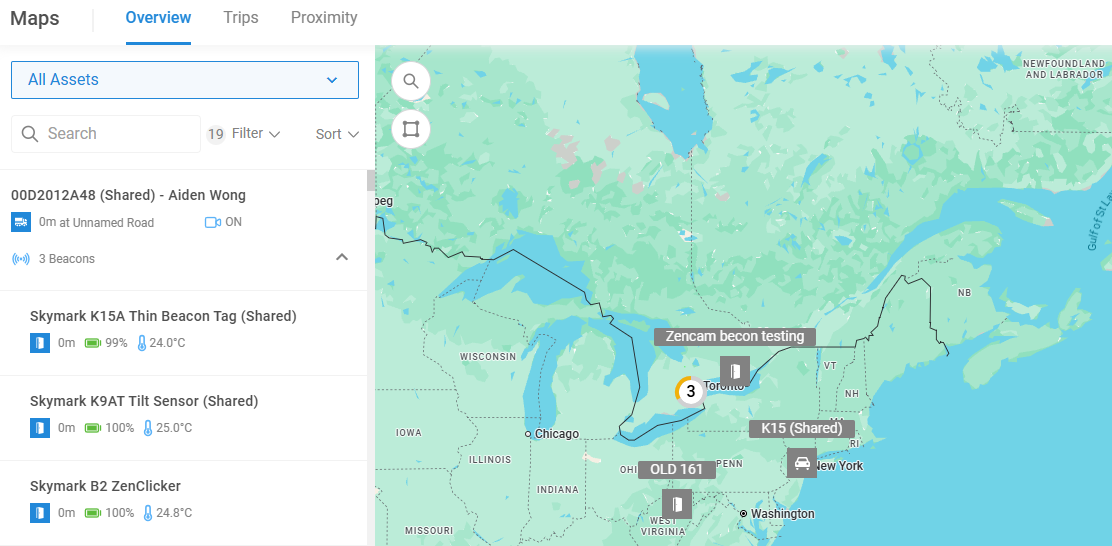
Here, you can see how many beacons are attached to that particular gateway and any details of the beacons such as when it last connected to the gateway, the battery level, and any sensor measurements that apply to that beacon. Beacon icons indicate whether the beacon has triggered an exception based on rules set (more on this later).
Location Tracking
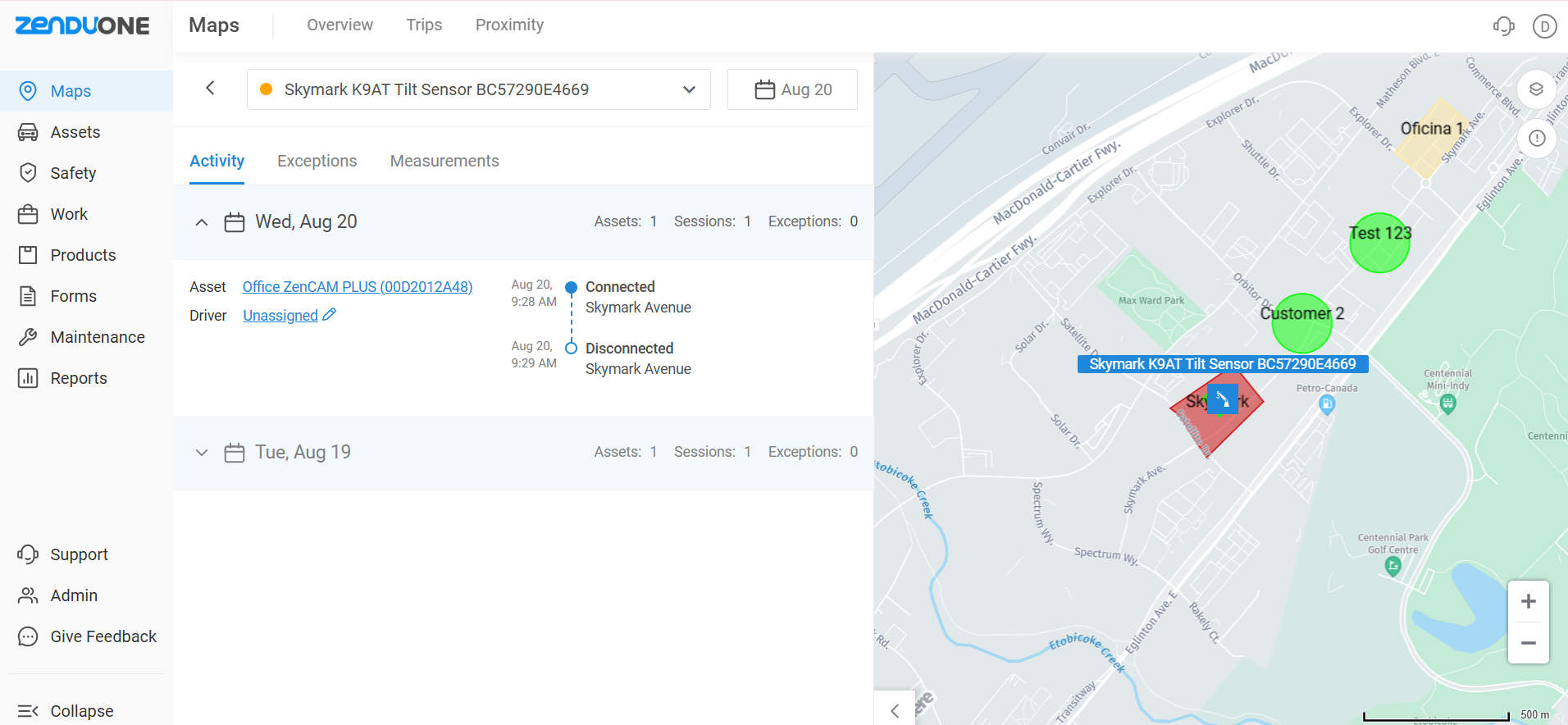
Last Known Location Display: Click beacon from assets list in Maps > Overview to view current or last known location. Beacon location data derives from the last connected gateway position since beacons do not contain integrated GPS functionality.
Location History: Click beacon from assets list in Maps > Overview to view current or last known location. Then on the right, access the Activity tab to see the location history for the specified date range. For each trip, the time and address of connection/disconnection, exceptions made, gateway connected to, and driver of the trip are specified.
Exception and Rule Configuration
Rule Setup Process
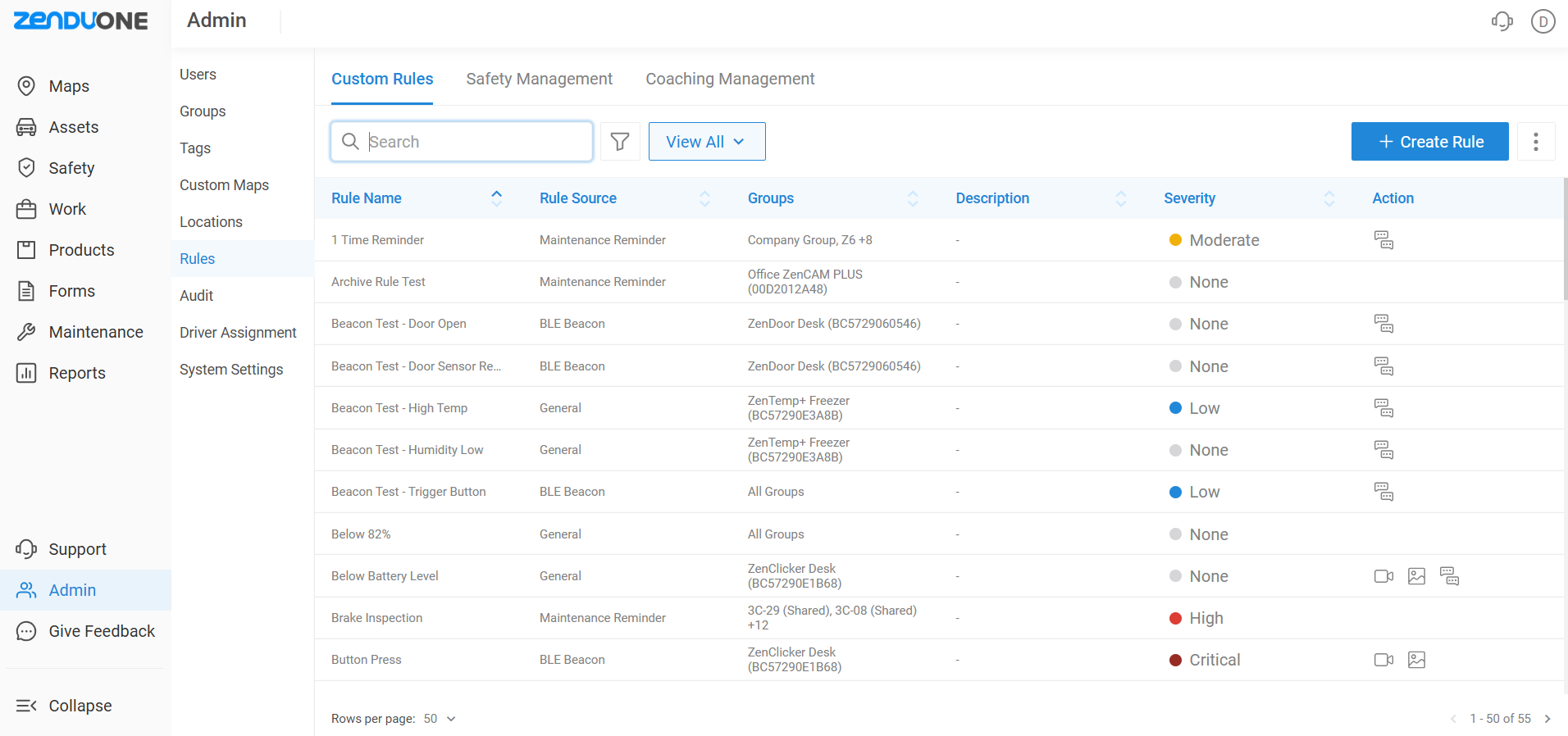
Configure beacon rules through Admin > Rules > Create Rule. Rules can help us leverage custom triggers to automate actions based on beacon data. These rules can be applied to a group of beacons or individual beacons.
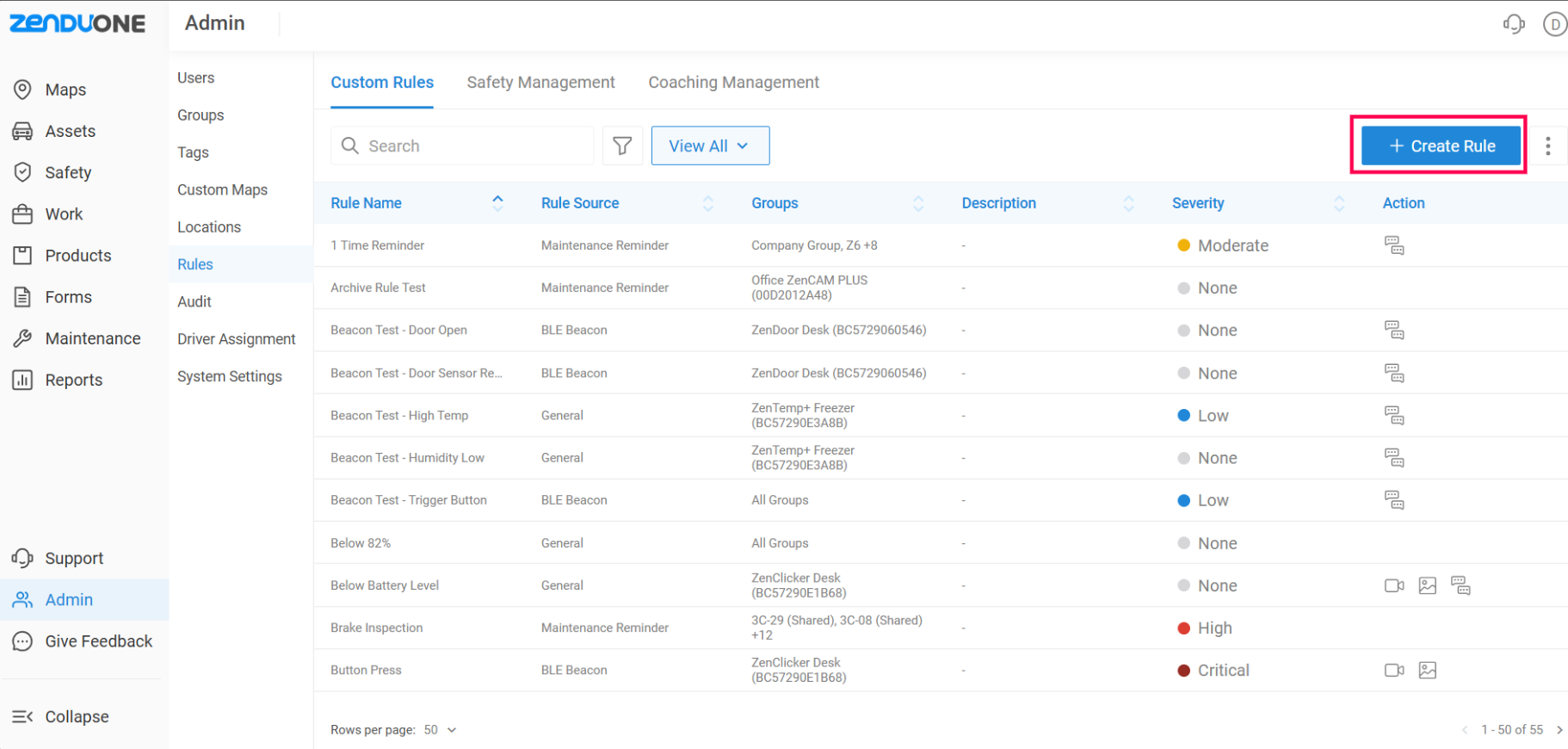
Let’s create our first rule together.
Begin by clicking on the Create Rule button in the top right corner
Fill out the fields under Details
Name of your rule
Entities (ZenBEACONS) that this rule applies to
Description of your rule
Severity of your rule
Fill out the fields under Rule Conditions
Trigger Range of your rule
Rule Source for your rule. For ZenBEACONS, here are the ones that might apply to your ZenBEACONS:
Specify the Trigger Actions
Press Save in the top right
For comprehensive guidance on creating rules, reference:
General Category Rule Types:
Offline duration thresholds
Battery level minimums
Temperature monitoring
Humidity tracking
Location enter/exit/inside parameters
BLE Beacon Category Rule Types:
Door open/close detection
Door sensor removal alerts
Trigger button activation
Motion detection monitoring
Model-Specific Functionality: Certain rule types apply only to specific beacon models (example: ZenDoor exclusively supports door open/close and door sensor removal rules).
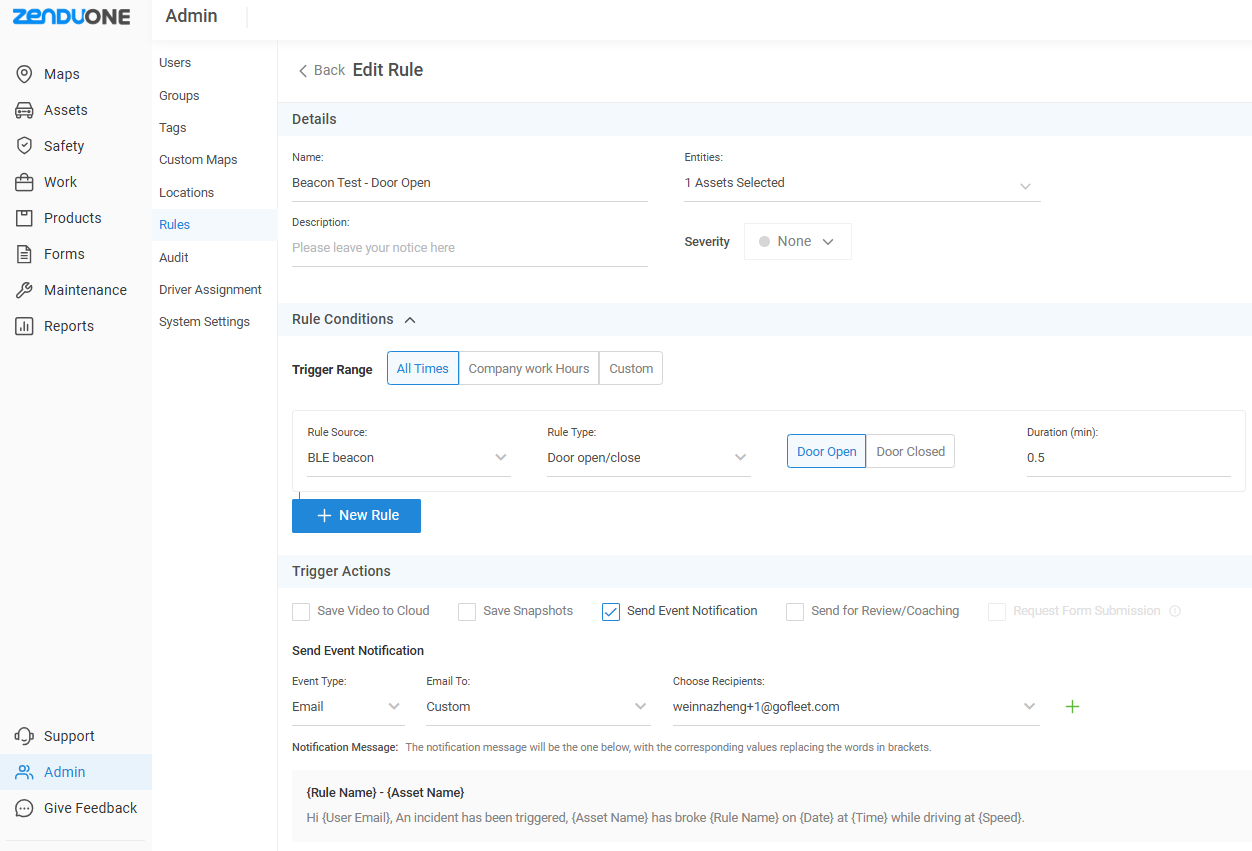
Rule Configuration Example
Door monitoring rule configuration for 30-second open duration triggers email notifications and exception creation for comprehensive monitoring and response.
Exception Monitoring
Exception Access and Review
Access beacon details through Maps > Overview with default display showing Exceptions tab containing comprehensive rule trigger logs.
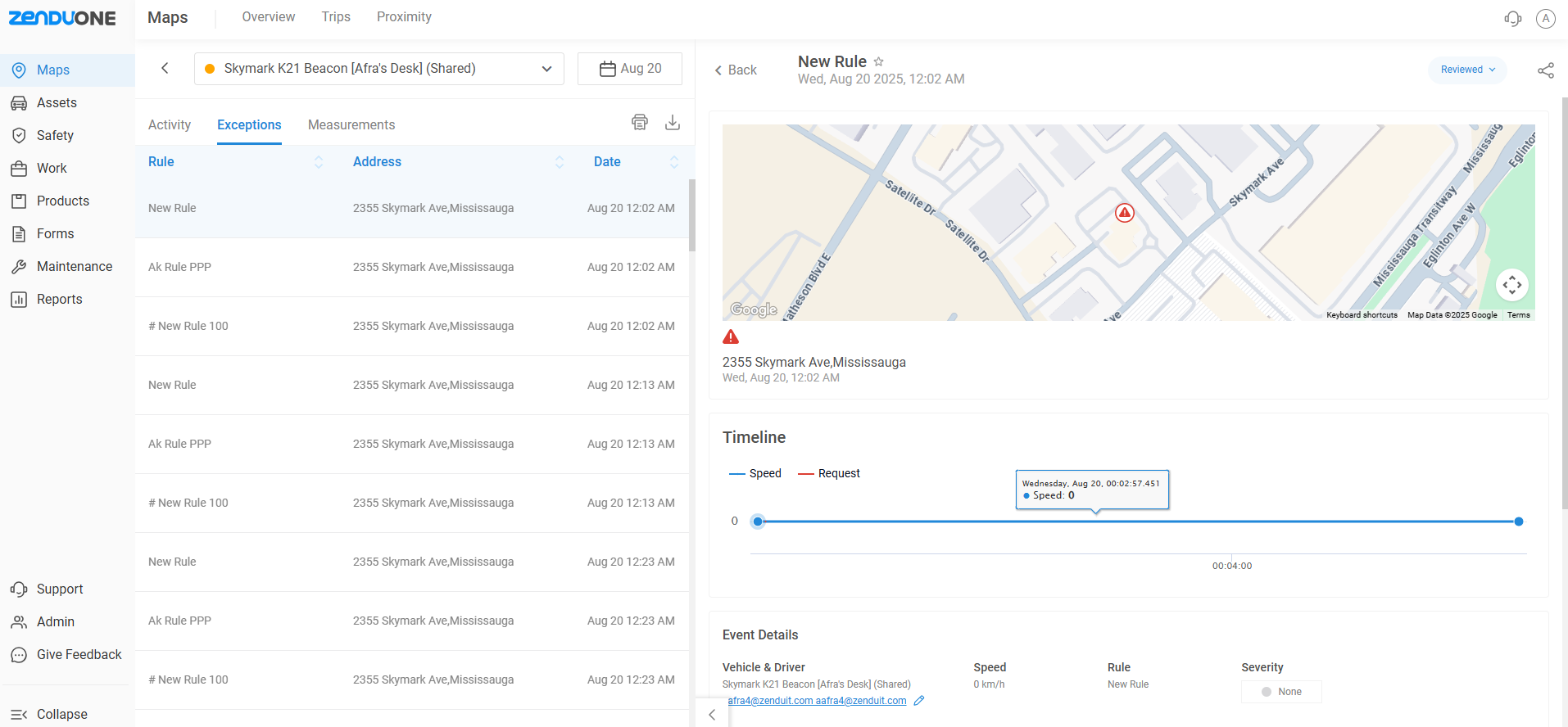
Exception Information Display:
Rule name that triggered exception
Associated gateway at exception time (identified by serial number)
Exception date and timestamp
Related measurement data
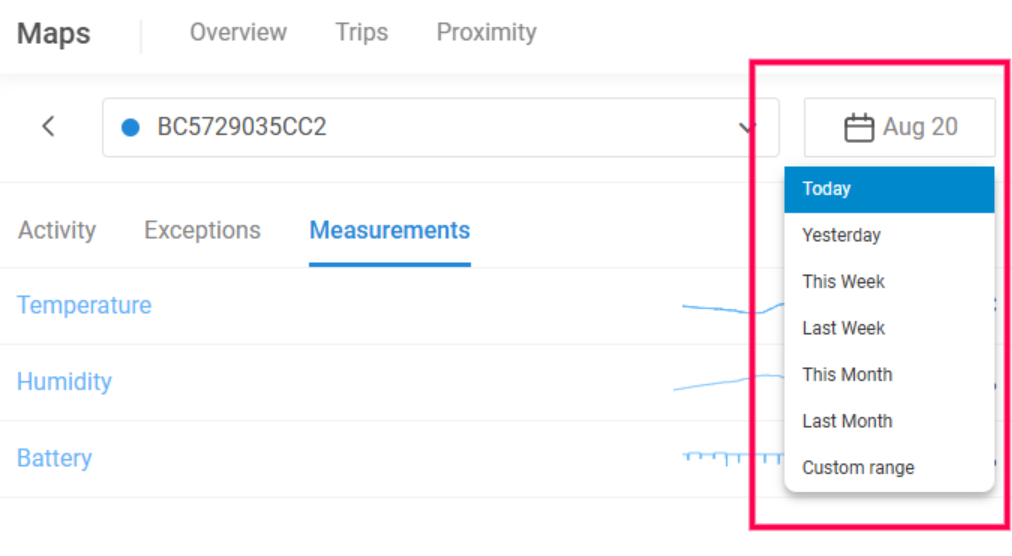
Date Range Flexibility: Modify date range selector for historical exception review across different time periods.
Measurement Analysis
You can access your beacon’s measurements using the Measurements tab. When you first click on the Measurements tab, you’ll see the available measurement data available for the beacon.
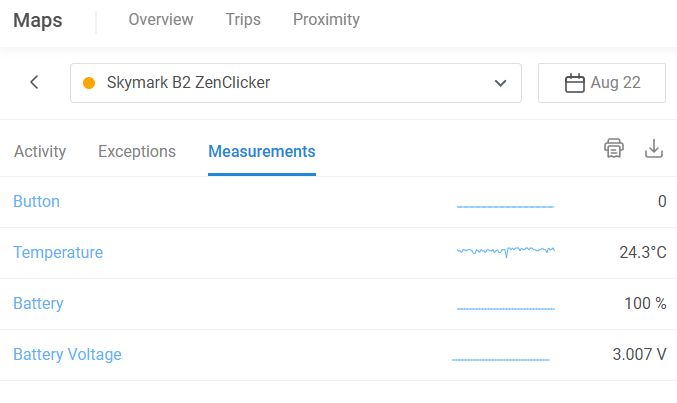
Clicking on one of these fields will reveal the chart as well as table data for the beacon measurement. You can see the highest and lowest data recording for the specified time interval on the chart. You can also scroll to see the tabulated data. In the top right corner of the side panel, you can print the chart and tabulated data or download it as an excel.
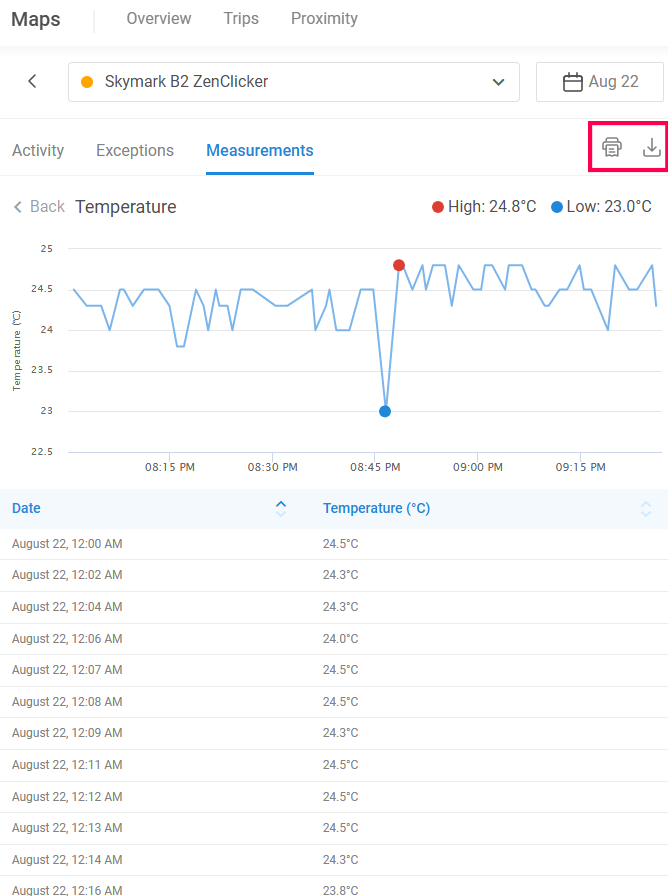
Here are the available measurements for each ZenBEACON:
Was this helpful?
Still need help? Ask the team